
How to Change Document Properties in Word
This guide will show you how to change document properties in Word. The document properties in Word, also known as metadata, are details that describe or identify a file. They include information such as title, author name, subject, and keywords that identify the document’s topic or contents.
Table of Contents:
» How to View Document Properties in Word
» How to Change Document Properties in Word
» How to Use Word Document Properties for Advanced Search
» Shortcut Keys
» Conclusion
How to View Document Properties in Word?
Follow the below steps to view the document properties in Microsoft Word:
- Open your Word document for which you want to view the properties.
- Go to File menu at the top left and click Info tab.

- Click Show All Properties, to view complete properties in Word document.
- Click Show Fewer Properties, to view the limited document properties as shown in the previous image.

How to Change Document Properties in Word?
You can add, modify, or remove the title, tag, category and author easily in the Word properties.
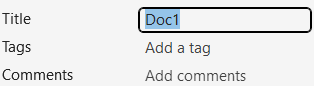
Add Title, Tags and Comments
- To add the title, click right to it and type the title. To remove the title, just select the title and delete it.
- Similarly, you can add or remove tags and comments. You can add multiple tags by separating them with comma and space.
- The tags or keywords can be used to quickly locate the Microsoft Word documents using the search function in Windows or within Office applications.
Add an Author
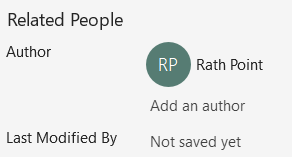
- Under Properties, go to the Related People section.
- Under Author, there is an option to Add an author, click on it to update the author.
- Right click on the existing author to copy, remove person, edit property, and open contact card.
- The Last Modified By will show the author’s name who recently updated and saved the Word document.
How to Update Advanced Properties in Word document?
You can also add much more information to the Word document properties under advanced settings. To add or modify advanced properties in Word document:
- Click the Properties down arrow.
- Select Advanced Properties option.

- In Summary tab of Advance Properties dialog box, you can update the title, subject, author, manager, company, category, keywords / tags, comments, and hyperlink base.
- You have option to save thumbnails for all Word documents.

- Go to the Statistics tab to find below information:
- Date created, modified, accessed and printed.
- Last saved by, revision number and total ending line.
- Pages, paragraphs, lines, words, characters and characters with space.
- These statistics are useful for understanding the scope and structure of your document.

- Navigate to the Custom tab, to update the name, type, value, and other properties.

How to Use Word Document Properties for Advanced Search?
Utilizing document properties can enhance your ability to search and organize files. Follow the below steps to use the document properties for advance search.
In Windows File Explorer:
- Open File Explorer and navigate to the folder containing your documents.
- In the search box, type a property filter (e.g., author:”Rath Point” or tag:”rathpoint”).
- Press Enter to view files matching the criteria.
In Microsoft Word:
- Use the Open dialog box to search for documents.
- In the search box, enter property filters as needed (e.g., author:”Rath Point” or “*Rath Point*”).
Shortcut Keys
Conclusion
The document properties in Microsoft Word are useful tools that help you keep your files organized, easy to find, and more professional. You can add information like the title, author name, and keywords to describe your document better. These details make it quicker to search for your files later and help others understand what your document is about. Plus, checking and removing hidden data helps protect your privacy before you share the file. Using document properties is a simple way to improve how you manage and share your Word documents.
Learn More
» How to Create a Word Document?
» How to Create a Template in Word?
» How to Create a Pivot Table in Excel?
» How to create Relationship in Power Pivot?
» How to create a Relationship between Tables in Excel?
» How to use Advanced Filter in Excel?
» How to use What-If Analysis in Excel?
» How to use Data Validation in Excel?
Word Tutorial Part 1 (Basic)
» Word Home
» Word Basics
» Word Document
» Word Template
» Word Properties
» Word Password
Word Tutorial Part 2 (Format)
» Word Clipboard
» Word Font
» Word Color
» Word Alignment
» Word Border
» Word Bullets and Numbering
» Word Indents and Spacing
» Word Line and Page Breaks
Word Tutorial Part 3 (Insert)
» Word Cover Page
» Word Tables
» Word Illustrations
» Word Links
» Word Comments
» Word Header and Footer
» Word Text Box
» Word WordArt
» Word Quick Parts
» Word Drop Cap
» Word Date and Time
» Word Objects
» Word Equation
» Word Symbol
Word Tutorial Part 4 (Find)
» Word Find and Replace
» Word Go To
» Word Select Objects
» Word Selection Pane
Word Tutorial Part 5 (Design)
» Word Themes
» Word Watermark
» Word Page Color
» Word Page Border
Word Tutorial Part 6 (Layout)
» Word Margin
» Word Orientation
» Word Size
» Word Columns
» Word Breaks
» Word Line Numbers
» Word Hyphenation
» Word Position
» Word Wrap Text
» Word Bring Forward
» Word Send Backward
» Word Group
» Word Rotate
Word Tutorial Part 7 (References)
» Word Table of Contents
» Word Footnotes
» Word Citation and Bibliography
» Word Captions
» Word Index
» Word Table of Authorities
Word Tutorial Part 8 (Mailings)
» Word Envelopes
» Word Labels
» Word Start Mail Merge
» Word Write and Insert Fields
» Word Preview Results
» Word Finish and Merge
Word Tutorial Part 9 (Review)
» Word Editor
» Word Spelling and Grammer
» Word Thesaurus
» Word Count
» Word Read Aloud
» Word Check Accessibility
» Word Translate
» Word Language
» Word Comments
» Word Share
» Word Track Changes
» Word Compare
» Word Ink
Word Tutorial Part 10 (View)
» Word Views
» Word Immersive
» Word Show
» Word Zoom
» Word Window
» Word Macros
Word Tutorial Part 11 (Other)
» Word Add-ins
» Word Shortcuts
0 Comments