
How to use Clipboard in Word
This guide will show you how to use Clipboard in Word. The Clipboard in Microsoft Word helps you work faster by letting you store and move text, pictures, and other items easily. It acts like a temporary storage space where you can keep multiple things you want to copy or cut. This makes editing your documents much simpler because you can quickly paste what you need without having to type or add it again. The Clipboard is a handy tool that helps you organize and manage your content smoothly while creating your Word documents.
Table of Contents:
» What is Clipboard in Word
» How to Open the Clipboard in Word
» How to Use the Clipboard in Word
» What are the Word Clipboard Options
» What are the Paste Options in Word Clipboard
» How to use Paste Special in Word Clipboard
» How to Change Clipboard Settings in Word
» FAQs
» Shortcut Keys
» Conclusion
📝 What is Clipboard in Word?
The clipboard in Word, also referred to as the Office Clipboard, is a powerful built-in feature that lets you copy, store, and manage up to 24 items at once. Unlike your system clipboard (which holds only one item), this feature allows you to copy multiple items and access them any time while working on your Word document or across other Office apps.
Best for:
Copy-pasting large blocks of content.
Collecting items for later use.
Working across Word, Excel, PowerPoint, and Outlook.
🔍 How to Open the Clipboard in Word?
Follow the below steps to open or view Clipboard pane in Microsoft Word:
On Windows:
- Open Microsoft Word document.
- Go to the Home tab on the ribbon
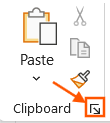
- In the Clipboard group, click the small diagonal arrow to launch the Clipboard pane.
On Mac:
- The Office Clipboard is not fully supported on macOS.
- Go to Home tab on the ribbon and you can find – cut, copy, paste, paste special, and other paste options.
🗒️ How to Use the Clipboard in Word?
Copy Multiple Items:
- Each time you copy or cut; it is automatically saved to the Clipboard.
- You can copy text, tables, and images etc.
Paste or Paste All:
- Keep your curser where you want to paste.
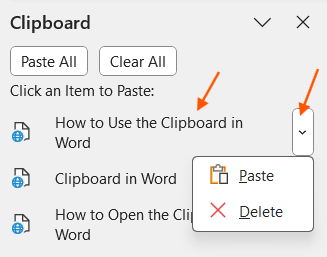
- From the Clipboard, click the item to be pasted. Or click the drop-down arrow right to it and select Paste.
- Click the Paste All button in the Clipboard pane to paste all items stored in the Office Clipboard (up to 24).
Delete or Clear All:
Delete individual entries using the dropdown arrow next to each item.
Use Clear All to remove all stored items.
⚙️ What are the Word Clipboard Options?
You can find the below options under the Clipboard pane of Microsoft Word:
- Show Office Clipboard Automatically: to automatically display Word Clipboard when copying the items.
- Show Office Clipboard When CTRL+C Pressed Twice: to automatically display the Word Clipboard when you press CTRL+C two times.
- Collect Without Showing Office Clipboard: to automatically copy items to the Word Clipboard without displaying the task pane.
- Show Office Clipboard Icon on Taskbar: to display the Word Clipboard icon in the status area of the system taskbar when the Clipboard is active (turned on by default).
- Show Status Near Taskbar When Copying: to display the collected item message when copying items to the Word Clipboard (turned on by default).

💡 What are the Paste Options in Word Clipboard?
After copying any item, you will get the below Paste Options in Word:
🎨 Keep Source Formatting (K):
- Keeps the original look of the text you copied — same font, colors, and size.
- Use this if you want the text to look the same as where it came from.
🧩 Merge Formatting (M):
- Blends the copied text into your current document.
- Keeps bold or italic if used but matches the rest of your document’s style.
- Use this if you want the text to fit in nicely with what you’re already writing.
🖼️ Picture (U):
- Turns the copied text into an image.
- You can’t edit the words, but you can move, resize, or decorate it like a picture.
- Good for keeping the look fixed or sharing as a design.
🔤 Keep Text Only (T):
- Removes all formatting — just plain text is pasted.
- Gets rid of colors, fonts, pictures, and even tables.
- Best if you want a clean copy of the text only.

🔍 How to use Paste Special in Word Clipboard?
What Is Paste Special in Word?
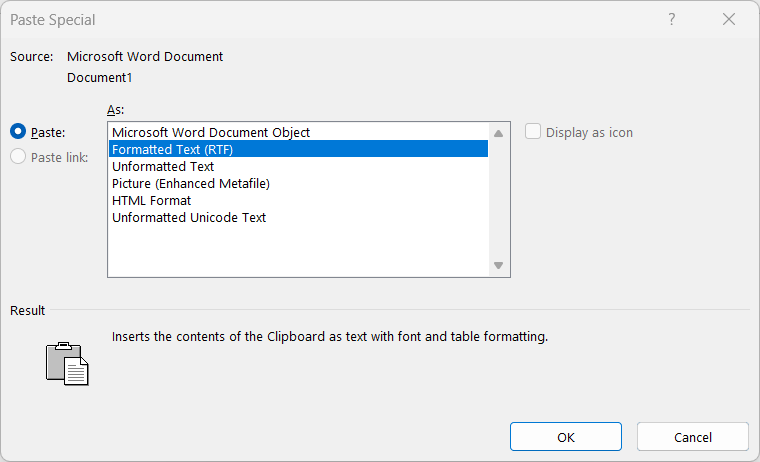
The Paste Special in Microsoft Word allows you to paste content in different formats — such as plain text, image, or HTML — giving you full control over how copied data appears in your document. This is especially useful when copying from Excel, websites, or other programs.
What are Paste Special Options in Word?
Here’s a breakdown of all the Paste Special formats you’ll find in Microsoft Word:
🔤 Text Options
- Formatted Text (RTF): This option keeps all the original text formatting such as fonts, bold, and colors when pasting. It works especially well when copying content between Microsoft Office programs like Word, Outlook, or Excel.
- Unformatted Text: When you choose Unformatted Text, it pastes plain text only — all fonts, colors, bold, and other formatting are removed. The pasted text automatically adopts the style of your current document, making it perfect when you need a clean, uniform appearance.
- Unformatted Unicode Text: Like Unformatted Text, this option removes all formatting but also supports a broader range of characters, including special symbols and non-English languages. It’s ideal for pasting multilingual content or technical text.
🖼️ Image Options
- Picture (Enhanced Metafile): This option pastes your content as a high-quality vector image, making it ideal for inserting shapes, charts, and diagrams into your Word document.
- Picture (Windows Metafile): Like the Enhanced Metafile, this is an older vector format that’s mainly used for compatibility with legacy systems or software.
- Picture (PNG): Pastes the content as a clear image with support for transparency. It’s especially useful for screenshots or web graphics that need a crisp, clean look.
- Picture (JPEG): This format compresses the image, making it best suited for photos or images where file size matters more than sharpness.
- Picture (GIF): Pastes the content as a simple graphic limited to 256 colors. This option is good for basic illustrations or icons.
- Bitmap: Inserts the content as a standard bitmap image, which may result in a larger file size but is widely compatible.
- Device Independent Bitmap (DIB): Ensures the pasted image appears the same across all devices and screens, offering consistent display regardless of system settings.

🧩 Object and Web Options
Microsoft Office Drawing Object: This option pastes drawings or shapes as editable objects within Word, allowing you to adjust or format them as if they were created directly in the document.
HTML Format: Maintains web formatting — such as hyperlinks, tables, and layout — when copying from a web page. Ideal for preserving the look and structure of online content.
🔗 Paste Link Options – Dynamic Linking
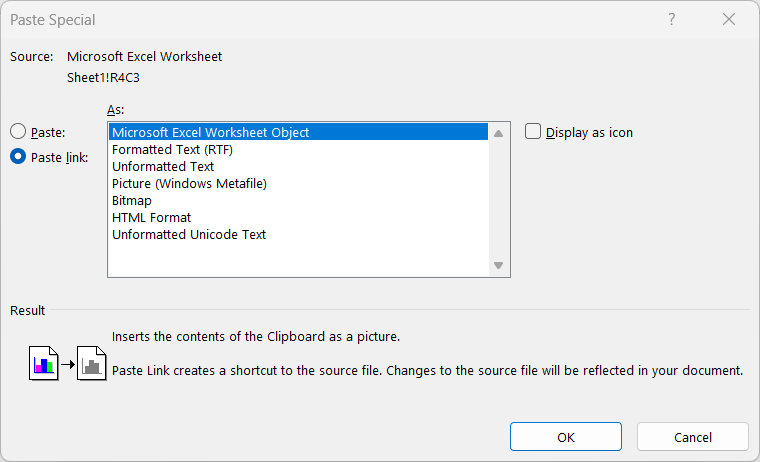
Inserts a live link to the original source, so if the source content changes, your Word document updates automatically. You can paste a live link in the following formats:
Formatted Text (RTF)
Unformatted Text
HTML Format
Microsoft Excel Worksheet Object
Microsoft PowerPoint Slide Object
⚙️ How to Change Clipboard Settings in Word?
- Open Microsoft Word application.
- Go to File menu > Options.
- Go to the Advanced tab, scroll down to the Cut, copy, and paste section.
- Make the changes if required and click OK.

⁉️ FAQs
Does Word have a Clipboard History?
Yes. The Clipboard stores the last 24 copied items for quick access.
Why is my Clipboard Not Showing in Word?
Make sure:
- You have at least one Office app open.
- The Clipboard is activated from the Home tab.
- You press Ctrl + C twice.
- If still missing, then right click on Ribbon > Customize Ribbon and add it.
Can I Save Clipboard Content Permanently?
No. The clipboard is temporary and gets cleared:
- When all Office apps are closed
- When you shut down or restart your computer
- When you manually click Clear All
What is the Clipboard in Microsoft Word?
The Clipboard is a temporary storage area in Microsoft Word that holds text and graphics you’ve copied or cut. It allows you to paste these items into your documents.
How do I open the Clipboard in Word?
Go to the Home tab and click the small launcher icon in the bottom-right corner of the Clipboard group to open the Clipboard pane.
How many items can the Clipboard hold?
The Office Clipboard can store up to 24 items. If you copy a 25th item, the oldest item is automatically removed.
Can I paste all Clipboard items at once?
Yes, in the Clipboard pane, click Paste All to insert all stored items into your document at the current cursor position.
How do I Clear items from the Clipboard?
In the Clipboard pane, you can delete individual items by clicking the arrow next to them and selecting Delete or remove all items by clicking Clear All.
Does the Clipboard work across different Office programs?
Yes, the Office Clipboard allows you to copy items from one Office program (like Excel or PowerPoint) and paste them into another (like Word).
How can I Customize Clipboard Behaviour?
In the Clipboard pane, click Options at the bottom to set preferences, such as showing the Clipboard automatically or displaying it when pressing Ctrl + C twice.
What Types of Content can I Store in the Clipboard?
You can store text, images, tables, and other objects from Office documents or other programs.
Does the Clipboard retain items after closing Word?
No, the Clipboard is cleared when you exit all Office programs. Yes, if you have opened only Word and no other Office program is open.
Can I access the Clipboard on mobile versions of Word?
The Clipboard feature is limited on mobile versions of Word. You can cut, copy and paste, but the full Clipboard pane is not available.
💻 Shortcut Keys
🎯 Conclusion
The Clipboard in Word is a handy tool that helps you copy, store, and reuse text or images easily. Instead of only keeping the last thing you copied, it can hold up to 24 items, making it perfect for working on long documents or doing a lot of editing. Knowing how to open, use, and clear the clipboard can save you time and make your work faster and more organized. It’s a simple feature, but very useful once you know how to use it.
Learn More
» How to Create a Word Document?
» How to Create a Template in Word?
» How to Password Protect a Word Document?
» How to Change Document Properties in Word?
Word Tutorial Part 1 (Basic)
» Word Home
» Word Basics
» Word Document
» Word Template
» Word Properties
» Word Password
Word Tutorial Part 2 (Format)
» Word Clipboard
» Word Font
» Word Color
» Word Alignment
» Word Border
» Word Bullets and Numbering
» Word Indents and Spacing
» Word Line and Page Breaks
Word Tutorial Part 3 (Insert)
» Word Cover Page
» Word Tables
» Word Illustrations
» Word Links
» Word Comments
» Word Header and Footer
» Word Text Box
» Word WordArt
» Word Quick Parts
» Word Drop Cap
» Word Date and Time
» Word Objects
» Word Equation
» Word Symbol
Word Tutorial Part 4 (Find)
» Word Find and Replace
» Word Go To
» Word Select Objects
» Word Selection Pane
Word Tutorial Part 5 (Design)
» Word Themes
» Word Watermark
» Word Page Color
» Word Page Border
Word Tutorial Part 6 (Layout)
» Word Margin
» Word Orientation
» Word Size
» Word Columns
» Word Breaks
» Word Line Numbers
» Word Hyphenation
» Word Position
» Word Wrap Text
» Word Bring Forward
» Word Send Backward
» Word Group
» Word Rotate
Word Tutorial Part 7 (References)
» Word Table of Contents
» Word Footnotes
» Word Citation and Bibliography
» Word Captions
» Word Index
» Word Table of Authorities
Word Tutorial Part 8 (Mailings)
» Word Envelopes
» Word Labels
» Word Start Mail Merge
» Word Write and Insert Fields
» Word Preview Results
» Word Finish and Merge
Word Tutorial Part 9 (Review)
» Word Editor
» Word Spelling and Grammer
» Word Thesaurus
» Word Count
» Word Read Aloud
» Word Check Accessibility
» Word Translate
» Word Language
» Word Comments
» Word Share
» Word Track Changes
» Word Compare
» Word Ink
Word Tutorial Part 10 (View)
» Word Views
» Word Immersive
» Word Show
» Word Zoom
» Word Window
» Word Macros
» Word Properties
Word Tutorial Part 11 (Other)
» Word Add-ins
» Word Shortcuts
0 Comments