
How to Change Font in Word
If you’ve ever wondered how to change font in Word or what makes fonts so important in your documents, you’re in the right place. Fonts play a key role in shaping the appearance and tone of everything you create—from resumes and reports to letters and creative projects. Choosing the right font can make your text clearer, more professional, and visually appealing.
In this complete guide, you’ll learn how to change fonts in Microsoft Word, install new ones, and how to troubleshoot common font issues.
Table of Contents:
» What is Font in Word
» How to Change Font in Word
» How to Change Font Size in Word
» How to Set the Default Font in Word
» How to Install Fonts in Microsoft Word
» Top 10 Best Fonts in Microsoft Word
» How to Format Fonts in Word
» FAQs
» Shortcut Keys
» Conclusion
📝 What is Font in Word?
A font is the visual style of your text. It controls how letters, numbers, and symbols appear on the screen or on paper. Each font has a unique design, and Microsoft Word comes with many built-in fonts like Calibri, Arial, and Times New Roman etc.
The Fonts can look formal, modern, or creative depending on the style you choose. They help improve readability and give your document the right tone.
🔄 How to Change Font in Word?
- Open your Microsoft Word document.
- Highlight the text you want to change.
- Go to the Home tab at the top of the screen.
- Click the Font dropdown menu and pick a new font (e.g., Arial, Georgia, or Calibri).
- The selected text will instantly update to your chosen font.
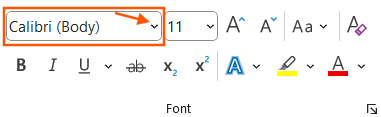
You can also pick your font before typing, and Word will use that style automatically.
🔠 How to Change Font Size in Word?
Select the text whose size you want to change.
On the Home tab, find the Font Size box next to the font name.
Click it and choose a number (e.g., 11, 12, 15).
You can also use the A↑ and A↓ icons to make the text larger or smaller.

Minimum and Maximum Font Size in Word:
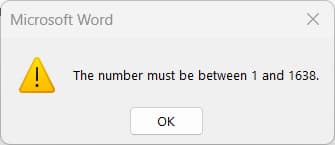
- The Font size number must be between 1 and 1638.
- If you enter less than one or more than 1638 then you will get below alert screen.
Decimal Font Size in Word
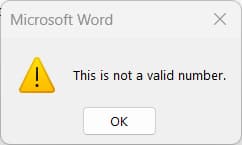
- You can enter font size in decimal which supports only “.5” (for example 12.5 or 20.5).
- In Microsoft Word, if you enter any decimals except “.5” in font size number (example 10.2 or 12.4) then you will get error: “This is not a valid number”.
🛠 How to Set the Default Font in Word?
If you want all your new Word documents to use your favourite font automatically:
- Go to Home tab > Font group > click the launcher icon at bottom right (or press Ctrl + D) to open the Font settings window.
- Choose your desired font, font size, and style etc.
- Click the “Set As Default” button.

- You have two options to set the default font in Word:
- This document only: the default font will be applied to the current Word document only.
- All documents based on the Normal template: Every time you open a new Word file; it will start with your default font settings.
- Click OK.

🆕 How to Install Fonts in Microsoft Word?
Follow these steps to easily download and install new fonts in Microsoft Word:
1. Find and Download a Font
Start by visiting a free font website like:
- Google Fonts – clean and professional fonts
- DaFont – fun and decorative fonts
- FontSpace – lots of styles to choose from
👉 Once you find a font you like, click Download. The file will usually be a .zip folder with a font file inside (like .ttf or .otf).
2. Extract the Font File
After downloading:
- Locate the .zip file in your Downloads folder
- Right-click it and choose Extract All
- Open the extracted folder to find the font file (look for .ttf or .otf)
3. Install the Font
To install the font:
- Right-click the .ttf or .otf file
- Select Install or Install for all users (recommended for multiple accounts)
👉 You can also drag and drop font files directly into the fond folder (C:\Windows\Fonts) to install them manually.
4. Restart Microsoft Word
If Microsoft Word was open during installation, close and reopen it.
- Go to the Home tab.
- Click the Font dropdown.
- Your new font should now appear in the list, ready to use.
👉 Once installed, the font will be available not only in Microsoft Word but across all Microsoft Office applications—including Excel, PowerPoint, and Outlook.
🔟 Top 10 Best Fonts in Microsoft Word
Below are the top 10 best fonts in Word:
1. Calibri
- Best for: Business documents, emails, and reports.
- Why: Clean, modern, and easy to read (it’s the default font in Word).
2. Times New Roman
- Best for: Academic papers, official letters, and legal documents.
- Why: A classic, professional font that’s still widely used.
3. Arial
- Best for: Resumes, presentations, and online content.
- Why: Simple, readable, and great for digital documents.
4. Cambria
- Best for: Essays, printed reports, and books.
- Why: Designed for readability both on screen and on paper.
5. Garamond
- Best for: Resumes, creative writing, and elegant documents.
- Why: Stylish and professional-looking serif font.
6. Verdana
- Best for: Emails, websites, and small-size text.
- Why: Wide letters and great readability, even at small sizes.
7. Georgia
- Best for: Blogs, websites, and business casual documents.
- Why: Friendly, clean, and easy to read.
8. Helvetica (not included by default)
- Best for: Design work, presentations, and modern layouts.
- Why: Sleek and simple — you can install it easily.
9. Lucida Console
- Best for: Code, tech documents, and scripts.
- Why: Monospaced font (each letter takes up the same space).
10. Segoe UI
- Best for: Presentations and user-friendly layouts.
- Why: Looks modern and clean — used in Windows interfaces.
🎨 How to Format Fonts in Word?
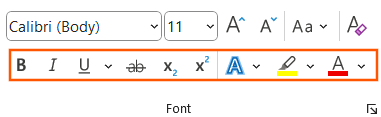
Formatting fonts in Word allows you to change how your text looks beyond just adjusting the font style or size. In the Home tab, the Font group includes:
- Bold: Makes text darker and more noticeable.
- Italic: Slants the text to the right.
- Underline: Adds a line beneath the text.
- Strikethrough: Draws a line through the text.
- Subscript: Type very small letters just below the line of text.
- Superscript: Type very small letters just above the line of text.
- Text Effects and Typography: Add some flair to your text by applying a text effect, such as a shadow or glow. You can also change the typography settings to enable ligatures or choose a stylistic set.
- Highlight: Adds background color to the text.
- Font Color: Changes the color of the letters.
⁉️ FAQs
How Do I Change the Font in Word?
Select the text, go to the Home tab, and click the Font dropdown. Pick any font you like, and Word will apply it instantly.
How Can I Install New Fonts in Microsoft Word?
Download a font file (usually .ttf or .otf), right-click it, and choose Install. The font will be added to your system and appear in Word automatically.
Why Isn’t My Installed Font Showing Up in Word?
Restart Word or your computer. Make sure the font is installed correctly and that it’s not corrupted or duplicated.
How Do I Set a Default Font in Word?
Open the Font dialog box in the Home tab, select your favourite font, and click Set as Default to apply it to all new documents.
How Do I Change the Font for the Entire Document in Word?
Press Ctrl + A (or Cmd + A on Mac) to select all text, then choose your font from the Font dropdown in the Home tab.
How Do I Add Fonts to Word on a Mac?
Download the font, open Font Book, click the + icon, and add the file. After installing, restart Word to see the new font.
Why Does Word Keep Changing My Font Automatically?
Word switches fonts if your chosen font isn’t available. Go to File > Options > Advanced > Font Substitution to manage or fix this.
How Do I Change the Font Size in Word?
Highlight the text, then go to the Home tab and select a size from the Font Size dropdown or use the A↑ / A↓ buttons to adjust.
Are Installed Fonts Available in All Microsoft Office Apps?
Yes. Once a font is installed on your device, it works across all Office apps like Word, Excel, PowerPoint, and Outlook.
How Do I Download Fonts for Free to Use in Word?
You can download free fonts from trusted websites like Google Fonts, DaFont, or Font Squirrel. After downloading, install the font and it will appear in Word.
Can I Use Google Fonts in Microsoft Word?
Yes, but you’ll need to download and install the font from https://fonts.google.com/. Once installed, it will be available in Word and other Office apps.
What Font is Easiest to Read in Word?
Fonts like Calibri, Arial, and Verdana are considered the easiest to read, especially for digital and long documents.
What Is the Default Font in Microsoft Word?
As per the latest Office 365, the default font in Word is Calibri, size 11. However, this may vary slightly depending on your version or template.
How Do I Delete a Font from Word?
You can’t delete fonts directly from Word. Go to your computer’s font settings, find the font, and uninstall it. This will remove it from Word and other programs.
How Do I Change Font Color in Microsoft Word?
Select the text, go to the Home tab, and click the Font Color (A with color bar) icon to choose a new color.
Can I Use Custom Fonts in a Word Document I Share?
Yes, but if the recipient doesn’t have the font installed, Word may substitute it. To avoid this, embed the font or send the document as a PDF.
How Do I Embed Fonts in a Word Document?
Go to File > Options > Save, and check Embed fonts in the file. This keeps the font intact when others open your document.
What Fonts Are Best for a Resume in Word?
Popular resume fonts in Word include Calibri, Garamond, Cambria, and Arial—they’re clean, professional, and easy to read.
Why Does My Word Font Look Different When Printed?
This usually happens due to printer settings or missing fonts. Make sure your font is installed and embedded, and check print preview before printing.
💻 Shortcut Keys
🎯 Conclusion
The Fonts in Microsoft Word help to make your document look professional and easy to read. Whether you are writing a letter, resume, or any document, the right font makes a big difference. Microsoft Word comes with many built-in fonts, and you can easily add more to match any style or purpose. From the formal Word documents to creative designs, there’s always a font that fits. The more you explore font options, the more confident you’ll become in customizing your content.
Learn More
» How to Create a Word Document?
» How to Create a Template in Word?
» How to Password Protect a Word Document?
» How to Change Document Properties in Word?
» How to use Clipboard in Word?
Word Tutorial Part 1 (Basic)
» Word Home
» Word Basics
» Word Document
» Word Template
» Word Properties
» Word Password
Word Tutorial Part 2 (Format)
» Word Clipboard
» Word Font
» Word Color
» Word Alignment
» Word Border
» Word Bullets and Numbering
» Word Indents and Spacing
» Word Line and Page Breaks
Word Tutorial Part 3 (Insert)
» Word Cover Page
» Word Tables
» Word Illustrations
» Word Links
» Word Comments
» Word Header and Footer
» Word Text Box
» Word WordArt
» Word Quick Parts
» Word Drop Cap
» Word Date and Time
» Word Objects
» Word Equation
» Word Symbol
Word Tutorial Part 4 (Find)
» Word Find and Replace
» Word Go To
» Word Select Objects
» Word Selection Pane
Word Tutorial Part 5 (Design)
» Word Themes
» Word Watermark
» Word Page Color
» Word Page Border
Word Tutorial Part 6 (Layout)
» Word Margin
» Word Orientation
» Word Size
» Word Columns
» Word Breaks
» Word Line Numbers
» Word Hyphenation
» Word Position
» Word Wrap Text
» Word Bring Forward
» Word Send Backward
» Word Group
» Word Rotate
Word Tutorial Part 7 (References)
» Word Table of Contents
» Word Footnotes
» Word Citation and Bibliography
» Word Captions
» Word Index
» Word Table of Authorities
Word Tutorial Part 8 (Mailings)
» Word Envelopes
» Word Labels
» Word Start Mail Merge
» Word Write and Insert Fields
» Word Preview Results
» Word Finish and Merge
Word Tutorial Part 9 (Review)
» Word Editor
» Word Spelling and Grammer
» Word Thesaurus
» Word Count
» Word Read Aloud
» Word Check Accessibility
» Word Translate
» Word Language
» Word Comments
» Word Share
» Word Track Changes
» Word Compare
» Word Ink
Word Tutorial Part 10 (View)
» Word Views
» Word Immersive
» Word Show
» Word Zoom
» Word Window
» Word Macros
» Word Properties
Word Tutorial Part 11 (Other)
» Word Add-ins
» Word Shortcuts
0 Comments