
How to use Alignment in Word
Understanding how to use alignment in Word is essential for creating well-structured and professionally formatted documents. Microsoft Word offers a range of alignment options that enable users to control the positioning of text and other content with precision. Proper use of alignment enhances readability, visual consistency, and overall document presentation. This guide provides a comprehensive overview of Word’s alignment features, including how to apply them to texts, tables, and images, as well as useful shortcuts to improve your workflow.
Table of Contents:
» What is Alignment in Word
» How to Change Text Alignment in Word
» How to Change Image Alignment in Word
» FAQs
» Shortcut Keys
» Conclusion
📝 What is Alignment in Word?
The Alignment in Microsoft Word refers to the method by which text and other elements are horizontally positioned within a document relative to the page margins. It plays a crucial role in determining the visual layout, readability, and overall presentation of the content.
There are four main types of Alignment in Word:
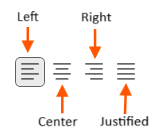
Left Alignment: Aligns text along the left margin while leaving the right margin uneven. This is the default alignment in Microsoft Word.
Center Alignment: Aligns text in the middle of the page, with equal space on both sides. It is typically used for headings, titles, and other centered elements.
Right Alignment: Aligns text along the right side, with the left side uneven. This format is often applied to elements such as dates, references, or signatures.
Justified Alignment: Distributes text evenly between the left and right margins, resulting in clean, straight edges on both sides. This alignment is commonly used in formal documents, books, and newspapers to present a uniform appearance.
🔠 How to Change Text Alignment in Word?
Follow the below steps to change the alignment of text in Word:
- Select the text or click inside the paragraph you want to align.
- Go to Paragraph group in Home tab.
- Click the alignment button (Left, Center, Right, or Justify) to change the alignment.
🖼️ How to Change Image Alignment in Word?
Follow the below steps to change the alignment of an image in Word:
- Select the image(s), then go to the Picture Format tab and click on the drop down of the Position button and select either Position in Top, Middle or Bottom in combination with Left, Centre, or Right Text Wrapping.

- To align the object, click on the Align Objects button and choose to align to the left, center, right, top, middle, bottom, distribute horizontally, distribute vertically, align to page or align to margin of the page.

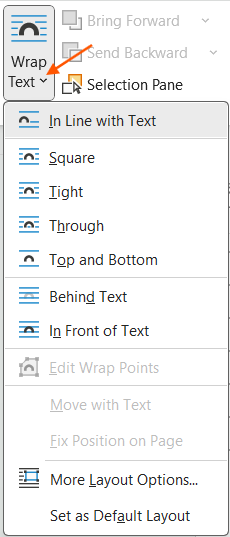
- Alternatively, you can use the Wrap Text option (also in the Picture Format tab) to place the image in line with text, square, tight, through top and bottom, behind text, or infront of text.
- You can adjust manually if needed, by dragging the image to fine-tune its position or using alignment guides that appear when moving the image.
⁉️ FAQs
What are the Different Text Alignment Options in Microsoft Word?
Microsoft Word provides four main alignment types: Left, Center, Right, and Justify. Left alignment is the default and lines text up along the left margin. Center places the text in the middle of the page, while right alignment pushes it to the right margin. Justified alignment adjusts spacing so the text aligns evenly along both margins, creating a clean, block-style appearance.
How do I Justify Text in Microsoft Word?
To justify text in Word, highlight the text you want to format, then go to the Home tab and click the Justify button in the Paragraph section. You can also press Ctrl + J (on Mac Cmd + J) as a shortcut. Justified text ensures that both the left and right margins appear straight and even.
How can I Center Text Vertically on a Page in Word?
To center text vertically, go to the Layout tab and click the small arrow (launcher icon) in the Page Setup group. In the popup dialog, under the Layout tab, choose Center from the Vertical Alignment dropdown. Apply the setting to the whole document or a selected section as needed.
How do I Align Text to Both the Left and Right Margins on the Same Line in Word?
You can align text to both margins on one line using tab stops. Set a right-aligned tab stop on the ruler, then type your left-aligned content, press Tab, and type the right-aligned content. This is commonly used in headers or for placing page numbers.
How can I Align Text Within a Text Box in Word?
Select the text box, then go to Format > Align Text to set vertical alignment (Top, Middle, Bottom). For horizontal alignment, use the Left, Center, or Right alignment buttons on the Home tab. This ensures proper positioning of text within the box.
Why is my Justified Text Showing Large Gaps Between Words in Word?
Large spaces in justified text occur when Word forces lines to stretch to fit both margins. This usually happens with long words or when there is not enough text on a line. To fix this, turn on hyphenation, reduce font size slightly, or adjust spacing and margin settings.
How do I Align Multiple Objects or Images in Word?
To align multiple items, hold the Ctrl key and click each one. Then go to the Format tab and click Align in the Arrange group. You can choose options like Align Left, Center, or Distribute Horizontally for precise positioning of elements.
How can I Align Text in Columns Without Using a Table in Word?
You can create column-like alignment by using tab stops. Set tabs on the ruler at desired positions, then separate content with the Tab key. This method is helpful when you don’t want to use a full table for simple formatting.
How do I Align Bullet Points or Numbered Lists in Word?
Right-click the list and select Adjust List Indents. Use this dialog to modify the bullet or number position and set the text indent. Proper indentation ensures that list items are clearly aligned and easy to read.
How can I Set Default Alignment for New Word Documents?
Go to the Home tab, right-click on Normal under Styles group, and choose Modify. In the formatting options, set your desired alignment (e.g., Justify or Center), and check the box for New documents based on this template before clicking OK.

How do I enable the Ruler in Word to Assist with Alignment?
To show the ruler, go to the View tab and check the Ruler option in the Show group. The horizontal and vertical rulers will help you align text, shapes, and margins precisely on the page.

How can I use Alignment Guides and Gridlines in Word?
Go to Layout > Align under Arrange group > Grid Settings, then check Snap objects to grid and Display alignment guides. These features help with aligning shapes, text boxes, and other objects for a neat, consistent layout.
How do I Align Text in Headers and Footers in Word?
Double-click in the header or footer area to open it. Use the Tab key to jump between left, center, and right positions. For more control, you can insert a table with three columns and align content in each column.
How can I Align Text in Table Cells in Word?
Click inside any table cell and go to Table Layout tab > Alignment group. Choose from options like top, middle, bottom, and combinations of horizontal alignment to make your table text look clean and organized.
How do I Rotate Text in Word?
Insert a Text Box, type your text, and then click the text box to select it. Drag the rotation handle at the top to rotate the text to any angle. This is especially useful for creating visual elements in documents or brochures.
How do I Rotate Text in Word?
Insert a Text Box, type your text, and then click the text box to select it. Drag the rotation handle at the top to rotate the text to any angle. This is especially useful for creating visual elements in documents or brochures.

💻 Shortcut Keys
🎯 Conclusion
Proper alignment in Microsoft Word plays a vital role in enhancing the readability and overall presentation of a document. Aligning text to the left, center, right, or justifying it across the page each serves a specific purpose in maintaining a clean and organized layout. Utilizing alignment tools such as tab stops, rulers, and gridlines enables users to format content with precision and consistency.
Learn More
» How to Create a Word Document?
» How to Create a Template in Word?
» How to Password Protect a Word Document?
» How to Change Document Properties in Word?
» How to use Clipboard in Word?
» How to Change Font in Word?

Word Tutorial Part 1 (Basic)
» Word Home
» Word Basics
» Word Document
» Word Template
» Word Properties
» Word Password
Word Tutorial Part 2 (Format)
» Word Clipboard
» Word Font
» Word Color
» Word Alignment
» Word Border
» Word Bullets and Numbering
» Word Indents and Spacing
» Word Line and Page Breaks
Word Tutorial Part 3 (Insert)
» Word Cover Page
» Word Tables
» Word Illustrations
» Word Links
» Word Comments
» Word Header and Footer
» Word Text Box
» Word WordArt
» Word Quick Parts
» Word Drop Cap
» Word Date and Time
» Word Objects
» Word Equation
» Word Symbol
Word Tutorial Part 4 (Find)
» Word Find and Replace
» Word Go To
» Word Select Objects
» Word Selection Pane
Word Tutorial Part 5 (Design)
» Word Themes
» Word Watermark
» Word Page Color
» Word Page Border
Word Tutorial Part 6 (Layout)
» Word Margin
» Word Orientation
» Word Size
» Word Columns
» Word Breaks
» Word Line Numbers
» Word Hyphenation
» Word Position
» Word Wrap Text
» Word Bring Forward
» Word Send Backward
» Word Group
» Word Rotate
Word Tutorial Part 7 (References)
» Word Table of Contents
» Word Footnotes
» Word Citation and Bibliography
» Word Captions
» Word Index
» Word Table of Authorities
Word Tutorial Part 8 (Mailings)
» Word Envelopes
» Word Labels
» Word Start Mail Merge
» Word Write and Insert Fields
» Word Preview Results
» Word Finish and Merge
Word Tutorial Part 9 (Review)
» Word Editor
» Word Spelling and Grammer
» Word Thesaurus
» Word Count
» Word Read Aloud
» Word Check Accessibility
» Word Translate
» Word Language
» Word Comments
» Word Share
» Word Track Changes
» Word Compare
» Word Ink
Word Tutorial Part 10 (View)
» Word Views
» Word Immersive
» Word Show
» Word Zoom
» Word Window
» Word Macros
» Word Properties
Word Tutorial Part 11 (Other)
» Word Add-ins
» Word Shortcuts
0 Comments