
How to Insert Line and Page Breaks in Microsoft Word
This guide will show you how to insert line and page breaks in Microsoft Word to improve the layout and flow of your documents. These tools help you control where text begins on a new line or page, making your content easier to read and more professional. Whether you are working on a report, an assignment, or any long document, using line and page breaks can make formatting much easier.
Table of Contents:
» What is a Line Break in Microsoft Word
» What is a Page Break in Microsoft Word
» What is a Section Break in Microsoft Word
» Advanced Formatting of Line and Page Breaks in Microsoft Word
» Best Practices for Using Breaks in Microsoft Word
» FAQs
» Shortcut Keys
» Conclusion
📝 What is a Line Break in Microsoft Word?
A line break moves the cursor to a new line without starting a new paragraph. It’s perfect for formatting addresses, poems, or single-spaced text inside the same paragraph.
How to Insert Line Break in Word?
- Place your cursor where you want the new line.
- Press Shift + Enter on Windows or Shift + Return on Mac to remove a line break.
- Right-click > Paragraph > Line and Page Breaks and configure paragraph behaviour if needed.
How to Remove Line Break in Word?
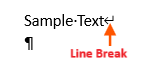
- Click the Show/Hide (¶) button on the Home tab.
- Locate the Line break (↵) symbol representing the line break.
- Press Delete on Windows or Fn + Delete on Mac to remove a line break.
🗒️ What is a Page Break in Microsoft Word?
A page break begins a new page at a designated point within a document. Rather than manually inserting multiple line breaks to move content to the next page, a page break automatically shifts all subsequent text to the top of the following page.
How to Insert Page Break in Word?
- Place your cursor where you want to break the page.
- Go to the Insert tab on the ribbon and click Page Break.
Shortcut: Press Ctrl + Enter on Windows or Cmd+ Return on Mac to insert a page break.
How to Remove Page Break in Word?
- Go to Home tab and turn on Show/Hide (¶).
- Click before or after the Page Break marker.
- Press Delete or Backspace to remove the page break.

📐 What is a Section Break in Microsoft Word?
A section break allows you to split a document into distinct parts, each with its own formatting. It enables changes to page orientation, margins, headers, footers, and other layout settings within specific sections without affecting the rest of the document. Section breaks are especially useful in longer documents where different formatting is needed for different parts.
How to Insert Section Break in Word?
- Click where you want the new section to begin.
- Go to the Layout tab and click Breaks in the Page Setup group.
- Under Section Breaks, choose:
- Next Page: to start the new section on the next page.
- Continuous: to start the new section on the same page
- Even Page: to start the new section on the next even-numbered page.
- Odd Page: to starts the new section on the next odd-numbered page.

How to Remove Section Break in Word?
- Enable ¶ Show/Hide.
- Find the Section Break indicator.
- Place your cursor before it and press Delete.
Removing a section break may cause formatting changes like page number resets or header/footer adjustments.
📃 Advanced Formatting of Line and Page Breaks in Microsoft Word
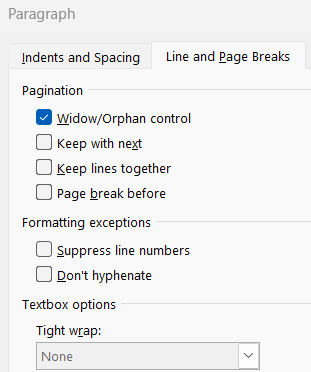
Word’s Paragraph settings let you control how content flows on the page, especially useful for long or professional documents.
- Right-click on a paragraph.
- Choose Paragraph from the context menu.
- Click the Line and Page Breaks tab
Features in this tab:
- Window/Orphan Control: Prevents a single line from appearing at the top or bottom of a page.
- Keep with Next: Keeps headings and their following paragraphs together.
- Keep Lines Together: Keeps an entire paragraph on the same page.
- Page Break Before: Forces a paragraph to start on the next page.
✅ Best Practices for Using Breaks in Microsoft Word
Shift + Enter: Insert a line break without starting a new paragraph.
Ctrl + Enter / Command + Return (Mac): Insert a page break instead of pressing Enter multiple times.
Section Breaks: Use only for formatting changes like different headers/footers or page orientation.
¶ Show/Hide: Turn on to view hidden formatting marks for easier troubleshooting.
Paragraph Spacing: Adjust from the Paragraph menu to avoid manual blank lines for spacing.
⁉️ FAQs
What is the Difference Between a Line Break and a Page Break in Word?
A line break moves text to a new line within the same paragraph, while a page break starts the text on a completely new page.
What is the Shortcut Key to Insert a Line Break in Microsoft Word?
To insert a line break in Word, press Shift + Enter on Windows or Shift + Return on Mac.
What is the Shortcut Key to Insert a Page Break in Microsoft Word?
To insert a page break in Word, press Ctrl + Enter on Windows or Command + Return on Mac, or go to the Insert menu and select Page Break.
How to Delete a Page Break or Section Break in Word?
To delete a page or section break, turn on the ¶ Show/Hide feature, locate the break, and press Delete.
How to Prevent a Paragraph from Splitting Across Pages in Word?
To keep a paragraph on one page, right-click the paragraph, select Paragraph, go to the Line and Page Breaks tab, and check Keep Lines Together.
Why is there a Blank Page in my Word Document?
A blank page is usually caused by an extra page break, section break, or paragraph mark, which you can find and remove using the ¶ Show/Hide feature.
My Text is Jumping to a New Page Unexpectedly. How do I Fix It?
Check if Page Break Before is enabled in the paragraph settings or locate and delete any manual page breaks.
There’s Too Much Space Between Paragraphs. How do I Remove It?
Instead of adding extra line breaks, adjust the spacing in the Layout tab or through the Paragraph settings.
My Heading is Separated from Its Content. How do I Keep Them Together?
Right-click the heading, open Paragraph settings, go to Line and Page Breaks, and select Keep with Next.
Why do I have a Blank Page at the End of My Document?
A blank page at the end of document may be caused by an extra page break, section break, or paragraph mark; turn on ¶ Show/Hide to locate and delete it.
💻 Shortcut Keys
🎯 Conclusion
In Microsoft Word, the line breaks, page breaks, and section breaks are the useful tools that help you organize your document. A line break moves text to a new line, a page break starts a new page, and a section break changes formatting within the same document. Using them the right way keeps your document clean and well structured.
Learn More
» How to use Bullets and Numbering in Word?
» How to Password Protect a Word Document?
» How to Change Document Properties in Word?
» How to use Clipboard in Word?
» How to Change Font in Word?
» How to Add Border in Word?
» How to use Alignment in Word?
» How to Change Text Color in Word?
Word Tutorial Part 1 (Basic)
» Word Home
» Word Basics
» Word Document
» Word Template
» Word Properties
» Word Password
Word Tutorial Part 2 (Format)
» Word Clipboard
» Word Font
» Word Color
» Word Alignment
» Word Border
» Word Bullets and Numbering
» Word Indents and Spacing
» Word Line and Page Breaks
Word Tutorial Part 3 (Insert)
» Word Cover Page
» Word Tables
» Word Illustrations
» Word Links
» Word Comments
» Word Header and Footer
» Word Text Box
» Word WordArt
» Word Quick Parts
» Word Drop Cap
» Word Date and Time
» Word Objects
» Word Equation
» Word Symbol
Word Tutorial Part 4 (Find)
» Word Find and Replace
» Word Go To
» Word Select Objects
» Word Selection Pane
Word Tutorial Part 5 (Design)
» Word Themes
» Word Watermark
» Word Page Color
» Word Page Border
Word Tutorial Part 6 (Layout)
» Word Margin
» Word Orientation
» Word Size
» Word Columns
» Word Breaks
» Word Line Numbers
» Word Hyphenation
» Word Position
» Word Wrap Text
» Word Bring Forward
» Word Send Backward
» Word Group
» Word Rotate
Word Tutorial Part 7 (References)
» Word Table of Contents
» Word Footnotes
» Word Citation and Bibliography
» Word Captions
» Word Index
» Word Table of Authorities
Word Tutorial Part 8 (Mailings)
» Word Envelopes
» Word Labels
» Word Start Mail Merge
» Word Write and Insert Fields
» Word Preview Results
» Word Finish and Merge
Word Tutorial Part 9 (Review)
» Word Editor
» Word Spelling and Grammer
» Word Thesaurus
» Word Count
» Word Read Aloud
» Word Check Accessibility
» Word Translate
» Word Language
» Word Comments
» Word Share
» Word Track Changes
» Word Compare
» Word Ink
Word Tutorial Part 10 (View)
» Word Views
» Word Immersive
» Word Show
» Word Zoom
» Word Window
» Word Macros
» Word Properties
Word Tutorial Part 11 (Other)
» Word Add-ins
» Word Shortcuts
0 Comments