
How to use illustrations in Microsoft Word
Learning how to use illustrations in Microsoft Word to make professional documents can completely change the way your files look. While most people open Word mainly to type reports, assignments, or resumes, they often overlook the powerful features available under the Illustrations tab. By using the illustrations strategically, even a simple document can be transformed into one that appears polished, professional, and engaging.
Table of Contents:
» What are illustrations in Microsoft Word
» Why to use illustrations in Microsoft Word
» How to Insert Pictures in Microsoft Word
» How to Insert Shapes in Microsoft Word
» How to Insert Icons in Microsoft Word
» How to Insert 3D Models in Microsoft Word
» How to Insert SmartArt in Microsoft Word
» How to Insert Charts in Microsoft Word
» How to Take a Screenshot in Microsoft Word
» Tips for Using Illustrations in Microsoft Word
» FAQs
» Shortcut Keys
» Conclusion
📝 What are illustrations in Microsoft Word?
The illustrations in Microsoft Word are the collection of visual tools that you can insert into your file from the Insert tab. The illustrations in Word include:
- Pictures (from your computer, stock image collection, or online search)
- Shapes (arrows, rectangles, banners, and flowchart symbols)
- Icons and 3D models
- SmartArt graphics for professional diagrams
- Charts and graphs linked with Excel data
- Screenshots and screen clippings
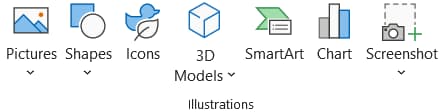
All these options are designed to help you communicate ideas visually instead of relying only on text.
⭐ Why to use illustrations in Microsoft Word?
Illustrations serve more than decoration. They:
- Simplify complex information
- Improve reader engagement
- Make documents professional and polished
- Highlight key data with charts and graphs
- Provide quick templates through SmartArt and icons
For reports, resumes, and presentations, the illustrations in Word add clarity and style.
🖼️ How to Insert Pictures in Microsoft Word?
Pictures are the most common type of illustration in Word. Follow the below steps to insert pictures in Microsoft Word:
- Go to Insert tab and then click on the Pictures option under the Illustrations group.

- Word will give you three choices to insert picture from: This Device, Stock Images, or Online Pictures.
- You can select the option that suits your need and choose the picture you want to insert.
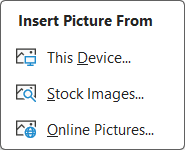
- Once the picture is inserted, you can resize it, move it around, or format it by using the Picture Format tab.
Note: The Pictures help to grab attention and give your document a strong visual appeal.
📐 How to Insert Shapes in Microsoft Word?
Adding shapes in Microsoft Word is a simple way to make your document more visual and interactive. Shapes can be used for diagrams, highlights, or even decorative elements. Follow the below steps to insert shapes in Word:
- Go to Insert tab and then click on the Shapes option under the Illustrations group.

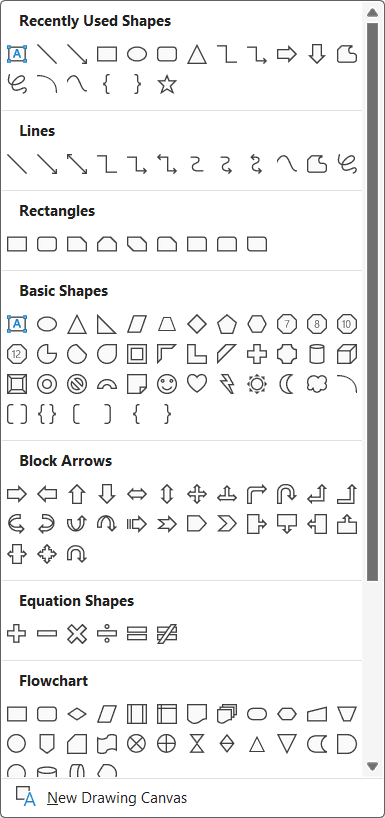
- A menu will appear showing different categories such as basic shapes, arrows, flowchart elements, and banners. Pick the one that best fits your needs.
- After choosing a shape, place your mouse cursor in the document and drag it across the page to draw the shape to the size you want.
- Once the shape is added, you can adjust its appearance by changing the fill color, outline, and applying effects through the Shape Format tab.
- If you need to include text, right-click the shape and choose Add Text, then type directly inside it.
➕ How to Insert Icons in Microsoft Word?
Icons are a great way to add clarity and style to a Word document. They work well for breaking up text, guiding the reader’s attention, or giving a clean and professional look. Follow the below steps to insert icons in Word:
- Go to Insert tab and then click on the Icons option to open the built-in icon library.

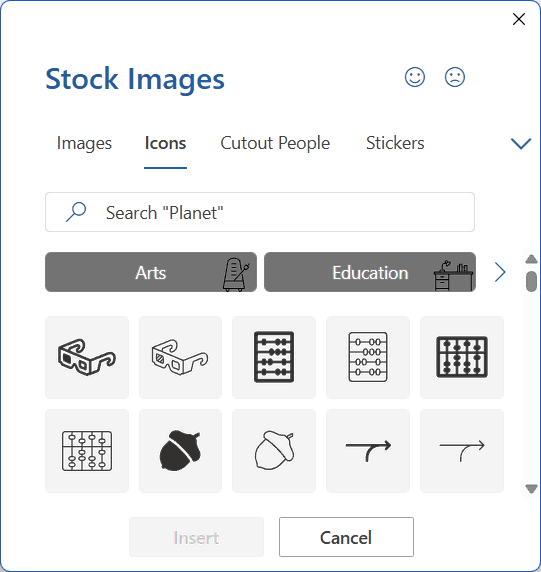
- You can either scroll through the available categories or use the search bar to quickly find an icon related to your topic.
- After selecting the icon you want, press Insert, and it will appear in your document at the cursor’s location.
- The icon can be resized by dragging its corners and positioned anywhere on the page using the alignment options.
- If you want to change its appearance, you can apply a different color or style from the Graphics Format tools.
Note: By adding icons in this way, you can make your document more engaging without overloading it with heavy images.
➕ How to Insert 3D Models in Microsoft Word?
The 3D models are used to add depth and interactivity to a Word document, making it possible to showcase objects in ways that simple pictures cannot. They are particularly useful for design work, technical documents, and learning materials. Follow the below steps to insert 3D models in Word:
- Go to Insert tab and then click on the 3D Models from the Illustrations group.

- You can upload your own 3D Model file from your device by clicking This Device option or choose a model from the Stock 3D Models library provided by Microsoft.
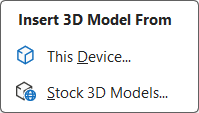
- After you select a model, choose Insert, and it will be placed into your document at the cursor’s position.
- The model comes with a rotation handle, which you can drag to spin the object and display it from different viewpoints.
- If needed, you can resize it, move it around the page, and fine-tune its appearance using the tools in the 3D Model tab.
Note: By adding 3D models, your document becomes more engaging and provides a richer experience for the reader.
➕ How to Insert SmartArt in Microsoft Word?
SmartArt is a convenient way to turn plain text into a visual diagram that is easier to read and understand. Whether you want to show a sequence, a cycle, or a hierarchy, SmartArt provides ready-made designs that you can customize to suit your document. Follow the below steps to insert SmartArt in Word:
- Go to Insert tab and then click on the SmartArt under the Illustration group to bring up the gallery of diagrams.

- Look through the categories such as List, Process, Cycle, or Hierarchy, and pick the layout that best represents your information.
- Once you confirm your choice, the SmartArt graphic will appear on the page, ready for you to edit.
- You can enter text directly into the shapes or use the text pane to type and arrange your content more easily.
- The design can be adjusted by changing the colors, applying styles, or switching to a different layout from the SmartArt Design tools.
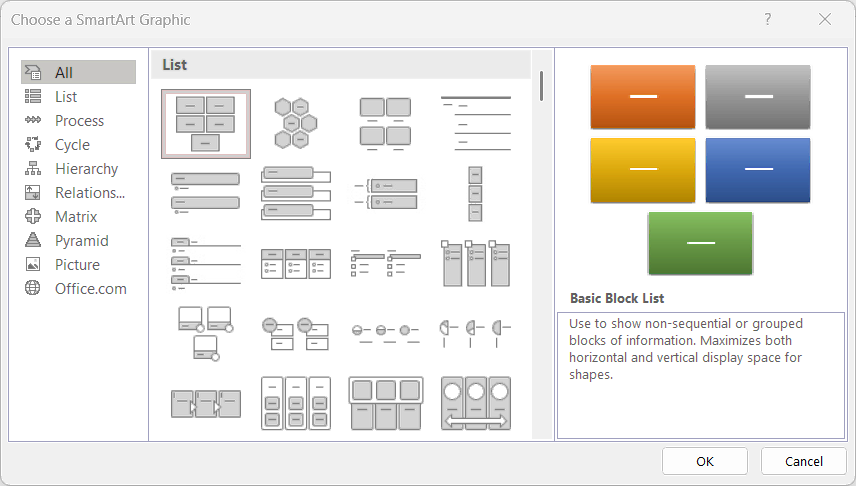
Note: With just a few steps, SmartArt can transform structured information into a professional-looking graphic that enhances the overall appeal of your document.
➕ How to Insert Charts in Microsoft Word?
Charts are a simple way to turn plain numbers into visuals that tell a clearer story. Instead of showing long tables of data, you can use a chart to highlight patterns and make information easier to grasp. Follow the below steps to insert charts in Word:
- Go to Insert tab and then click on the Chart option under Illustration group to bring up the list of available chart types.
- Review the options such as Bar, Line, Pie, and Column, then choose the style that works best for the data you want to display.
- After selecting, Word will add the chart to your page and automatically open an Excel sheet where you can enter your own figures.
- Replace the placeholder numbers with your actual data, and the chart will update instantly to reflect the changes.
- You can then fine-tune the chart’s design by adjusting colors, layouts, and styles through the Chart Design tools and Format tab.
Note: Using the charts help to present complex information in a cleaner format, allowing readers to understand your data at glance.
➕ How to Take a Screenshot in Microsoft Word?
Screenshots can be added directly in Word, making it easier to share examples or highlight parts of other applications without switching between tools. Follow the below steps to take a screenshot in Word:
- Go to Insert tab and then click on the Screenshot from the Illustrations group.

- Microsoft Word will display a preview of all available windows currently open on your computer, allowing you to pick one to capture in full.
- If you only want a portion of the screen, choose Screen Clipping, and drag your cursor across the area you want to capture.
- The image will instantly be placed into your document at the cursor’s position.
- Once inserted, you can resize, crop, or apply formatting just like you would with any regular picture using the options in the Picture Format tab.
Note: It saves time by letting you capture and edit screenshots without relying on separate software.
💡 Tips for Using Illustrations in Microsoft Word
- Always pick the illustrations in Word that match your content, so they enhance the message instead of distracting from it.
- Always keep the size of images and graphics balanced so the visuals support the text without taking over the page.
- Use alignment and text wrapping options to place illustrations neatly beside your writing.
- Apply formatting tools such as colors, shadows, and styles to keep a consistent look throughout the document.
- Consider using icons, SmartArt, or charts when you want a clean way to present ideas without relying on large pictures.
- Compress large image files when necessary so the document stays easy to open, share, and print.
⁉️ FAQs
What are illustrations in Microsoft Word?
In Microsoft Word, illustrations refer to all the visual tools you can insert into a document, such as pictures, shapes, icons, SmartArt, charts, WordArt, and even 3D models. These elements bring life to text-heavy pages and help explain ideas more clearly.
How do illustrations improve a Word Document?
The illustrations in Microsoft Word make a document more engaging and professional. They help to break up long paragraphs, highlight important points, and make complex information easier to understand.
Can I customize illustrations in Microsoft Word?
Yes, every illustration you insert can be formatted and personalized. You can resize, recolour, crop, add borders, or apply effects like shadows and reflections to match the style of your document.
Is it possible to insert 3D Models in Microsoft Word?
Absolutely. Word includes a 3D Models feature that allows you to insert ready-to-use 3D objects or upload your own. Once added, you can rotate, tilt, and resize them to fit the layout.
Do illustrations make a Document too heavy?
Sometimes, large images or multiple illustrations can increase the file size. However, you can manage this by using compressed pictures, lightweight icons, or SmartArt instead of high-resolution images.
Can I use Screenshots as illustrations in Word?
Yes, Word has a built-in Screenshot option. You can either capture Available Window screen or use Screen Clipping to highlight a selected part of your screen and insert it directly into the document.
Where can I find the illustrations tools in Word?
All the main tools for illustrations in Microsoft Word are located under the Insert tab. From there, you can add Pictures, Shapes, Icons, SmartArt, Charts, 3D Models, Screenshots, and WordArt.
Why is the illustrations group missing in my version of Word?
If you don’t see the illustrations section, you may be working in an older version of Word or in Word Online, which offers fewer features than the full desktop application.
Why are my illustration options greyed out in Word?
The illustration options are sometimes disabled when a file is read-only, restricted, or protected. Once the document is editable, the options will become available again.
How can I add clip art or online images to my Word document?
Go to the Insert tab and select Pictures > Online Pictures. From there, you can search the web or use Microsoft’s free stock images directly within Word.
Can I insert SVG or vector images in Word?
Yes, Word supports SVG files. These are scalable vector images, meaning you can resize them as much as you like without losing quality.
How do I create custom graphics in Word?
You can combine Shapes, Icons, and WordArt to build your own graphics in Word. With a bit of creativity, it’s possible to design flowcharts, labels, and unique visuals without leaving Word.
What’s the easiest way to create diagrams in Word?
The simplest approach is to use SmartArt. It comes with built-in layouts for processes, lists, cycles, and hierarchies, which you can quickly edit and style to suit your content.
How do I wrap text neatly around illustrations?
Click on the illustration, then choose Layout Options. You can decide whether text should appear besides, around, behind, or in front of the picture or shape.
Where are SmartArt graphics and how do I choose the right one?
SmartArt is found in the Insert tab. To pick the right option, think about your message: use a process diagram for steps, a cycle for repeating stages, or a hierarchy for organizational structures.
Can I style or animate SmartArt in Word?
Word doesn’t support animations like PowerPoint, but you can still style SmartArt by applying colors, effects, and design variations. For more control, you can convert SmartArt into shapes.
Can I group multiple illustrations into one object?
Yes, you can select multiple illustrations, right-click, and choose Group. This way, you can move or resize them as a single unit.
How can I save grouped visuals as an image?
After grouping the illustrations, right-click and select Save as Picture. This saves your design as an image file that can be reused in other documents or projects.
How do I position illustrations precisely in Word?
For accuracy, use the position and alignment tools in the Format tab. Turning on gridlines and the ruler also helps with perfect alignment.
Are illustration tools available in Word Online?
Yes, but the online version is more limited. You can insert basic shapes, icons, and pictures, but advanced tools like SmartArt and 3D models are available only in the desktop app.
How do I reduce file size after inserting many illustrations?
Use the Compress Pictures tool under the Picture Format tab. This reduces resolution and keeps the file smaller while maintaining good image quality.
What is the difference between using icons and pictures in Word?
The icons are small, lightweight, and scale without losing sharpness, while the pictures are larger image files suited for detailed graphics like photos.
Can I rotate and move 3D models in Word?
Yes, once you insert a 3D model, you can rotate it freely using the rotation handle and adjust its position like any other illustration.
Can I insert and edit WordArt in Microsoft Word?
Yes, WordArt can be added from the Insert tab. Once inserted, you can change colors, apply text effects, and adjust the style to make headings or titles stand out.
💻 Shortcut Keys
🎯 Conclusion
Using Microsoft Word illustrations is one of the most effective ways to turn a simple document into something visually impressive and easier to understand. Whether it is adding shapes, icons, charts, or even 3D models, these features give you the flexibility to present information in a creative and structured way. With the right use of formatting and design options, illustrations can highlight key ideas, make data more readable, and keep your audience engaged from start to finish. By exploring the illustration tools in Word, you can create documents that are not only well-written but also visually polished and professional.
Learn More
» How to Create a Table in Word?
» How to Insert Line and Page Breaks in Word?
» How to use Bullets and Numbering in Word?
» How to use Clipboard in Word?
» How to Change Font in Word?
» How to Add Border in Word?
» How to use Alignment in Word?
» How to adjust Indents and Line Spacing in Word?
Word Tutorial Part 1 (Basic)
» Word Home
» Word Basics
» Word Document
» Word Template
» Word Properties
» Word Password
Word Tutorial Part 2 (Format)
» Word Clipboard
» Word Font
» Word Color
» Word Alignment
» Word Border
» Word Bullets and Numbering
» Word Indents and Spacing
» Word Line and Page Breaks
Word Tutorial Part 3 (Insert)
» Word Cover Page
» Word Tables
» Word Illustrations
» Word Links
» Word Comments
» Word Header and Footer
» Word Text Box
» Word WordArt
» Word Quick Parts
» Word Drop Cap
» Word Date and Time
» Word Objects
» Word Equation
» Word Symbol
Word Tutorial Part 4 (Find)
» Word Find and Replace
» Word Go To
» Word Select Objects
» Word Selection Pane
Word Tutorial Part 5 (Design)
» Word Themes
» Word Watermark
» Word Page Color
» Word Page Border
Word Tutorial Part 6 (Layout)
» Word Margin
» Word Orientation
» Word Size
» Word Columns
» Word Breaks
» Word Line Numbers
» Word Hyphenation
» Word Position
» Word Wrap Text
» Word Bring Forward
» Word Send Backward
» Word Group
» Word Rotate
Word Tutorial Part 7 (References)
» Word Table of Contents
» Word Footnotes
» Word Citation and Bibliography
» Word Captions
» Word Index
» Word Table of Authorities
Word Tutorial Part 8 (Mailings)
» Word Envelopes
» Word Labels
» Word Start Mail Merge
» Word Write and Insert Fields
» Word Preview Results
» Word Finish and Merge
Word Tutorial Part 9 (Review)
» Word Editor
» Word Spelling and Grammer
» Word Thesaurus
» Word Count
» Word Read Aloud
» Word Check Accessibility
» Word Translate
» Word Language
» Word Comments
» Word Share
» Word Track Changes
» Word Compare
» Word Ink
Word Tutorial Part 10 (View)
» Word Views
» Word Immersive
» Word Show
» Word Zoom
» Word Window
» Word Macros
» Word Properties
Word Tutorial Part 11 (Other)
» Word Add-ins
» Word Shortcuts
0 Comments