
How to Insert Links in Microsoft Word
In this guide, you will learn how to insert links in Microsoft Word. Also, you will learn how to add, edit or remove website links, email links, file links, and bookmarks with detailed steps and examples.
📝 What is a Link in Microsoft Word?
In Microsoft Word, a link is a clickable piece of text, image, or object that takes readers to another location. That location could be:
- A website (e.g., company homepage)
- An email address (so readers can contact you directly)
- A file (like a PDF or Excel sheet)
- A specific section within the same Word document

Think of a link as a shortcut button. Instead of making readers type a URL or scroll endlessly, they just click once and land where you want them to go.
✅ Why Add Links in Word Documents?
Links transform plain documents into interactive, professional, and user-friendly content. Below are some reasons to use them:
- Professional Touch: A resume with a LinkedIn link looks polished.
- Easy Navigation: Reports and eBooks can have clickable sections.
- Saves Time: Readers jump directly to references or external sources.
- Better Organization: Long documents can use internal bookmarks.
- Multi-Purpose Use: Business proposals can link to data files, while academic papers can link to citations.
🔗 How to Insert Links in Microsoft Word (Step-by-Step)
Adding a link in Word takes less than a minute. Let’s understand step by step:
1. Select the Text, Picture, or Object
- Open your Word document.
- Select the word, phrase, image, shape, or even a chart that you want to turn into a link.
2. Open the Insert Link Menu
You have three different ways to do this:
- Ribbon: Go to the Insert tab → click Link.
- Right-click: Right-click on the selected text → choose Link.
- Keyboard shortcut: Press Ctrl + K (Windows) or Command + K (Mac).
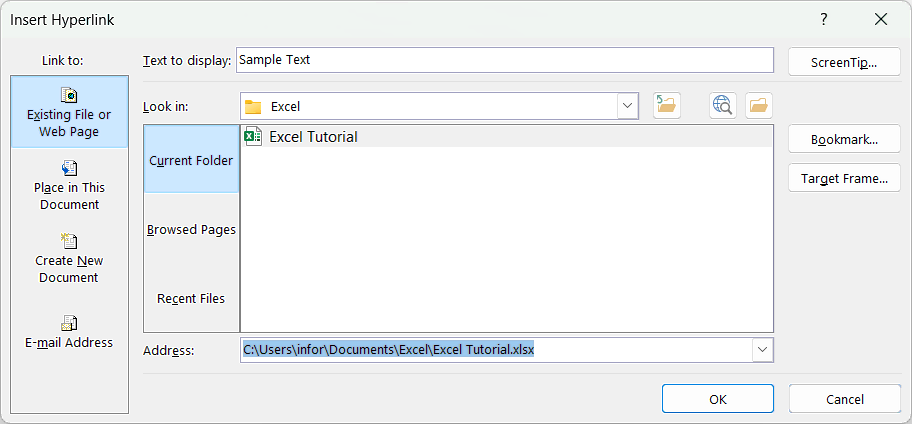
This opens the Insert Link dialog box, which is the control center for adding links.
3. Choose the Link Destination
The Insert Link window gives you four main options:
- Existing File or Web Page: Attach a local document or network file.
- Place in This Document: Jump to a heading, bookmark, or table of contents.
- Create New Document: Enter name of new document.
- Email Address: Insert an email link that opens a mail client.
4. Insert and Confirm the Link
Type or paste the website URL, file location, or email address in the Address box.
Click OK.
Your selected text or image now becomes a clickable link (blue and underlined by default).
✏️ How to Edit or Remove Links in Microsoft Word?
Follow the below steps to remove or edit links in Word:
- To edit a link in Word: Right-click → choose Edit Link → change the address.
- To remove a link in Word: Right-click → select Remove Link. (The text stays, but it’s no longer clickable.)
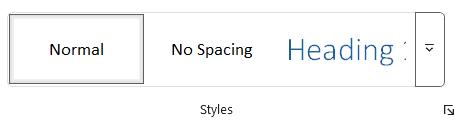
- To change link style in Word: Modify the “Link” style under the Styles Pane (change colors, remove underlines, etc.).
Note: Change link colors so they match your template style instead of the default blue. To change Styles in Microsoft Word, go to Home → Styles → Create a Style → Modify → Format).
⚠️ How to Fix Links Not Working in Microsoft Word?
Sometimes links don’t work as expected. Here’s how to solve it:
- Website link won’t open: Add https:// before the URL.
- Email link won’t work: Make sure you have Outlook or another mail app set as default.
- PDF export loses links: Use File → Save As → PDF, not Print to PDF.
- Link colors are distracting: Redefine the link style in the Home or Design tab.
⭐ Best Practices for Inserting Links in Microsoft Word?
- Use descriptive text for links (such as keep the text as Visit Our Website instead of Click here).
- Keep links short and clean.
- Test every link before sharing your document.
- Don’t overload with too many links.
- Use professional links in documents (for example: LinkedIn, portfolio, email).
- For eBooks or manuals, create a clickable Table of Contents.
⁉️ FAQs
How to Insert a Website Link in Word?
Adding a website link is simple. Highlight the text you want, press Ctrl + K, and paste the full web address into the address box. Once you click OK, the text becomes an active link that opens the website when clicked.
How to Insert an Email Link in Word?
To insert an email link, highlight the desired text and press Ctrl + K. In the dialog box, select the Email Address option and type in the email you want readers to use. You can also pre-fill the subject line. After clicking OK, the text becomes a clickable email link.
How to Insert a File Link in Word?
If you want to link to another file, highlight the text and press Ctrl + K. In the link options, select Existing File or Web Page and browse to find the file you want to attach. Once selected, click OK, and the link will open the file directly when clicked.
How to Insert a Bookmark Link in Word?
To create a bookmark link, first place your cursor at the section you want to mark and go to Insert → Bookmark. Give it a name and save it. Then highlight the linking text, press Ctrl + K, and choose Place in This Document. From the list, select the bookmark you created and confirm with OK. Now clicking that link will jump to the bookmarked section.
How to Insert a Link to a Heading in Word?
If your document has headings, you can link directly to them. Highlight the linking text, press Ctrl + K, and choose Place in This Document. A list of all available headings will appear. Select the heading you want and confirm. This is especially helpful in reports, manuals, and eBooks.
How to Create Reciprocal Links Between Sections?
You can create two-way navigation in Word by setting reciprocal links. For example, add a bookmark in Section A and link to it from Section B. Then create another bookmark in Section B and link it back to Section A. This method allows readers to move easily between related sections.
How to Customize Link Appearance in Word?
By default, links in Word appear blue and underlined. To change this, right-click the link and choose Edit Link to adjust the display text. For style changes, go to the Styles Pane and edit the “Link” or “Followed Link” styles. This lets you match link colors and styles with your document’s overall design.
What is an Accessible Link in Word and How Do I Make One?
An accessible link clearly describes the destination instead of showing a raw URL. For example, using Read the full report here is better than displaying a long web address. To make one, right-click the link, select Edit Link, and update the Text to display field. This ensures your document is easier to read and more accessible to screen readers.
How to Avoid Long URLs When Printing the Document?
Long links can clutter your printed pages. The best solution is to use descriptive link text within the document and, if needed, show the full URL in parentheses after it. This way, the link looks clean on the page, but the reference remains clear.
Why Are My Links Opening in Word Online Instead of the Desktop App?
If links open in Word Online by default, it often means your document is saved in OneDrive or SharePoint. To make sure links open in the desktop version, download the file to your computer and link to the local copy instead.
How to Find and Manage All Links in a Document?
You can find links in a document by pressing Ctrl + F and searching for http to locate web addresses. Another method is to use Find & Replace to search by formatting, since links are styled differently. For larger documents, reviewing link styles in the Styles Pane can also help identify and manage all links.
How to Keep Links Working When Exporting as PDF?
To preserve clickable links when saving as PDF, use File → Save As → PDF. The Save As method keeps all your links active, while printing to PDF usually removes interactivity.
💻 Shortcut Keys
🎯 Conclusion
The Links in MS Word are a simple yet powerful feature that can transform the way your documents are read and used. Instead of leaving readers to search for extra information on their own, you can connect them instantly to websites, supporting files, or other sections of your work. This not only improves the flow of information but also gives your document a professional edge.
Learn More
» How to use Bullets and Numbering in Word?
» How to Password Protect a Word Document?
» How to Change Document Properties in Word?
» How to use Clipboard in Word?
» How to Change Font in Word?
» How to Add Border in Word?
» How to use Alignment in Word?
» How to Change Text Color in Word?

Word Tutorial Part 1 (Basic)
» Word Home
» Word Basics
» Word Document
» Word Template
» Word Properties
» Word Password
Word Tutorial Part 2 (Format)
» Word Clipboard
» Word Font
» Word Color
» Word Alignment
» Word Border
» Word Bullets and Numbering
» Word Indents and Spacing
» Word Line and Page Breaks
Word Tutorial Part 3 (Insert)
» Word Cover Page
» Word Tables
» Word Illustrations
» Word Links
» Word Comments
» Word Header and Footer
» Word Text Box
» Word WordArt
» Word Quick Parts
» Word Drop Cap
» Word Date and Time
» Word Objects
» Word Equation
» Word Symbol
Word Tutorial Part 4 (Find)
» Word Find and Replace
» Word Go To
» Word Select Objects
» Word Selection Pane
Word Tutorial Part 5 (Design)
» Word Themes
» Word Watermark
» Word Page Color
» Word Page Border
Word Tutorial Part 6 (Layout)
» Word Margin
» Word Orientation
» Word Size
» Word Columns
» Word Breaks
» Word Line Numbers
» Word Hyphenation
» Word Position
» Word Wrap Text
» Word Bring Forward
» Word Send Backward
» Word Group
» Word Rotate
Word Tutorial Part 7 (References)
» Word Table of Contents
» Word Footnotes
» Word Citation and Bibliography
» Word Captions
» Word Index
» Word Table of Authorities
Word Tutorial Part 8 (Mailings)
» Word Envelopes
» Word Labels
» Word Start Mail Merge
» Word Write and Insert Fields
» Word Preview Results
» Word Finish and Merge
Word Tutorial Part 9 (Review)
» Word Editor
» Word Spelling and Grammer
» Word Thesaurus
» Word Count
» Word Read Aloud
» Word Check Accessibility
» Word Translate
» Word Language
» Word Comments
» Word Share
» Word Track Changes
» Word Compare
» Word Ink
Word Tutorial Part 10 (View)
» Word Views
» Word Immersive
» Word Show
» Word Zoom
» Word Window
» Word Macros
» Word Properties
Word Tutorial Part 11 (Other)
» Word Add-ins
» Word Shortcuts
0 Comments