
How to Use Comments in Microsoft Word
In this guide, you will learn how to use comments in Microsoft Word to share feedback and collaborate with ease. Whether you are a student polishing essays, an editor reviewing drafts, or a manager guiding your team, this step-by-step tutorial shows you how to add, edit, reply, resolve, delete, show, hide, and print comments for smoother communication.
📝 What are Comments in Microsoft Word?
Comments in Microsoft Word are digital notes that let you communicate inside a document without altering its original text. Think of them as smart annotations that sit neatly in the margin or within the Reviewing Pane, allowing you to highlight a word, phrase, or section and share feedback in context.
This feature is especially powerful in collaborative environments. A teacher can guide students by pointing out areas for improvement, a project manager can leave clarifications in a business report, and an editor can suggest alternative wording in a manuscript. In every case, the primary content stays intact, while comments serve as a layer of communication around it.
Unlike Track Changes, which directly mark edits in the text, the comments in Word are more like a dialogue box. They allow discussions, questions, and ideas to flow alongside the document, making them an essential tool for group projects, academic writing, and professional editing.

✅ How to Add Comments in Microsoft Word?
You can add comments in Microsoft Word in three different ways.
Add Comments in Microsoft Word Using the Review Tab
- Highlight the text where you want to add a comment.
- Click on the Review tab in the Ribbon menu at the top of the screen.
- Select New Comment, and a balloon appears in the margin where you can type your note.

Add Comments in Microsoft Word Using Right Click
Select the specific word or sentence that you want to comment on.
Right click on the highlighted section to open the context menu.
Choose New Comment from the menu to insert comment in Word document.

Keyboard Shortcut to Add Comments in Microsoft Word
- On Windows, press Alt + R + C2 (Alt+ N + L or Ctrl + Alt + M), or on Mac, press Command + Option + A.
- Type your note in the comment balloon that appears.
- If no text was highlighted, the comment will attach only to the cursor position.
✏️ How to Edit Comments in Microsoft Word?
Editing a comment is simple and straightforward.
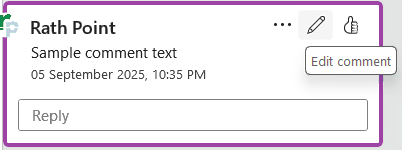
- Click inside the comment balloon where your note appears.
- Make any changes or corrections by typing directly in the balloon.
- Apply formatting such as bold, italics, or underline to make your comment clearer if needed.

💬 How to Reply to Comments in Microsoft Word?
Replies make it easy to keep discussions organized in threaded form.
- Hover your mouse pointer over the comment you want to reply to.
- Click on the Reply option inside the comment balloon.
- Type your response in the reply field beneath the original comment.
✅ How to Resolve or Delete Comments in Microsoft Word?
Resolve Comments in Microsoft Word
- Click on the comment that you want to resolve.
- In the comment window, click the three dots (…) and select the Resolve thread button.
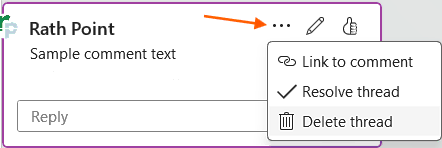
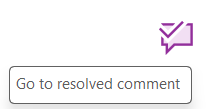
- The tick symbol is added to the resolved comment but remains in the document for record keeping.
Delete Comments in Microsoft Word
- Click on the comment you want to delete.
- Go to the Review Tab in the Ribbon.
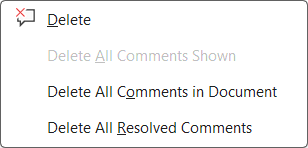
- Click on Delete and choose whether you want to delete that specific comment, delete all comments shown, delete all comments in the document or delete all resolved comments.
👁️ How to Show or Hide Comments in Microsoft Word?
Follow the below steps to hide or show comments in Microsoft Word:
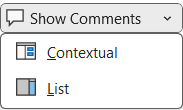
- Go to Review tab and click Show Comments in the Comments section, to display the comments.
- Click Show Comments again to hide the comments.
- You have two options to show the comments i.e., contextual or list.
🖨️ How to Print Comments in Microsoft Word?
Follow the below steps to print comments in Word:
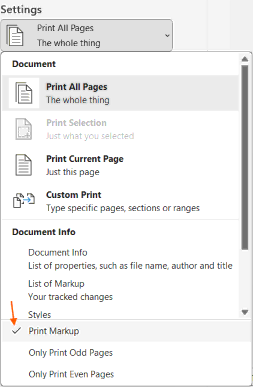
- Go to File and choose Print from the menu.
- In the Settings section, select Print Markup to include comments.
- Preview the document and click Print to print the document with comments.
⁉️ FAQs
How do I Enable or Disable Modern Comments in Word for Microsoft 365?
You can switch between Modern Comments and Classic Comments in Word settings. Go to File → Options → General and look for the comment options. Unchecking Enable Modern Comments will take you back to the older classic style if you prefer that layout.
What is the Difference Between Contextual and List View in Modern Comments?
Contextual view shows comments right next to the part of the document they relate to, making it easy to connect feedback with text. List view, on the other hand, puts all comments into a single pane on the side so you can scroll through every comment in one place, including the ones already resolved.
How do I Post a Comment in Word Without it Appearing Immediately?
In Modern Comments, typing a note doesn’t make it visible until you post it. You can click the Post button or use the shortcut Ctrl + Enter (Windows) or Command + Enter (Mac). This gives you the freedom to draft your comment, think about it, and only share it when you’re ready.
Can I Mention Someone in a Comment in Word?
Yes. You can type the @ symbol followed by a person’s name to tag them. If the document is stored in OneDrive or SharePoint, the tagged person will get an email notification, making collaboration much smoother.
How Do I Add Pictures or Icons Inside a Comment?
While editing a comment, you can insert images or icons just like you do in the main document. Go to the Insert tab, choose Pictures or Icons, and the image will appear inside the comment box. This is useful if you want to add visual feedback instead of just text.
Why Don’t Special Formatting or Tables Show Up Properly in Modern Comments?
Modern Comments are designed to keep feedback simple, so not every formatting style is supported. Things like tables or advanced formatting may not appear as expected. If you need full formatting, you can include your notes in the document body or use the Reviewing Pane to see details.
How Do I Resolve or Reopen a Comment Thread in Word?
When feedback has been addressed, hover over the comment and choose Resolve thread. The comment fades out but stays in the document history. If you need to bring it back later, click on the faded comment and choose Reopen.
Can I Delete Comments or Replies in Word 365?
Yes. Select the comment or reply you want to remove, go to the Review tab, and click Delete. You can delete them one by one or use the option to delete all comments in the document at once.
How Do I Quickly Move Between Comments in a Document?
Instead of scrolling through the document, you can use the Previous and Next buttons in the Review tab. These buttons let you jump from one comment to another, which is especially helpful in long reports or academic papers.
Will Older Versions of Word Still Display Modern Comments?
Yes. If someone opens your document in an older version of Word, the comments will still appear but in the classic style. Microsoft made sure comments remain compatible across versions, so no feedback is lost.
Do Modern Comments Work the Same Way in Excel and PowerPoint?
They do. Microsoft designed the Modern Comments experience to be consistent across Word, Excel, and PowerPoint. This means once you get used to the new look in Word, you’ll find the same style of comments in the other Office apps.
Do Comments Stay If I Copy and Paste Text Between Documents?
Yes, comments travel with the text when you copy and paste. If you move a section of text into another Word document, the associated comments come along with it. This makes it easy to transfer both content and feedback together.
Can I Remove Only Resolved Comments in Word 365?
There isn’t a one-click button to delete just resolved comments. However, you can open the Reviewing Pane under the Comments section, which lists all comments, and manually remove the resolved ones. This gives you control over which notes stay in the document.
How Do I See All Comments in One Place in Word?
Go to the Review tab and click Reviewing Pane under the Comments section. This opens a sidebar that lists every comment, including resolved ones. It’s especially handy if your document is long and you don’t want to scroll through page after page looking for feedback.
What Is the Best Way to Manage Comments in Long Word Documents?
For very large documents, the List view or Reviewing Pane is the most efficient way to manage feedback. It allows you to scan through all comments quickly, jump to the section you need, and stay organized without missing any notes.
🎯 Conclusion
Using comments in Microsoft Word is one of the simplest ways to improve teamwork and document reviews. Instead of cluttering a draft with edits or side notes, comments allow you to give clear, organized feedback that the writer can act on when ready. They keep discussions connected to the right part of the text, making collaboration less confusing and more efficient.
Learn More
» How to use illustrations in Microsoft Word?
» How to use Bullets and Numbering in Word?
» How to Password Protect a Word Document?
» How to Change Document Properties in Word?
» How to use Clipboard in Word?
» How to Add Border in Word?
» How to Create a Table in Microsoft Word?
Word Tutorial Part 1 (Basic)
» Word Home
» Word Basics
» Word Document
» Word Template
» Word Properties
» Word Password
Word Tutorial Part 2 (Format)
» Word Clipboard
» Word Font
» Word Color
» Word Alignment
» Word Border
» Word Bullets and Numbering
» Word Indents and Spacing
» Word Line and Page Breaks
Word Tutorial Part 3 (Insert)
» Word Cover Page
» Word Tables
» Word Illustrations
» Word Links
» Word Comments
» Word Header and Footer
» Word Text Box
» Word WordArt
» Word Quick Parts
» Word Drop Cap
» Word Date and Time
» Word Objects
» Word Equation
» Word Symbol
Word Tutorial Part 4 (Find)
» Word Find and Replace
» Word Go To
» Word Select Objects
» Word Selection Pane
Word Tutorial Part 5 (Design)
» Word Themes
» Word Watermark
» Word Page Color
» Word Page Border
Word Tutorial Part 6 (Layout)
» Word Margin
» Word Orientation
» Word Size
» Word Columns
» Word Breaks
» Word Line Numbers
» Word Hyphenation
» Word Position
» Word Wrap Text
» Word Bring Forward
» Word Send Backward
» Word Group
» Word Rotate
Word Tutorial Part 7 (References)
» Word Table of Contents
» Word Footnotes
» Word Citation and Bibliography
» Word Captions
» Word Index
» Word Table of Authorities
Word Tutorial Part 8 (Mailings)
» Word Envelopes
» Word Labels
» Word Start Mail Merge
» Word Write and Insert Fields
» Word Preview Results
» Word Finish and Merge
Word Tutorial Part 9 (Review)
» Word Editor
» Word Spelling and Grammer
» Word Thesaurus
» Word Count
» Word Read Aloud
» Word Check Accessibility
» Word Translate
» Word Language
» Word Comments
» Word Share
» Word Track Changes
» Word Compare
» Word Ink
Word Tutorial Part 10 (View)
» Word Views
» Word Immersive
» Word Show
» Word Zoom
» Word Window
» Word Macros
» Word Properties
Word Tutorial Part 11 (Other)
» Word Add-ins
» Word Shortcuts
0 Comments