
How to Insert Header and Footer in Microsoft Word (5 Easy Methods)
In this guide, you will learn how to insert header and footer in Microsoft Word in 5 easy methods. When creating professional documents, it’s not enough to just write good content, presentation matters too. One simple but powerful way to make your documents look polished is to insert header and footer in Microsoft Word.
Whether you’re preparing an assignment, a business report, or a research paper, headers and footers help you add page numbers, document titles, dates, logos, or author information in a consistent way.
📝 What is a Header and Footer in Microsoft Word?
- Header: Appears at the very top margin of the document. Commonly used for titles, author names, or logos.
- Footer: Appears at the bottom margin of the document. Usually contains page numbers, notes, or copyright info.
Both repeat automatically across pages (unless customized differently).
✅ Why Insert Header and Footer in Microsoft Word?
Adding headers and footers offers many advantages:
- Consistency: Information repeats on all pages without retyping.
- Navigation: Page numbers and section titles help readers.
- Professional Look: Perfect for reports, contracts, or academic papers.
- Branding: Companies can insert logos or taglines for identity.
➕ How to Insert Header and Footer in Microsoft Word?
Let’s learn different methods to insert headers and footers in Word:
Method 1: Insert Header and Footer from the Ribbon
This is the most common method to insert header and footer in Microsoft Word:
- Open your Word document.
- Go to the Insert tab on the Ribbon.
- In the Header & Footer group, click Header or Footer.
- Choose a built-in style (e.g., Blank, Banded, or Austin).
- Type your content (e.g., title, page number, or date).
- Click Close Header and Footer or double-click in the main text area to exit.
👉 This method is quick if you want to use pre-designed templates.
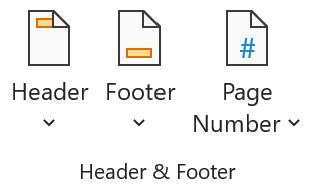
Method 2: Double-Click to Insert Header and Footer
Another easy way is to simply double-click in the header or footer area to add header and footer:
- Open the document.
- Double-click at the very top (for header) or bottom (for footer) of the page.
- The header/footer editing area will open automatically.
- Type your text or insert elements like page numbers, dates, or images.
- Double-click outside the area to return to the main document.
👉 This is the fastest way if you want to create a custom header/footer without using templates.
Method 3: Insert Page Numbers (Automatic Header or Footer)
Sometimes, all you need is page numbers in the footer or header:
- Go to the Insert tab.
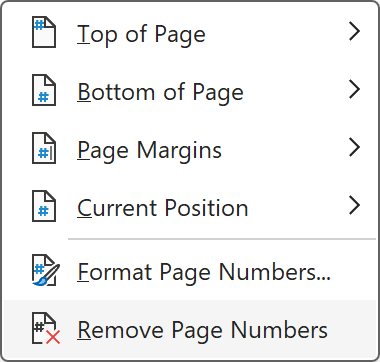
- Click Page Number in the Header & Footer group.
- Select a position:
- Top of Page
- Bottom of Page
- Page Margins
- Choose a numbering style (e.g., plain numbers, Roman numerals).
- Click OK to apply.
👉 This method is best for academic papers or long reports.
Method 4: Use Different Headers/Footers for First or Odd/Even Pages
Microsoft Word also allows you to customize headers and footers differently across pages:
- Insert a header/footer using Method 1 or 2.
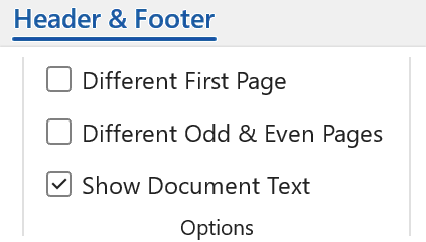
- Go to the Header & Footer tab (appears when editing headers/footers).
- Select Different First Page if you don’t want a header/footer on the title page.
- Select Different Odd & Even Pages for books or double-sided documents.
👉 This method is useful when formatting cover pages or books.
Method 5: Insert Header and Footer with Section Breaks
For more control, use section breaks to create unique headers and footers for different document parts.
- Place your cursor where you want a new section to start.
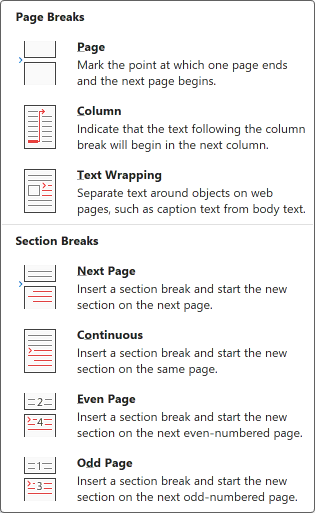
- Go to Layout → Breaks → Next Page (or Continuous).
- Insert a new header/footer in that section using Method 1 or 2.
- On the Header & Footer tab, uncheck Link to Previous.
- Add your new content (e.g., different chapter titles or numbering style).
👉 This method is best for books, research papers, or long reports with multiple sections.
💡 Tips for Better Results in Header and Footer
- Use a smaller font size (8–10pt) in headers/footers.
- Keep them minimal and avoid clutter.
- Preview in Print Layout to check placement.
- Use section breaks when working on complex documents.
⁉️ FAQs
How do I remove a header or footer in Word?
Double-click the header or footer area to activate it. Then select the content and press Delete. Finally, click Close Header and Footer. This will remove it from all pages unless section breaks are used.
How do I insert page numbers in the header or footer?
Go to the Insert tab → Page Number. Choose whether you want the page numbers at the top, bottom, or margins. Select a numbering style, and Word will automatically apply it throughout the document.
How do I make a different header or footer for the first page in Word?
After inserting a header/footer, go to the Header & Footer tab. Check Different First Page. This lets you keep the first page blank or use a unique header/footer (useful for cover pages).
Why is my header not showing in Word?
If your header isn’t visible, check:
- View mode: Use Print Layout view to see headers/footers.
- Margins: If margins are too narrow, headers may appear hidden.
- Document settings: Ensure “Different First Page” isn’t checked if you want headers on page one.
How do I change the size of header and footer in Microsoft Word?
Go to Layout → Margins → Custom Margins. In the dialog box, adjust the Header or Footer distance from edge. You can also resize by dragging the header/footer boundary with your cursor.
How do I add a logo or image to a header in Word?
Double-click the header area → go to Insert → Pictures. Choose an image from your computer. Resize and position it as needed. Use the Wrap Text → Behind Text option for better alignment.
Can I remove a header or footer from only one page in Word?
Yes. Insert a section break before and after the page. Then, in that section’s header/footer, uncheck Link to Previous. Now you can delete the header/footer just from that page without affecting others.
🎯 Conclusion
Learning to insert header and footer in Word is a must-have skill for students, professionals, and writers. Whether you use the Ribbon, double-click method, page numbers, or section breaks, each method gives you flexibility to design documents that look clean, organized, and professional.
Learn More
» How to use illustrations in Microsoft Word?
» How to use Bullets and Numbering in Word?
» How to Password Protect a Word Document?
» How to Change Document Properties in Word?
» How to use Clipboard in Word?
» How to Add Border in Word?
» How to Create a Table in Microsoft Word?
Word Tutorial Part 1 (Basic)
» Word Home
» Word Basics
» Word Document
» Word Template
» Word Properties
» Word Password
Word Tutorial Part 2 (Format)
» Word Clipboard
» Word Font
» Word Color
» Word Alignment
» Word Border
» Word Bullets and Numbering
» Word Indents and Spacing
» Word Line and Page Breaks
Word Tutorial Part 3 (Insert)
» Word Cover Page
» Word Tables
» Word Illustrations
» Word Links
» Word Comments
» Word Header and Footer
» Word Text Box
» Word WordArt
» Word Quick Parts
» Word Drop Cap
» Word Date and Time
» Word Objects
» Word Equation
» Word Symbol
Word Tutorial Part 4 (Find)
» Word Find and Replace
» Word Go To
» Word Select Objects
» Word Selection Pane
Word Tutorial Part 5 (Design)
» Word Themes
» Word Watermark
» Word Page Color
» Word Page Border
Word Tutorial Part 6 (Layout)
» Word Margin
» Word Orientation
» Word Size
» Word Columns
» Word Breaks
» Word Line Numbers
» Word Hyphenation
» Word Position
» Word Wrap Text
» Word Bring Forward
» Word Send Backward
» Word Group
» Word Rotate
Word Tutorial Part 7 (References)
» Word Table of Contents
» Word Footnotes
» Word Citation and Bibliography
» Word Captions
» Word Index
» Word Table of Authorities
Word Tutorial Part 8 (Mailings)
» Word Envelopes
» Word Labels
» Word Start Mail Merge
» Word Write and Insert Fields
» Word Preview Results
» Word Finish and Merge
Word Tutorial Part 9 (Review)
» Word Editor
» Word Spelling and Grammer
» Word Thesaurus
» Word Count
» Word Read Aloud
» Word Check Accessibility
» Word Translate
» Word Language
» Word Comments
» Word Share
» Word Track Changes
» Word Compare
» Word Ink
Word Tutorial Part 10 (View)
» Word Views
» Word Immersive
» Word Show
» Word Zoom
» Word Window
» Word Macros
» Word Properties
Word Tutorial Part 11 (Other)
» Word Add-ins
» Word Shortcuts
0 Comments