
How to use WordArt in Microsoft Word
If you are looking to make your Microsoft Word documents more creative and visually appealing, learning how to use WordArt in Microsoft Word is necessary. WordArt lets you turn plain text into decorative eye-catching designs which is perfect for professional reports, projects, invitations, and marketing materials.
In this guide, you will discover how to insert, edit, and customize WordArt, how to make curved or 3D text, and how to avoid common formatting mistakes.
📝 What Is WordArt in Microsoft Word?
WordArt is a special text formatting feature that lets you apply decorative styles to your text. Unlike normal font changes (like bold or italic), WordArt treats text as a graphic object, giving you freedom to move, resize, and style it independently.
You can use WordArt to:
- Create eye-catching titles or headings.
- Design certificates, flyers, and posters.
- Highlight quotes, taglines, or slogans.
- Give documents and resumes a creative look.
It is a quick way to add personality and design flair without using any external graphics software.
➕ How to Insert WordArt in Microsoft Word?
Step 1: Open the WordArt Tool
- Launch Microsoft Word and open your document.
- Go to the Insert tab → Text section and click on WordArt icon (look for the stylized letter “A”).

Step 2: Select a WordArt Style
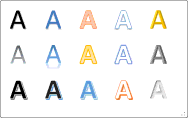
- You will see a gallery of preset styles, each with distinct colors and outlines. Choose the one that fits your project or style.
- You can always modify your style later, so do not worry about making the perfect choice at the starting.
Step 3: Type Your Text
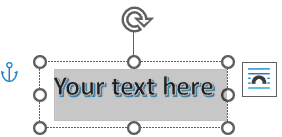
- A text box with placeholder text (“Your text here”) will appear. Replace it with your own text.
- Click anywhere outside the box to insert your WordArt into the document.
🎨 How to Customize WordArt in Microsoft Word?
After inserting WordArt in Word, you can modify it in countless ways to fit your design.
How to Change WordArt Font and Size
- Click your WordArt to select it.
- Go to the Home tab.
- Change the font type, font size, or apply bold, italic or underline as desired.
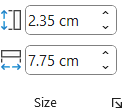
- Drag from any corner to increase the WordArt size or go to Shape Format tab → Size section and adjust the shape height or width.
How to Change WordArt Shape Styles
- Select your WordArt object.
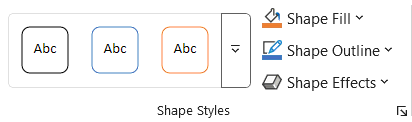
- Go to the Shape Format tab and choose from the below options:
- Shape Fill: Change the inside color of your WordArt.
- Shape Outline: Modify the border color or thickness.
- Shape Effects: Add shadow, reflection, glow, soft edges, bevel, or 3D rotation for extra depth.
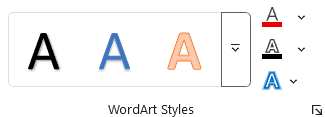
How to Change WordArt Text Styles
- Select the text in your WordArt.
- Go to the Shape Format tab and choose from the below options:
- Quick Styles: Select the predefined styles of your text.
- Text Fill: Change the text color of your WordArt.
- Text Outline: Modify the text border color or thickness.
- Text Effects: Add shadow, reflection, glow, bevel, 3D rotation or transform to your text.
- Click the WordArt Styles launcher icon at the bottom right for more options.
How to Rotate WordArt in Microsoft Word
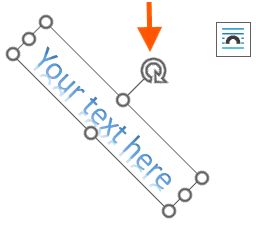
- Click on your WordArt object to select it.
- A small circular arrow will appear above the box; this is the rotation handle.
- Hover your mouse over the handle until the cursor turns into a curved arrow.
- Click and drag to rotate the WordArt in any direction you like.
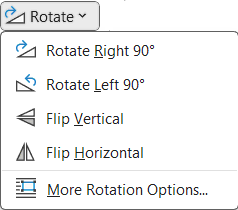
- Alternatively, go to Shape Format → Arrange section → click on Rotate button.
- From the dropdown you can select rotate right 90°, rotate left 90°, flip vertical, flip horizontal or click the more rotation options.
Note: Hold the Shift key while rotating to snap the rotation in 15-degree steps. This makes it easier to keep your design symmetrical.
🖨️ How to Print WordArt in Microsoft Word?
- Switch to Print Layout View to preview your design.
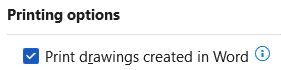
- Go to File → Options → Display and check Print drawings created in Word.
- If saving as a PDF, all WordArt effects will remain fully preserved.
🚫 Common Mistakes to Avoid When Using WordArt
- Using too many effects at once (like multiple shadows and bevels).
- Choosing hard-to-read fonts.
- Overlapping text and background elements.
- Ignoring alignment and spacing.
- Making color choices that reduce contrast and readability.
⁉️ FAQs
How do I insert WordArt in Word 365?
Go to Insert → WordArt, pick a design, and enter your text. This method works across all modern Word versions.
Can I edit WordArt after inserting it?
Yes. Just click on the WordArt, select the text, and use the formatting tools to make changes.
How do I curve text in Microsoft Word?
Select your WordArt, go to Text Effects → Transform, and choose a curved style like Arch Up, Arch Down, or Circle.
Can I use WordArt in Word Online?
You can view and adjust existing WordArt in Word Online but creating or deeply customizing WordArt requires the desktop version of Microsoft Word.
🎯 Conclusion
WordArt in Microsoft Word is a simple yet powerful design tool that helps turn plain text into visually striking elements. You can easily elevate the design of any document with its broad customization options such as fonts, colors, gradients, and 3D effects.
Learn More
» How to Insert Header and Footer in Microsoft Word?
» How to Create a Cover Page in Microsoft Word?
» How to use Bullets and Numbering in Word?
» How to Password Protect a Word Document?
» How to Change Document Properties in Word?
» How to use Clipboard in Word?
» How to Insert Links in Microsoft Word?
» How to Use a Text Box in Microsoft Word?
Word Tutorial Part 1 (Basic)
» Word Home
» Word Basics
» Word Document
» Word Template
» Word Properties
» Word Password
Word Tutorial Part 2 (Format)
» Word Clipboard
» Word Font
» Word Color
» Word Alignment
» Word Border
» Word Bullets and Numbering
» Word Indents and Spacing
» Word Line and Page Breaks
Word Tutorial Part 3 (Insert)
» Word Cover Page
» Word Tables
» Word Illustrations
» Word Links
» Word Comments
» Word Header and Footer
» Word Text Box
» Word WordArt
» Word Quick Parts
» Word Drop Cap
» Word Date and Time
» Word Objects
» Word Equation
» Word Symbol
Word Tutorial Part 4 (Find)
» Word Find and Replace
» Word Go To
» Word Select Objects
» Word Selection Pane
Word Tutorial Part 5 (Design)
» Word Themes
» Word Watermark
» Word Page Color
» Word Page Border
Word Tutorial Part 6 (Layout)
» Word Margin
» Word Orientation
» Word Size
» Word Columns
» Word Breaks
» Word Line Numbers
» Word Hyphenation
» Word Position
» Word Wrap Text
» Word Bring Forward
» Word Send Backward
» Word Group
» Word Rotate
Word Tutorial Part 7 (References)
» Word Table of Contents
» Word Footnotes
» Word Citation and Bibliography
» Word Captions
» Word Index
» Word Table of Authorities
Word Tutorial Part 8 (Mailings)
» Word Envelopes
» Word Labels
» Word Start Mail Merge
» Word Write and Insert Fields
» Word Preview Results
» Word Finish and Merge
Word Tutorial Part 9 (Review)
» Word Editor
» Word Spelling and Grammer
» Word Thesaurus
» Word Count
» Word Read Aloud
» Word Check Accessibility
» Word Translate
» Word Language
» Word Comments
» Word Share
» Word Track Changes
» Word Compare
» Word Ink
Word Tutorial Part 10 (View)
» Word Views
» Word Immersive
» Word Show
» Word Zoom
» Word Window
» Word Macros
» Word Properties
Word Tutorial Part 11 (Other)
» Word Add-ins
» Word Shortcuts
0 Comments