
How to use Quick Parts in Microsoft Word
In this guide, you will learn how to use Quick Parts in Microsoft Word, which includes its meaning, benefits, how to create and insert, and how to organize for maximum productivity.
If you often find yourself typing the same content repeatedly, such as company details, signatures, or disclaimers, Quick Parts in Microsoft Word can make your work much easier.
This feature allows you to save and reuse frequently used content with just few clicks. It helps maintain consistency, saves time, and improves accuracy across all your documents.
📝 What are Quick Parts in Microsoft Word?
Quick Parts are part of the Building Blocks feature in Microsoft Word. Building Blocks are reusable pieces of content that can include text, images, fields, tables, or graphics.
Quick Parts focus on content that you use often. Once you create and save them, you can easily insert them into any document instead of retyping or copying from old files.
In short, Quick Parts function as a content library inside Word that stores reusable text or objects for quick access.
✅ What are Benefits of Using Quick Parts?
Using Quick Parts provides several clear advantages:
- Saves time by removing the need to retype the same information.
- Ensures consistency in formatting and writing style.
- Improves accuracy by reducing typing errors.
- Supports a variety of content types such as text, tables, and fields.
- Works across templates, allowing you to share them with colleagues.
These benefits make Quick Parts especially useful for businesses, educators, and professionals who create similar documents frequently.
🗒️ How to Create Quick Parts in Microsoft Word?
Follow these simple steps to create your own Quick Part:
Step 1: Select the Content
- Highlight the text, table, image, or other elements that you want to reuse.
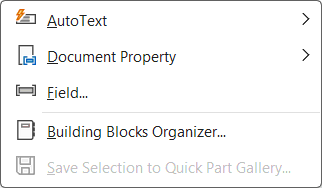
Step 2: Select Quick Parts
- Go to Insert tab → Text group and click on Quick Parts icon.

- In the drop down, select Save Selection to Quick Part Gallery.
Step 3: Name and Categorize the Quick Part
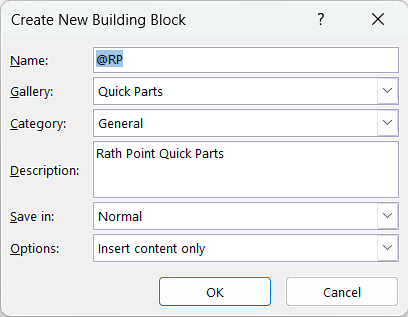
Create New Building Block dialog box will appear, and you can fill in the below details:
- Name: Give your Quick Part a short and clear name.
- Gallery: Choose Quick Parts from the list.
- Category: You can create your own category such as “My Category” or “Official Text.”
- Description: Add a brief explanation if needed.
- Save In: Select Normal to make it available in all documents.
- Options: You will get three options to choose – insert contents only, insert contents in its own paragraph and insert contents in its own page.
Click OK to save. Your Quick Part is now ready to use.
➕ How to Insert Quick Parts in Microsoft Word?
You can insert your saved Quick Parts in different methods.
Method 1: Use the Ribbon
- Go to the Insert tab.
- Click Quick Parts in the Text group.
- Select the item you want to insert, from:
- General,
- AutoText,
- Document Property, or
- Filed.
Method 2: Use the F3 Shortcut
- Type the name of your Quick Part in the document.
- Press F3 and Word will instantly replace it with the saved content.
Method 3: Use the Building Blocks Organizer
- Go to Insert tab → Quick Parts → click Building Blocks Organizer.
- Choose the item you want and click Insert.
✏️ How to Edit or Update a Quick Part in Microsoft Word?
If you need to change a Quick Part, you can easily update it.
- Go to Insert → Quick Parts → Building Blocks Organizer.
- Select the item and click on Edit Properties.
- Make any changes you need.
- Click OK to save the changes.
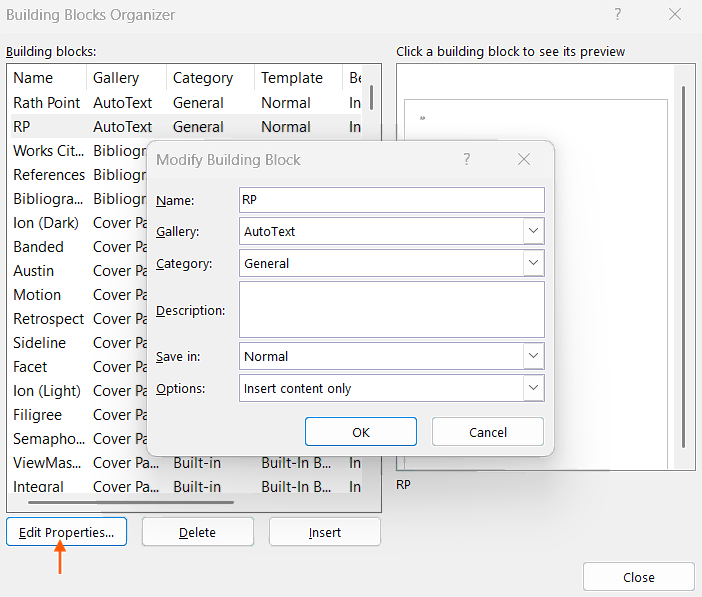
Note: This will replace the previous version with the new one.
🗑️ How to Delete a Quick Part in Microsoft Word?
- Go to Insert → Quick Parts → Building Blocks Organizer.
- Find the entry you want to remove and click Delete button.
- Click Yes to confirm your choice.
Note: This will remove it from your Quick Parts gallery.
🧱 Understanding the Building Blocks Organizer
The Building Blocks Organizer is the main area where you can manage all your reusable content.
From this window, you can:
- View all your Quick Parts, headers, footers, and other saved content.
- Sort and search by name, category, or gallery.
- Edit or delete items as needed.
- Insert items directly into your document.
🔍 Difference Between Quick Parts and AutoText
- Quick Parts function as a broad library of reusable items such as fields, tables, headers, footers, and text blocks, while AutoText is only for storing commonly used text entries.
- Quick Parts inserted through the Ribbon menu, while AutoText entries can appear simply by typing their name and confirming it.
- Quick Parts support complex or heavily formatted content, whereas AutoText works best for simple, frequently repeated text.
- AutoText functions as one category inside the larger Quick Parts system rather than an independent feature.
- Quick Parts suit structured, reusable components, while AutoText is ideal for quick insertion of short text you use often.
⁉️ FAQs
Why is my Quick Part not showing in Microsoft Word?
Your Quick Part may not appear if it was saved in a different template. Check that it is saved in Normal.dotm or in the template currently attached to your document.
Why are my Quick Parts not saved after closing Word?
When Word closes, it sometimes asks whether to save changes to the Building Blocks template. If you click No, your new Quick Parts will not be saved. Always click Yes when prompted.
How can I use the same Quick Parts on another computer?
Quick Parts are stored in your template file. To use them on another computer, copy your Normal.dotm or the specific template file that contains your Quick Parts and paste it into the same Templates folder on the other system.
Why are my fields not updating in Quick Parts?
If a Quick Part includes fields such as dates or author names and they do not update automatically, press Ctrl + A to select the entire document, and then press F9 to refresh all fields.
Can I recover deleted Quick Parts?
Once a Quick Part is deleted from the Building Blocks Organizer, it cannot be recovered unless you have a backup of your template file. It is a good practice to regularly back up your templates to avoid losing saved content.
Can Quick Parts be used across all versions of Word?
Yes, Quick Parts are available in most modern versions of Microsoft Word, including Word 2016, Word 2019, Word 2021, Word 2024, and Microsoft 365. The layout may vary slightly, but the feature works the same way.
🎯 Conclusion
The Quick Parts in Microsoft Word are a powerful feature that can save you hours of repetitive typing. By learning how to create, organize, and manage Quick Parts, you can work faster and maintain consistency in every document.
Learn More
» How to Insert Header and Footer in Microsoft Word?
» How to Create a Cover Page in Microsoft Word?
» How to use Bullets and Numbering in Word?
» How to Password Protect a Word Document?
» How to Change Document Properties in Word?
» How to use Clipboard in Word?
» How to Insert Links in Microsoft Word?
» How to Use a Text Box in Microsoft Word?
Word Tutorial Part 1 (Basic)
» Word Home
» Word Basics
» Word Document
» Word Template
» Word Properties
» Word Password
Word Tutorial Part 2 (Format)
» Word Clipboard
» Word Font
» Word Color
» Word Alignment
» Word Border
» Word Bullets and Numbering
» Word Indents and Spacing
» Word Line and Page Breaks
Word Tutorial Part 3 (Insert)
» Word Cover Page
» Word Tables
» Word Illustrations
» Word Links
» Word Comments
» Word Header and Footer
» Word Text Box
» Word WordArt
» Word Quick Parts
» Word Drop Cap
» Word Date and Time
» Word Objects
» Word Equation
» Word Symbol
Word Tutorial Part 4 (Find)
» Word Find and Replace
» Word Go To
» Word Select Objects
» Word Selection Pane
Word Tutorial Part 5 (Design)
» Word Themes
» Word Watermark
» Word Page Color
» Word Page Border
Word Tutorial Part 6 (Layout)
» Word Margin
» Word Orientation
» Word Size
» Word Columns
» Word Breaks
» Word Line Numbers
» Word Hyphenation
» Word Position
» Word Wrap Text
» Word Bring Forward
» Word Send Backward
» Word Group
» Word Rotate
Word Tutorial Part 7 (References)
» Word Table of Contents
» Word Footnotes
» Word Citation and Bibliography
» Word Captions
» Word Index
» Word Table of Authorities
Word Tutorial Part 8 (Mailings)
» Word Envelopes
» Word Labels
» Word Start Mail Merge
» Word Write and Insert Fields
» Word Preview Results
» Word Finish and Merge
Word Tutorial Part 9 (Review)
» Word Editor
» Word Spelling and Grammer
» Word Thesaurus
» Word Count
» Word Read Aloud
» Word Check Accessibility
» Word Translate
» Word Language
» Word Comments
» Word Share
» Word Track Changes
» Word Compare
» Word Ink
Word Tutorial Part 10 (View)
» Word Views
» Word Immersive
» Word Show
» Word Zoom
» Word Window
» Word Macros
» Word Properties
Word Tutorial Part 11 (Other)
» Word Add-ins
» Word Shortcuts
0 Comments