
How to Insert a Symbol in Microsoft Word
In this guide, you will learn how to insert a Symbol in Microsoft Word using simple step-by-step methods. Adding symbols in Microsoft Word is useful for students, office users, business professionals, and technical writers who need to include special characters such as copyright signs, degree symbols, check marks, currency symbols, or mathematical characters in their documents.
This detailed tutorial explains the easiest ways to insert symbols in Microsoft Word, including the built-in symbol options, keyboard shortcuts, Alt codes, and practical examples to help you work faster and more efficiently.
📝 What does Insert a Symbol in Microsoft Word Mean?
In Microsoft Word, symbols are special characters that are not usually available on a standard keyboard. These characters can be inserted directly into your document using Word’s built-in Symbol feature.
Commonly used symbols include:
- © Copyright symbol
- ™ Trademark symbol
- $ US Dollar symbol
- ° Degree symbol
- ✓ Check mark
- ± Plus-minus sign
- π Pi symbol
- ∞ Infinity symbol
👉 Why Symbols are Important in Microsoft Word?
Using symbols helps to improve document readability and presentation. Instead of typing plain text explanations, symbols make information cleaner and more professional.
People commonly insert symbols in Microsoft Word for:
- Writing mathematical equations.
- Adding currency symbols in invoices.
- Creating technical or scientific documents.
- Using copyright or trademark signs.
- Adding arrows, stars, and decorative icons.
- Typing special language characters.
➕ How to Insert a Symbol in Microsoft Word (Step by Step)?
Microsoft Word includes a dedicated Symbol tool that allows you to insert hundreds of special characters instantly. Follow the below steps to insert a symbol in Word:
1. Select the Position for the Symbol
- Open your Word document.
- Click where you want the symbol to appear.
This tells Word where the symbol should be inserted.
2. Navigate to Symbol Option
- Go to the Insert tab and navigate to the Symbols group on the right side of the ribbon.
- Locate the Symbol option and click the dropdown arrow beside it.
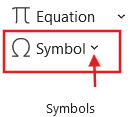
You will now see a list of recently used and popular symbols.
3. Choose a Symbol or Open More Symbols
- Click a visible symbol to insert it immediately.
- If the symbol is not available, choose More Symbols.
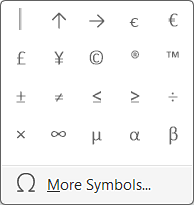
The More Symbols window contains a large collection of characters and special signs.
4. Insert the Required Symbol
- Browse through the available symbols.
- Select the symbol you need and click Insert.
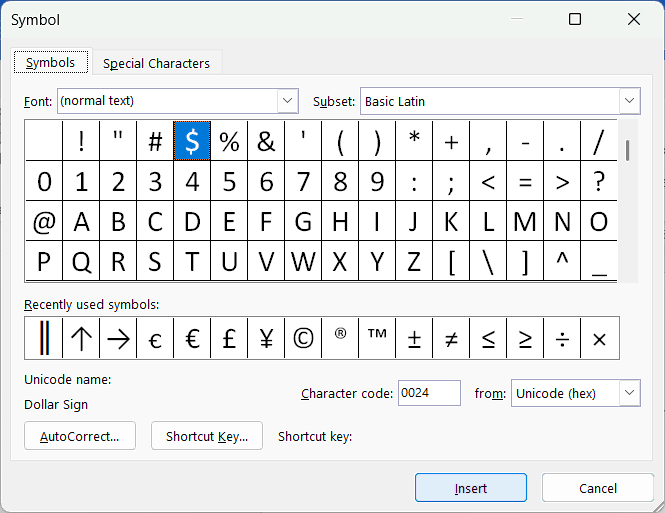
The selected symbol will instantly appear inside your document.
⌨️ How to Insert Symbols using Keyboard Shortcuts?
Keyboard shortcuts help insert symbols faster without opening the Symbol menu repeatedly.
How to Use Alt Codes
- Turn on Num Lock.
- Hold the Alt key.
- Type the numeric code using the number pad.
- Release the Alt key.
The symbol will automatically appear.
Shortcuts for Symbols in Microsoft Word
- Alt + 1 = ☺ (Smiley Face)
- Alt + 3 = ♥ (Heart Symbol)
- Alt + 4 = ♦ (Diamond Symbol)
- Alt + 5 = ♣ (Club Symbol)
- Alt + 6 = ♠ (Spade Symbol)
- Alt + 13 = ♪ (Music Note)
- Alt + 14 = ♫ (Double Music Note)
- Alt + 15 = ☼ (Sun Symbol)
- Alt + 18 = ↕ (Up Down Arrow)
- Alt + 24 = ↑ (Up Arrow)
- Alt + 25 = ↓ (Down Arrow)
- Alt + 26 = → (Right Arrow)
- Alt + 27 = ← (Left Arrow)
- Alt + 127 = ⌂ (House Symbol)
- Alt + 0128 = € (Euro Symbol)
- Alt + 0137 = ‰ (Per Mille Symbol)
- Alt + 0149 = • (Bullet Symbol)
- Alt + 0153 = ™ (Trademark Symbol)
- Alt + 0162 = ¢ (Cent Symbol)
- Alt + 0163 = £ (Pound Symbol)
- Alt + 0165 = ¥ (Yen Symbol)
- Alt + 0167 = § (Section Symbol)
- Alt + 0169 = © (Copyright Symbol)
- Alt + 0174 = ® (Registered Trademark Symbol)
- Alt + 0176 = ° (Degree Symbol)
- Alt + 0177 = ± (Plus Minus Symbol)
- Alt + 0182 = ¶ (Paragraph Symbol)
- Alt + 0215 = × (Multiplication Symbol)
- Alt + 224 = α (Alpha Symbol)
- Alt + 225 = β (Beta Symbol)
- Alt + 227 = π (Pi Symbol)
- Alt + 230 = µ (Micro Symbol)
- Alt + 234 = Ω (Omega Symbol)
- Alt + 235 = δ (Delta Symbol)
- Alt + 236 = ∞ (Infinity Symbol)
- Alt + 0247 = ÷ (Division Symbol)
- Alt + 251 = √ (Square Root Symbol)
- Alt + 9733 = ★ (Black Star)
- Alt + 9734 = ☆ (White Star)
- Alt + 9742 = ☎ (Telephone Symbol)
- Alt + 9745 = ☑ (Checked Box)
- Alt + 9746 = ☒ (Cross Box)
- Alt + 10003 = ✓ (Check Mark)
⚠️ Common Issues while Inserting Symbols in Word
Some users may face issues when inserting symbols in Microsoft Word.
Symbol is Not Showing Properly
- Change the font style.
- Use standard fonts like Calibri or Arial.
- Ensure the selected font supports the symbol.
Shortcut Key Is Not Working
- Enable Num Lock.
- Use the numeric keypad instead of top-row numbers.
Symbol Cannot Be Found
- Check different subsets inside More Symbols.
- Try changing the font category.
⁉️ FAQs
How do I insert a symbol in Microsoft Word?
Open the Insert tab, click Symbol, choose the required character, and then click Insert to add it to your document.
Where can I find the Symbol option in Microsoft Word?
The Symbol option is located on the right side of the Insert tab in the Microsoft Word ribbon.
How do I insert a degree symbol in Word?
Go to Insert → Symbol → More Symbols, select the degree symbol (°), and click Insert.
What is the shortcut key for inserting symbols in Word?
Microsoft Word supports Alt code shortcuts such as Alt + 0176 for the degree symbol and Alt + 0169 for the copyright sign.
How do I insert a check mark symbol in Microsoft Word?
Open Insert → Symbol → More Symbols, locate the check mark symbol (✓), and click Insert.
What is the shortcut key to insert the Rupee symbol in Microsoft Word?
You can insert the Rupee symbol (₹) using the shortcut key Ctrl + Alt + 4 or hold down Alt and type 8377 on the numeric keypad.
Why is the Symbol option not working in Word?
The issue may occur because of font compatibility, disabled add-ins, or outdated Microsoft Office settings.
How do I insert mathematical symbols in Word?
Use Insert → Symbol → More Symbols and choose symbols from the Mathematical Operators section.
Can I insert Greek letters in Microsoft Word?
Yes, Word includes Greek symbols such as Alpha (α), Beta (β), Delta (Δ), and Omega (Ω).
How do I add special characters in Word?
Open the Symbol dialog box and switch to the Special Characters tab to insert formatting characters and symbols.
How do I insert copyright and trademark symbols in Word?
Use the shortcut key Alt + 0169 for copyright symbol (©) and Alt + 0153 for trademark symbol (™).
How do I insert arrows in Microsoft Word?
Open Insert → Symbol → More Symbols and select arrow symbols from the available character list.
How do I insert emojis and icons in Word?
You can press Windows + . (period key) on Windows to open the emoji panel and insert emojis instantly.
How do I insert symbols without using the mouse?
Use keyboard shortcuts, Alt codes, or AutoCorrect shortcuts to insert symbols quickly.
Why are some symbols missing in Microsoft Word?
Some symbols depend on the selected font. Changing the font may display additional symbol collections.
How do I insert a square root symbol in Word?
Open the Symbol menu or use the shortcut Alt + 251 to insert the square root symbol (√).
Can I create custom shortcuts for symbols in Word?
Yes, Microsoft Word allows users to assign custom shortcut keys to frequently used symbols.
How do I insert symbols in Word on a Mac?
Mac users can use Insert → Advanced Symbol or keyboard combinations specific to macOS.
What is the fastest way to insert symbols in Microsoft Word?
Using recently used symbols, AutoCorrect entries, or keyboard shortcuts is usually the quickest method.
How do I insert a plus-minus symbol in Word?
Open the Symbol menu and choose the ± symbol or shortcut key Alt + 0177.
How do I insert a bullet symbol in Word?
Press Alt + 0149 or use the Bullets option from the Home tab for bullet symbols.
How do I insert a star symbol in Microsoft Word?
Go to Insert → Symbol → More Symbols and select the star character from the symbol library.
Can I insert Unicode symbols in Microsoft Word?
Yes, Word supports Unicode characters and symbols from many international languages and technical standards.
How do I insert symbols in Word Online?
Word Online includes a simplified Insert tab where you can access symbols and special characters.
How do I insert a section symbol (§) in Word?
Open More Symbols from the Symbol menu and choose the section symbol (§) from the Special Characters category.
How do I insert accented letters in Microsoft Word?
Use keyboard shortcuts, character codes, or the Symbol menu to add accented characters like é, ñ, or ü.
Can I save frequently used symbols in Word?
Yes, recently used symbols are automatically saved in the Symbol dropdown for quicker access later.
Why do symbols appear as boxes in Word?
This usually happens when the selected font does not support the symbol character being used.
How do I insert symbols in a Word table?
Click inside the table cell, then use the Symbol feature normally to insert the required character.
Does Microsoft Word support scientific and engineering symbols?
Yes, Word includes a wide range of scientific, engineering, and mathematical symbols for technical documents.
🎯 Conclusion
Learning how to insert a symbol in Microsoft Word can make your documents more professional, readable, and visually appealing. Whether you need mathematical symbols, currency signs, check marks, or technical characters, Word offers several quick methods to insert them easily.
Learn More
» How to Insert Header and Footer in Microsoft Word?
» How to Create a Cover Page in Microsoft Word?
» How to use Bullets and Numbering in Word?
» How to Password Protect a Word Document?
» How to Change Document Properties in Word?
» How to use Clipboard in Word?
» How to Insert Links in Microsoft Word?
» How to Use a Text Box in Microsoft Word?

Word Tutorial Part 1 (Basic)
» Word Home
» Word Basics
» Word Document
» Word Template
» Word Properties
» Word Password
Word Tutorial Part 2 (Format)
» Word Clipboard
» Word Font
» Word Color
» Word Alignment
» Word Border
» Word Bullets and Numbering
» Word Indents and Spacing
» Word Line and Page Breaks
Word Tutorial Part 3 (Insert)
» Word Cover Page
» Word Tables
» Word Illustrations
» Word Links
» Word Comments
» Word Header and Footer
» Word Text Box
» Word WordArt
» Word Quick Parts
» Word Drop Cap
» Word Date and Time
» Word Objects
» Word Equation
» Word Symbol
Word Tutorial Part 4 (Find)
» Word Find and Replace
» Word Go To
» Word Select Objects
» Word Selection Pane
Word Tutorial Part 5 (Design)
» Word Themes
» Word Watermark
» Word Page Color
» Word Page Border
Word Tutorial Part 6 (Layout)
» Word Margin
» Word Orientation
» Word Size
» Word Columns
» Word Breaks
» Word Line Numbers
» Word Hyphenation
» Word Position
» Word Wrap Text
» Word Bring Forward
» Word Send Backward
» Word Group
» Word Rotate
Word Tutorial Part 7 (References)
» Word Table of Contents
» Word Footnotes
» Word Citation and Bibliography
» Word Captions
» Word Index
» Word Table of Authorities
Word Tutorial Part 8 (Mailings)
» Word Envelopes
» Word Labels
» Word Start Mail Merge
» Word Write and Insert Fields
» Word Preview Results
» Word Finish and Merge
Word Tutorial Part 9 (Review)
» Word Editor
» Word Spelling and Grammer
» Word Thesaurus
» Word Count
» Word Read Aloud
» Word Check Accessibility
» Word Translate
» Word Language
» Word Comments
» Word Share
» Word Track Changes
» Word Compare
» Word Ink
Word Tutorial Part 10 (View)
» Word Views
» Word Immersive
» Word Show
» Word Zoom
» Word Window
» Word Macros
» Word Properties
Word Tutorial Part 11 (Other)
» Word Add-ins
» Word Shortcuts
0 Comments