
How to Adjust Indents and Line Spacing in Microsoft Word
This guide will show you how to adjust indents and line spacing in Microsoft Word to help you create the documents that look polished and easy to read. Whether you are working on a school paper, a business report, or a personal project, proper formatting is key to making your content stand out. You’ll learn how to apply first-line indents, create hanging indents, and adjust paragraph spacing using Word’s built-in tools. This guide is designed for all skill levels, so even beginners can follow along with confidence.
Table of Contents:
» What is Indentation in Word
» How to Indent Text in Microsoft Word Using the Ruler
» How to Set Indents in Word Using the Paragraph Dialog Box
» How to Adjust Line Spacing in Word
» How to Remove Extra Space Between Paragraphs in Word
» How to Set Default Indentation and Spacing in Word
» Formatting Tips to Improve Consistency and Readability
» FAQs
» Shortcut Keys
» Conclusion
📝 What is Indentation in Word?
Indentation is the adjustment of a paragraph’s starting point from the left or right margin. The common indent types include:
- First line indent: Indents only the first line of the paragraph.
- Hanging indent: Leaves the first line at the margin and indents subsequent lines.
- Left or right indent: Shifts the entire paragraph inward from either side.
🗒️How to Indent Text in Microsoft Word Using the Ruler?
- Open your Word document and enable the ruler by going to the View tab and selecting Ruler.
- Highlight the paragraph(s) you want to modify.
- Locate the horizontal ruler at the top of the screen:
- The top triangle controls the first line indent.
- The bottom triangle adjusts the hanging indent.
- The rectangle moves the entire paragraph left or right.
- To apply a first line indent, drag the top triangle 0.5 or 1.0 inches to the right.
- To apply a hanging indent, drag the bottom triangle to the right while keeping the top triangle at the margin.

➡️ How to Set Indents in Word Using the Paragraph Dialog Box?
Word gives you full control over how your bullets appear, including changing the symbol, font, or even using an image. Follow the below steps to customize bullet points in Microsoft Word:
- Select the text you want to format, then go to Home > Paragraph group and click the launcher arrow icon at the bottom right.

- Under the Indents and Spacing tab:
- Use the Left and Right boxes to set paragraph indents.
- Choose First line or Hanging from the Special dropdown.
- For example, set the first line indent (default 1.27 cm and you can adjust) and click OK.

📐 How to Adjust Line Spacing in Word?
- Line spacing affects the vertical space between lines of text in the same paragraph.
- Highlight the paragraph or entire document (Ctrl + A), then:
- Go to Home > Line and Paragraph Spacing icon (look for up and down arrows).
- Select common options: 1.0, 1.15, 1.5, or 2.0 (for double spacing).

- For advanced control:
Click Line Spacing Options.
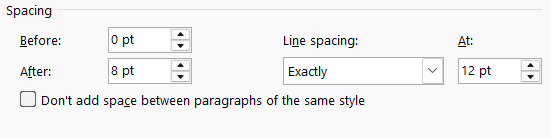
Choose between Single, 1.5 lines, Double, Exactly, or Multiple under the Line spacing section.
Adjust spacing Before and After the paragraph if needed.
- Additionally, you can select the Don’t add space between paragraphs of the same style option to maintain consistent spacing.
📑 How to Remove Extra Space Between Paragraphs in Word?
Microsoft Word sometimes adds unwanted spacing after paragraphs by default. To remove it:
- Select the text and go to Home > Line and Paragraph Spacing.
- Click Remove Space After Paragraph.

- Alternatively, right-click the selected text, choose Paragraph, and set Before and After spacing to 0 pt.
⚙️ How to Set Default Indentation and Spacing in Word?
- After setting up your preferred indent and spacing, go to Home > Paragraph group and click launcher icon. Or right click and select Paragraph.
- In the Indents and Spacing tab, double check the settings and click the Set As Default at the bottom.

- To make this your default layout for future documents, in the Do you want to set the default alignment and spacing of the paragraphs for prompt, select All documents based on the Normal template.

💡 Formatting Tips to Improve Consistency and Readability
Use Word Styles (e.g., Normal, Heading 1, Heading 2) to maintain consistent indentation and spacing across sections.
Avoid using the Tab key or Spacebar to manually create spacing—rely on built-in formatting options.
Use the Format Painter tool to replicate spacing and indent settings quickly.
Combine indents with proper line spacing and paragraph spacing for a cleaner document layout.
⁉️ FAQs
What is the Difference between Line Spacing and Paragraph Spacing in Word?
Line spacing controls the space between individual lines within a paragraph, while paragraph spacing adds space before or after entire paragraphs. Adjusting both helps make your document easier to read and better organized.
What are Indents in Microsoft Word?
Indents move text away from the left or right margin. They are used to format paragraphs, quotes, or lists, helping your document look neat and structured.
How to Indent the First Line of a Paragraph in Word?
Select the paragraph, right click and select Paragraph, and under Indentation, choose First line under Special. Set the By (default 1.27 cm and you can modify) to create a clear starting point for each paragraph.
How to create a Hanging Indent in Word?
To create a hanging indent, select the paragraph(s), right-click and select Paragraph. In Indentation, select Hanging under Special, and set the By (default 1.27 cm and you can modify).
How to Double Space a Word document?
Select the text, then click the Line and Paragraph Spacing icon on the Home tab and choose 2.0 to apply double spacing throughout your document.
How to Remove Indents from a Paragraph in Word?
Select the paragraph, right click choose Paragraph and set Left and Right indents to zero, and under Special indentation, select None to remove any applied indents.
Why does Word add Space after each Paragraph?
Microsoft Word includes default spacing after paragraphs to improve readability. You can adjust or remove this spacing in Paragraph settings if you prefer a tighter layout.
💻 Shortcut Keys
🎯 Conclusion
Effectively using indents and spacing in Microsoft Word can significantly enhance the clarity, readability and presentation of your documents. These formatting tools in MS Word help organize your content, guide the reader’s attention, and ensure consistency throughout your text. Whether you are writing an academic paper, a business report, or a resume, knowing how to adjust the line spacing, paragraph spacing, and the indentation gives your work a polished, professional look.
Learn More
» How to use Clipboard in Word?
» How to Change Font in Word?
» How to use Bullets and Numbering in Word?
» How to Password Protect a Word Document?
» How to Change Document Properties in Word?

Word Tutorial Part 1 (Basic)
» Word Home
» Word Basics
» Word Document
» Word Template
» Word Properties
» Word Password
Word Tutorial Part 2 (Format)
» Word Clipboard
» Word Font
» Word Color
» Word Alignment
» Word Border
» Word Bullets and Numbering
» Word Indents and Spacing
» Word Line and Page Breaks
Word Tutorial Part 3 (Insert)
» Word Cover Page
» Word Tables
» Word Illustrations
» Word Links
» Word Comments
» Word Header and Footer
» Word Text Box
» Word WordArt
» Word Quick Parts
» Word Drop Cap
» Word Date and Time
» Word Objects
» Word Equation
» Word Symbol
Word Tutorial Part 4 (Find)
» Word Find and Replace
» Word Go To
» Word Select Objects
» Word Selection Pane
Word Tutorial Part 5 (Design)
» Word Themes
» Word Watermark
» Word Page Color
» Word Page Border
Word Tutorial Part 6 (Layout)
» Word Margin
» Word Orientation
» Word Size
» Word Columns
» Word Breaks
» Word Line Numbers
» Word Hyphenation
» Word Position
» Word Wrap Text
» Word Bring Forward
» Word Send Backward
» Word Group
» Word Rotate
Word Tutorial Part 7 (References)
» Word Table of Contents
» Word Footnotes
» Word Citation and Bibliography
» Word Captions
» Word Index
» Word Table of Authorities
Word Tutorial Part 8 (Mailings)
» Word Envelopes
» Word Labels
» Word Start Mail Merge
» Word Write and Insert Fields
» Word Preview Results
» Word Finish and Merge
Word Tutorial Part 9 (Review)
» Word Editor
» Word Spelling and Grammer
» Word Thesaurus
» Word Count
» Word Read Aloud
» Word Check Accessibility
» Word Translate
» Word Language
» Word Comments
» Word Share
» Word Track Changes
» Word Compare
» Word Ink
Word Tutorial Part 10 (View)
» Word Views
» Word Immersive
» Word Show
» Word Zoom
» Word Window
» Word Macros
» Word Properties
Word Tutorial Part 11 (Other)
» Word Add-ins
» Word Shortcuts
0 Comments