
How to Add Border in Word: Easy Guide for Beginners
If you want to learn how to add border in Word, this guide offers a clear and concise explanation. Adding borders can enhance the appearance and structure of your documents, whether around the paragraphs, pages, or images. This step-by-step guide is designed for beginners and will help you apply and customize borders with ease in Microsoft Word.
Table of Contents:
» How to Add Border Around Text in Word
» How to Add Page Border in Word
» How to Add Border to Image in Word
» How to Add Border to Table in Word
» FAQs
» Shortcut Keys
» Conclusion
✍️ How to Add Border Around Text in Word?
To add a border around specific text, sentence or paragraphs, follow these steps:
Step 1: Select the Text or Paragraph
Start by selecting the exact text, sentence or paragraph you wish to frame with a border. To do this, click at the beginning of the text, hold down the mouse button, and drag to the end of the desired selection. Make sure to include all relevant text you want enclosed.
Step 2: Find the Borders Button
Go to the Home tab > Paragraph group > Borders icon. It is an icon typically represented by a small square divided into four parts, symbolizing borders on all sides.

Step 3: Apply a Basic Border Using Quick Options
Click the dropdown arrow beside the Borders button to find quick border options, such as:
- Bottom Border: Adds a line beneath the selected text.
- Top Border: Adds a line above the selected text.
- Left Border: Places a border line on the left side.
- Right Border: Places a border line on the right side.
- All Borders: Adds borders on all four sides of the selected text or paragraph.
- Outside Borders: Adds a border around the entire selected paragraph but not between lines.
Select the option that best suits your needs to add a quick border instantly.
Step 4: Access the “Borders and Shading” Dialog for More Options
For more detailed control over your border’s appearance, click Borders and Shading at the bottom of the dropdown menu. This opens a window with additional settings, allowing you to tailor your border to your exact preferences.

Step 5: Select the Border Style
In the Borders and Shading window, under the Borders tab, you will find several border styles:
- Box: Creates a clean, rectangular frame around your text or paragraph.
- Shadow: Adds a subtle shadow effect, giving your border a three-dimensional feel.
- 3-D: Provides a more pronounced, three-dimensional border appearance.
- Custom: Allows you to selectively add borders from any individual sides (top, bottom, left, right).
The preview pane on the right in the dialog box will visually display your chosen settings before finalizing.
Step 6: Customize Border Style, Color, and Width
Further refine your border’s look by selecting:
- Style: Select the border style from options such as solid, dashed, dotted, double lines, and more, to fit the document’s tone and style.
- Color: Pick a border color that complements your document’s design, whether standard black, grey, or any custom color.
- Width: Adjust the thickness of the border line, ranging from thin lines for light look to thick lines for emphasis.
These choices provide flexibility in creating borders that align with the document’s formatting standards and visual goals.
Step 7: Apply the Border to Text or Paragraph
In the Apply to dropdown menu, choose whether to apply the border around the Text only or the entire Paragraph. Applying it to the paragraph typically results in a border that spans the full width of the text area, aligned with page margins.
Step 8: Confirm and Apply the Border
Once you are satisfied with your settings, click OK to apply the border. Your selected text or paragraph will now be framed with the customized border.
📄 How to Add Page Border in Word?
Follow the below steps to change the alignment of text in Word:
- Click the Design tab at the top.
- Select Page Borders from the right side of the ribbon.
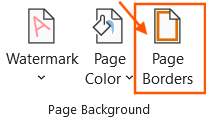
- In the dialog box, open the Page Border tab.
- Pick a border type: Box, Shadow, 3-D, or Custom.
- Customize the border line style, color, and width.
- To add fancy Border in Word, go to Art border pattern and from the dropdown select options like stars, balloons, hearts, or trees.
- Use the Apply to dropdown to control where the border appears:
- Whole document – applies to all pages.
- This section – applies to only the current section.
- This section – First page only – ideal for adding a border only to the cover page.
- This section – All except first page – useful when you want to skip the first page.
- Click OK to apply the page border.
🖼️ How to Add Border to Image in Word?
Adding a border to an image in Microsoft Word is a quick way to make your visuals stand out and give your document a polished, professional look. Follow the below steps to add border to an image in Word:
Step 1: Select the Image
- Click on the image you want to edit.
- This will open the Picture Format tab at the top of the Word ribbon.
Step 2: Access the Picture Border button
- In the Picture Format tab, locate the Picture Border button in the Picture Styles group.
- Click on Picture Border to view customization options.

Step 3: Customize the Border
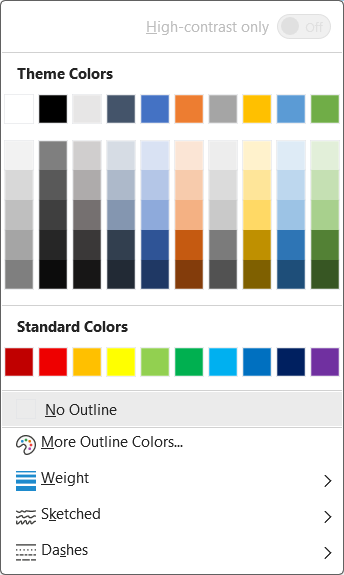
In the Picture Border drop down, you can adjust:
- Color – Choose a border color from theme or standard options.
- Weight – Select the thickness (e.g., ½ pt, 1 pt, 3 pt).
- Sketched – Select the sketched line border style.
- Dashes – Choose a line style such as solid, dotted, or dashed.
Step 4: (Optional) Apply a Picture Style
To go beyond basic borders:
- Explore the Picture Styles gallery in the Picture Format tab.
- Apply effects like shadows, reflections, rounded edges, and more.
- Hover over each style to preview it and click to apply.
📊 How to Add Border to Table in Word?
Borders make your tables in Microsoft Word easier to read and more organized. Whether you want to outline the whole table or just highlight certain parts, Word gives you simple tools to do it. Follow the below steps to add border to a table in Word:
Step 1: Select the Table or Cells
- To select the table, click anywhere on the table and click the four-arrow handle at the top left corner.
- To select the cells, click and drag your mouse over the desired cells.
Step 2: Go to the Table Design Tab
- Click on the Table Design tab in the ribbon.
- You’ll find all the formatting tools for table borders and shading here.
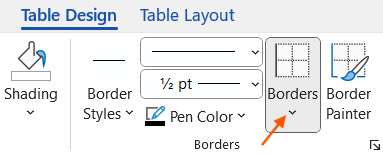
Step 3: Choose a Border Option
Click the Borders button in the ribbon. You’ll see several options:
- Bottom Border – Adds a line below the selected cells.
- Top Border – Adds a line above the selected cells.
- Left Border – Adds a line to the left side of the selected cells.
- Right Border – Adds a line to the right side of the selected cells.
- No Border – Removes all borders from the selected cells or table.
- All Borders – Adds lines around every cell in the table.
- Outside Borders – Adds a border around the outer edges of the table only.
- Inside Borders – Adds lines between the cells, without touching the outer edges.
- Inside Horizontal Border – Adds horizontal lines between rows only.
- Inside Vertical Border – Adds vertical lines between columns only.
- Diagonal Down Border – Adds a diagonal line from the top-left to the bottom-right of the selected cells.
- Diagonal Up Border – Adds a diagonal line from the bottom-left to the top-right of the selected cells.

Step 4: Customize the Border Style
To make your borders look just right:
- Go to Table Design tab, click Borders > Borders and Shading at the bottom of the dropdown.
- Choose a line style (solid, dotted, double, etc.).
- Pick a color for the border.
- Set the width (thickness) of the line.
- Click OK to apply your custom settings.
⁉️ FAQs
How to Add a Fancy or Decorative Page Border in Word?
In the Page Borders dialog under the Table Design tab, scroll to the Art section. Choose from decorative styles like stars, trees, or other patterns to give your document a creative border. Click OK to apply the art border.
How to Add a Border to Only the First Page in Word?
- Go to Design > Page Borders, and in the dialog box, find the Apply to dropdown menu.
- Select This Section – First Page Only to limit the border to the first page.
How to Remove a Border in Word?
To remove a border, select the object (text, paragraph, image, or table), go to the relevant tab (Home, Picture Format, or Table Design), click Borders, and select No Border from the menu.
How to Change the Color and Thickness of a Border in Word?
Open Borders and Shading, and choose the desired line Style, Color, and Width. Then apply the changes to text, paragraphs, tables, or pages as needed.
How to Apply Borders to Specific Table Cells in Word?
Select the cells you want to edit, go to the Table Design tab, and use the Borders dropdown to apply borders to the top, bottom, left, right, or diagonals. This helps highlight individual cells with precise formatting.
How to Add Double or Dotted Line Borders in Word?
Open Borders and Shading, and under Style, choose a double line, dashed line, or dotted line. These styles are great for adding emphasis or separating content.
How to Add Diagonal Borders Inside a Word Table Cell?
Click the cell you want to modify, open Borders and Shading, and choose either Diagonal Down Border or Diagonal Up Border. These borders can help with formatting complex tables or marking cross-references.
How to Copy Border Formatting in Word?
Select the data with the border you want to copy, click Format Painter on the Home tab, then click the target data to apply the same border style.
How to Fix a Border that’s Not Showing in Word?
If your border is not visible, check the Borders and Shading settings to ensure the color isn’t white or too light, the width is not set to 0 pt, and the correct text, image or table is selected.
How to Add a Border to a Text Box or Shape in Word?
To add a border to a text box or shape, select the object, go to the Format tab, click Shape Outline, and choose your desired color and line style.
How to Add a Border to Multiple Images in Word?
To add the same border to multiple images, first apply the desired border to one image. Then, use the Format Painter tool from the Home tab to copy the border formatting and apply it to other images. Alternatively, select all the images and apply the border.
How to Add a Border to Specific Pages in Word?
To add a border to specific pages, insert section breaks before and after the target pages. Then, go to Table Design > Page Borders, and in the dialog box, use the Apply to dropdown to select the specific section.
How to Add a Custom Picture Border in Word?
To create a custom picture border, insert images around the edges of your page manually, or use the Page Borders dialog to select from available Art borders.
How to Add a Page Border in Word on Android?
In the Microsoft Word app on Android, open your document, tap the Edit icon, go to the Home tab, and select Borders to add a border to your page.
How to Add a Border to a Paragraph in Word?
Click anywhere in the paragraph you want to format, go to the Home tab, and select the Borders button. Choose from options like top, bottom, or full borders, or use Borders and Shading for advanced customization.
How to Remove Unwanted Border Lines in Word?
If unwanted border lines appear, place your cursor in the affected area, go to the Home tab, click the Borders dropdown, and select No Border to remove them.
💻 Shortcut Keys
🎯 Conclusion
Adding borders in Microsoft Word is a quick and easy way to make your documents look neat and well-organized. Whether you’re working with text, images, or tables, borders help draw attention and improve the overall layout. With just a few clicks, you can change the style, color, and thickness to match your needs. Once you get the hang of it, using borders can really take your Word documents to the next level.
Learn More
» How to Create a Word Document?
» How to Create a Template in Word?
» How to Password Protect a Word Document?
» How to Change Document Properties in Word?
» How to use Clipboard in Word?
» How to Change Font in Word?
» How to Change Text Color in Word?
» How to use Alignment in Word?

Word Tutorial Part 1 (Basic)
» Word Home
» Word Basics
» Word Document
» Word Template
» Word Properties
» Word Password
Word Tutorial Part 2 (Format)
» Word Clipboard
» Word Font
» Word Color
» Word Alignment
» Word Border
» Word Bullets and Numbering
» Word Indents and Spacing
» Word Line and Page Breaks
Word Tutorial Part 3 (Insert)
» Word Cover Page
» Word Tables
» Word Illustrations
» Word Links
» Word Comments
» Word Header and Footer
» Word Text Box
» Word WordArt
» Word Quick Parts
» Word Drop Cap
» Word Date and Time
» Word Objects
» Word Equation
» Word Symbol
Word Tutorial Part 4 (Find)
» Word Find and Replace
» Word Go To
» Word Select Objects
» Word Selection Pane
Word Tutorial Part 5 (Design)
» Word Themes
» Word Watermark
» Word Page Color
» Word Page Border
Word Tutorial Part 6 (Layout)
» Word Margin
» Word Orientation
» Word Size
» Word Columns
» Word Breaks
» Word Line Numbers
» Word Hyphenation
» Word Position
» Word Wrap Text
» Word Bring Forward
» Word Send Backward
» Word Group
» Word Rotate
Word Tutorial Part 7 (References)
» Word Table of Contents
» Word Footnotes
» Word Citation and Bibliography
» Word Captions
» Word Index
» Word Table of Authorities
Word Tutorial Part 8 (Mailings)
» Word Envelopes
» Word Labels
» Word Start Mail Merge
» Word Write and Insert Fields
» Word Preview Results
» Word Finish and Merge
Word Tutorial Part 9 (Review)
» Word Editor
» Word Spelling and Grammer
» Word Thesaurus
» Word Count
» Word Read Aloud
» Word Check Accessibility
» Word Translate
» Word Language
» Word Comments
» Word Share
» Word Track Changes
» Word Compare
» Word Ink
Word Tutorial Part 10 (View)
» Word Views
» Word Immersive
» Word Show
» Word Zoom
» Word Window
» Word Macros
» Word Properties
Word Tutorial Part 11 (Other)
» Word Add-ins
» Word Shortcuts
0 Comments