
How to Create a Cover Page in Microsoft Word
This guide will show you how to create a cover page in Microsoft Word. A cover page in Microsoft Word is the very first page of a document, and it plays a huge role in making a strong first impression. Whether you are creating a school assignment, research paper, thesis, project report, business proposal, or eBook, a well-structured cover page immediately makes your work look professional and credible. Let’s learn how to create a cover page in Word step-by-step.
Table of Contents:
» What is a Cover Page in Microsoft Word
» How to Create a Cover Page in Microsoft Word using Templates
» How to Create a Custom Cover Page in Microsoft Word
» How to Customize a Cover Page in Microsoft Word
» How to Remove a Cover Page in Microsoft Word
» FAQs
» Shortcut Keys
» Conclusion
📝 What is a Cover Page in Microsoft Word?
A cover page in Word is the front page of your document that contains essential details such as:
Title of the document,
Subtitle or tagline (optional),
Author’s name or team name,
Submission or publication date,
Institution, company, or organization name, and
Logo, images, or graphics.
In simple words, the cover page acts as a professional introduction to your document.
➕ How to Create a Cover Page in Microsoft Word using Templates?
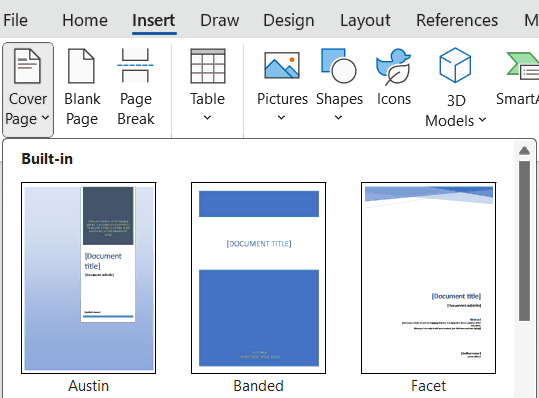
Follow the below steps to create a cover page in Word with built-in templates:
- Open your Word document.
- Go to the Insert tab on the Ribbon.
- Click Cover Page under the Pages group.
- Select from Built-in templates such as Austin, Banded, Facet, etc.
- Replace placeholder text with your document details.
Your cover page will appear as the first page of your document.
🛠 How to Create a Custom Cover Page in Microsoft Word?
You can design your own cover page from scratch instead of using the built-in templates.
How to Create Your Own Cover Page?
Place your cursor at the beginning of the document.
Go to Insert → Blank Page.
Insert a Text Box for the main title.
Add WordArt for stylish headings.
Insert images, shapes, or icons to make it attractive.
Apply Page Borders for professional styling.
Note: Once designed, this can be saved as a custom Word template for future use.
How to Save a Cover Page as a Template in Word?
Select the entire cover page.
Go to Insert → Cover Page, then click Save Selection to Cover Page Gallery.
Enter a name (e.g., “Rath Point’s Cover Page”).
Click OK.
Note: Next time you need it, your template will appear in the Cover Page list.
🎨 How to Customize a Cover Page in Microsoft Word?
After inserting a built-in template or while creating your own, you can fully customize the Cover Page to match your project.
Customization Tips:
✍️ Edit fonts and sizes for better readability.
🎨 Change colors under Design → Colors to suit your brand.
🖼️ Add logos, icons, or background images.
📐 Adjust layout with shapes and text boxes.
🖌 Use consistent branding (fonts and color palette).
❌ How to Remove a Cover Page in Microsoft Word?
Follow the below steps to delete a cover page in Word:
Go to the Insert tab.
Click Cover Page.
Select Remove Current Cover Page.
Alternatively, follow the below steps to organize and delete cover page in Word:
- Go to the Insert tab.
- Click Cover Page.
- Right click on any Built-in Cover Page.
- Select Organize and Delete.

- You will get the Building Blocks Organizer window, in which you can Edit Properties, Delete or Insert the Cover Page.
- In the Building blocks section, click the Cover Page to select and press Delete button.
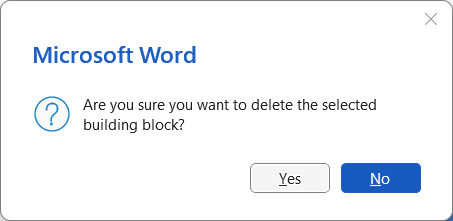
- You will get the pop-up dialog box asking, “Are you sure you want to delete the selected building block?”
- Click Yes to delete the Cover Page.
⁉️ FAQs
Why Don’t I See the Cover Page Option in Microsoft Word?
The cover page feature is not available in Word Online, the web version of Microsoft Word. To access and use cover pages, you need the desktop version of Microsoft Word, which includes the full set of design and template features.
Can You Customize a Cover Page in Microsoft Word?
Yes, you can customize any built-in cover page template to fit your needs. Microsoft Word allows you to change fonts, colors, layouts, and background elements. You can also add your own images, company logos, or watermarks to create a personalized design that reflects your style or brand.
Can You Have Multiple Cover Pages in a Word Document?
By default, Microsoft Word only supports one official cover page per document. However, you can create additional cover pages for chapters or sections by inserting section breaks and manually designing pages that look like cover pages. This way, each major section of your document can have its own introduction page.
How Do You Add a Back Cover Page in Microsoft Word?
To add a back cover page, go to the end of your document and insert a section break. Then, disable the Link to Previous option for headers and footers so that your back cover looks different from the rest of the document. Then, design the page with text, graphics, or images to serve as the back cover.
Is the Cover Page Feature Available in Word Online?
No, Word Online does not support the cover page feature or building block templates. If you want to insert, customize, or save cover pages, you will need to use the desktop version of Microsoft Word.
How Do You Insert a Cover Page in Word for Mac?
The steps for adding a cover page in Word for Mac are very similar to Windows. You simply open the Insert tab, click on Cover Page, choose a template from the gallery, and then customize it by editing the text and design.
Where Can I Download Free Cover Page Templates for Microsoft Word?
You can download free cover page templates from the Microsoft Office template library. In addition, websites like Template.net and WordLayouts offer both free and premium designs that can be customized and used directly in Word.
What Should Be Included in a Cover Page in Word?
A good cover page in Word usually contains the document’s title, subtitle, if necessary, author’s name, organization or institution name, the date, and sometimes a logo or image. These elements give the document a professional appearance and make it easy for readers to identify what the document is about at first glance.
Does a Cover Page Count as Page 1 in Word?
Yes, Microsoft Word counts the cover page as page 1 by default. However, if you don’t want the numbering to start from the cover page, you can insert a section break and restart page numbering from the next page so that your main content begins as page 1.
How Do I Start Page Numbers After a Cover Page in Word?
If you want to change numbering after a cover page, insert a section break after the cover page, unlink the section from the previous one, and restart the page numbers from 1 on the next page. This ensures that the cover page is excluded from the main numbering sequence.
Why is the Cover Page Option Missing in Microsoft Word?
If the Cover Page option isn’t visible in Word, you can manually add it by customizing the ribbon. Right-click on the ribbon, choose Customize the Ribbon, then add Cover Page from the All Commands list under the Insert tab. Once added, you’ll be able to insert cover pages easily.
What are the Best Tips for Designing a Cover Page in Word?
The best cover pages are simple, clean, and easy to read. Use professional fonts, limit the number of colors, and avoid overcrowding the page with too many graphics. A minimal design with consistent styling not only looks polished but also ensures that the main details stand out clearly.
How do I Add Fields Like Date or Author to a Cover Page in Word?
Microsoft Word allows you to make your cover page more dynamic by adding fields such as date, author, or project details. You can insert these using Quick Parts → Document Properties, which update automatically. For more customization, enable the Developer tab to create advanced content controls tailored to your needs.
💻 Shortcut Keys
🎯 Conclusion
Using a cover page in Microsoft Word is an easy way to give your document a polished and professional look. You can choose from ready-made templates to save time or create a custom design to match your own style. A cover page also makes key information stand out right at the beginning. For the best results, keep the layout simple and consistent because too many colors, fonts, or graphics can distract rather than impress.
Learn More
» How to use Bullets and Numbering in Word?
» How to Password Protect a Word Document?
» How to Change Document Properties in Word?
» How to use Clipboard in Word?
» How to Change Font in Word?
» How to Add Border in Word?
» How to use Alignment in Word?
» How to Change Text Color in Word?

Word Tutorial Part 1 (Basic)
» Word Home
» Word Basics
» Word Document
» Word Template
» Word Properties
» Word Password
Word Tutorial Part 2 (Format)
» Word Clipboard
» Word Font
» Word Color
» Word Alignment
» Word Border
» Word Bullets and Numbering
» Word Indents and Spacing
» Word Line and Page Breaks
Word Tutorial Part 3 (Insert)
» Word Cover Page
» Word Tables
» Word Illustrations
» Word Links
» Word Comments
» Word Header and Footer
» Word Text Box
» Word WordArt
» Word Quick Parts
» Word Drop Cap
» Word Date and Time
» Word Objects
» Word Equation
» Word Symbol
Word Tutorial Part 4 (Find)
» Word Find and Replace
» Word Go To
» Word Select Objects
» Word Selection Pane
Word Tutorial Part 5 (Design)
» Word Themes
» Word Watermark
» Word Page Color
» Word Page Border
Word Tutorial Part 6 (Layout)
» Word Margin
» Word Orientation
» Word Size
» Word Columns
» Word Breaks
» Word Line Numbers
» Word Hyphenation
» Word Position
» Word Wrap Text
» Word Bring Forward
» Word Send Backward
» Word Group
» Word Rotate
Word Tutorial Part 7 (References)
» Word Table of Contents
» Word Footnotes
» Word Citation and Bibliography
» Word Captions
» Word Index
» Word Table of Authorities
Word Tutorial Part 8 (Mailings)
» Word Envelopes
» Word Labels
» Word Start Mail Merge
» Word Write and Insert Fields
» Word Preview Results
» Word Finish and Merge
Word Tutorial Part 9 (Review)
» Word Editor
» Word Spelling and Grammer
» Word Thesaurus
» Word Count
» Word Read Aloud
» Word Check Accessibility
» Word Translate
» Word Language
» Word Comments
» Word Share
» Word Track Changes
» Word Compare
» Word Ink
Word Tutorial Part 10 (View)
» Word Views
» Word Immersive
» Word Show
» Word Zoom
» Word Window
» Word Macros
» Word Properties
Word Tutorial Part 11 (Other)
» Word Add-ins
» Word Shortcuts
0 Comments