
How to Create a Table in Microsoft Word (7 Easy Methods)
Learn how to create a table in Microsoft Word with these 7 easy methods:
1. Table Grid
2. Insert Table
3. Draw Table
4. Convert Text to Table
5. Excel Spreadsheet
6. Quick Tables
7. From Other Application
Let’s learn these methods one by one.
1. How to Create a Table Using the Grid?
The Table Grid is the simplest way to insert a table without typing numbers or using advanced options. Follow the below steps to create a table using the grid in Microsoft Word:
- Place your cursor where the table should be added.
- Go to the Insert tab and click on Table.

- Drag your mouse across the grid to select the number of rows and columns.
- Click to insert the table instantly.

When to use this method:
✅ Creating small tables (like a 2×3 or 4×4).
✅ Adding checklists, pricing tables, or quick schedules.
✅ Drafting simple structures before refining them.
Note: Even if you start with a small table in Microsoft Word using the Grid, you can always right-click inside it to insert more rows or columns later.
2. How to Insert a Table in Microsoft Word?
If you know the exact size of your table, the Insert Table dialog box gives you precision and control. Follow the below steps to insert a table in Microsoft Word:
Go to Insert > Table and click on Insert Table.
In the dialog box, enter the number of columns and rows.
Choose how the table should adjust:
Fixed column width: Keeps all columns the same size.
AutoFit to contents: Each column adjusts based on the text inside.
AutoFit to window: Table automatically stretches across the page width.
Click OK to insert the table.

When to use this method:
✅ Creating larger tables where size must be consistent.
✅ Designing tables for structured reports, research data, or inventories.
✅ Ensuring columns adjust automatically based on content or page width.
Note: Use AutoFit to Window if you want your table to always match the page width, even if margins change in Microsoft Word document.
3. How to Draw a Table in Microsoft Word?
The Draw Table tool allows you to design tables by hand, giving flexibility when standard grids won’t work. Follow the below steps to draw a table in Microsoft Word:
- Go to Insert > Table and click on Draw Table.
- Your cursor will change to a pencil, and you can draw the outer border of the table.
- Add vertical and horizontal lines to form rows and columns.

When to use this method:
✅ Designing forms or questionnaires with uneven cells.
✅ Creating invoices or order sheets where some cells must be wider.
✅ Making planners, timetables, or calendars with custom row sizes.
✅ Building irregular layouts that don’t fit the standard grid.
Note: If you draw a wrong line, use the Eraser tool (found under Table Layout) to remove it.
4. How to Covert Text to Table in Microsoft Word?
If you already have data typed in your document, you can convert it into a table instead of recreating it. Follow the below steps to convert text to a table in Microsoft Word:
- Select the text that you want to convert to a table.
- Go to Insert > Table and click on Convert Text to Table.
- In the dialog box, Word will automatically detect the Number of columns.
- Choose AutoFit behaviour settings based on your need.
- Select Separate text at option (paragraphs, commas, tabs, or other) and click OK.

When to use this method:
✅ Turning plain text lists into a structured format.
✅ Converting pasted data from emails, web pages, or CSV files.
✅ Organizing survey results, contact details, or product lists.
✅ Quickly reformatting information without rebuilding a table manually.
Note: Use AutoFit to Window if you want your table to always match the page width, even if margins change in Microsoft Word document.
5. How to Insert an Excel Spreadsheet Table in Word?
Embedding an Excel Spreadsheet inside Word lets you use Excel’s formulas and calculations. Follow the below steps to insert Excel Spreadsheet table in Microsoft Word:
- Go to Insert > Table and click on Excel Spreadsheet.
- A mini grid of Excel appears inside Word.
- Enter data and formulas like in Excel.
- Click outside the grid to return to Word.

When to use this method:
✅ Financial reports requiring formulas or totals.
✅ Budget sheets, sales data, or performance tracking.
✅ When you need advanced formatting options (currency, percentages, charts).
✅ Embedding live calculations without switching to Excel.
Note: Use Insert > Object > Create from File > Link to File if you want updates in Excel to sync with Microsoft Word.
6. How to use Quick Tables in Microsoft Word?
Quick Tables are ready-made designs that save time. Follow the below steps to use Quick Tables in Microsoft Word:
Go to Insert > Table and click on Quick Tables.
Browse templates like calendars, lists, or matrices.
Select and edit with your own content.

When to use this method:
✅ Creating professional documents where design matters.
✅ Inserting formatted calendars, lists, or reference charts.
✅ Saving time when you don’t want to build a layout manually.
✅ Reusing your own saved tables for consistency across documents.
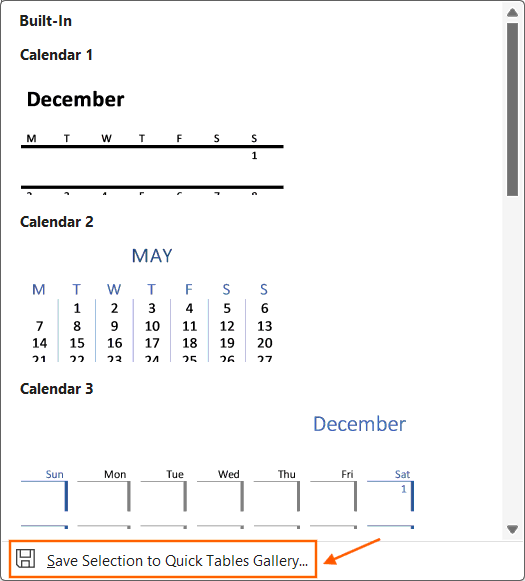
Note: Save selection to Quick Tables gallery for repeated use.
7. How to Import a Table from Another Application?
You can also bring in a table from another application like Microsoft Excel, Outlook, Teams etc.
- Copy the table from other application.
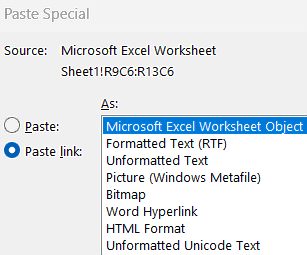
- Use Paste or use Paste Special, into Microsoft Word.
- Choose a paste option:
- Keep Source Formatting,
- Match Destination Style, or
- Paste as Picture, etc.
- Click Paste link and select Microsoft Excel Worksheet Object, if you want to sync with Microsoft Excel.
When to use this method:
✅ Reusing existing tables without rebuilding them in Word.
✅ Sharing Excel data in reports, proposals, or documents.
✅ Keeping advanced formatting already applied in Excel.
✅ Presenting data as an image when no editing is required.
Note: In Paste option, select Match Destination Style if you want the pasted table to blend seamlessly with Word’s formatting.
⁉️ FAQs
What is the Fastest Way to Insert a Table in Microsoft Word?
The quickest method is using the Table Grid found under the Insert tab. By dragging your mouse across the small grid, you can instantly create a table with the number of rows and columns you need. This option is perfect for quick tasks where you don’t need a highly customized layout.
How can I Create a Table with a Precise Number of Rows and Columns?
If you already know the structure of your table, the Insert Table feature is the best choice. Here, you can enter the exact number of rows and columns and even decide how the column width should behave. It is especially useful for detailed documents such as research reports, timetables, or data records.
Can I Draw a Non-Uniform Table Layout in Word?
Yes, Word allows you to manually design tables using the Draw Table tool. This option works like a digital pencil, letting you draw borders, split cells, and create uneven layouts. It’s the go-to method when you need forms, invoices, or designs where cells aren’t equal in size.
How do I Convert Existing Text into a Table?
You can turn plain text into a formatted table with just a few clicks. Simply highlight the text, then select Convert Text to Table. Word automatically organizes the content into rows and columns based on separators like spaces, tabs, or commas. It’s an efficient way to structure pre-typed information.
Can I use Excel Calculations Inside a Word Document?
Yes, Microsoft Word supports embedding an Excel Spreadsheet directly into your document. This allows you to use formulas, calculations, and advanced formatting without leaving Word. It is highly effective for reports, budgets, or documents that require live data handling.
What are Quick Tables and How do I Use Them?
The Quick Tables are built-in templates that you can insert from the Table menu. They include pre-designed layouts such as calendars, formatted lists, and ready-to-use grids. These templates save time and help create professional-looking tables without designing one from scratch.
How do I Bring a Table from Excel into Word?
Copying a table from Excel and pasting it into Word is simple. Once pasted, Word lets you choose whether to keep Excel’s formatting, match the document’s style, or paste the table as a non-editable image. This flexibility makes it easy to maintain both style and accuracy.
Which Method is Best for Creating Professional Reports?
The right method depends on your purpose. Use Insert Table for structured layouts, Excel Spreadsheet when calculations are needed, Quick Tables for polished designs, and Convert Text to Table when working with already-typed content. Choosing the right option ensures efficiency and clarity in your report.
Can I Edit a Table after Inserting it into Word?
Yes, tables in Word are fully customizable. You can resize cells, add or delete rows, merge sections, apply borders, and adjust colors or shading. The only limitation comes when a table is inserted as a picture, in which case it cannot be modified.
What’s the Difference Between the Table Grid and Insert Table Methods?
The Table Grid is designed for speed, allowing you to insert a simple table in seconds. On the other hand, Insert Table offers more control, letting you define the number of rows and columns along with column width behaviour. The choice depends on whether you need quick setup or precise customization.
How do I Make a Table Fill the Entire Page in Word?
You can expand a table across the page by opening Table Properties and setting the width to 100%. To keep it responsive, use AutoFit to Window under the Layout tab so the table stretches whenever the page margins are adjusted.
Can I Insert Images or Charts Inside a Table Cell?
Yes, Word allows you to place images or charts directly inside cells. Just click within a cell, go to Insert > Pictures or Insert > Chart, and the content will sit neatly inside the chosen cell. This is useful for reports, catalogues, or data presentations.
How Do I Stop a Table Row from Splitting Across Pages?
If you don’t want a row to break when the page ends, right-click the row, open Table Properties, and uncheck Allow row to break across pages. This setting keeps the row intact, so the entire line always appears on a single page.
How can I Place Two Tables Side by Side in Word?
The easiest method is to create a larger outer table with one row and two columns, then insert each table inside its own cell. Once done, you can remove the outer borders to make it look like two independent tables perfectly aligned next to each other.
Can I Automatically Shade Every Other Row in a Table?
Yes, Word includes a built-in feature for alternating row colors. Select the table, go to the Table Design tab, and turn on Banded Rows. Word instantly applies shading to every second row for easier readability.
Can I Rotate Text Inside a Table Cell?
You can rotate text by selecting the cell, going to the Table Layout tab, and clicking Text Direction. Word lets you display text vertically or in stacked form, which is especially useful for narrow column headers.
Is There a Quick Way to Duplicate a Row or Column?
Yes. Hover near the border until a plus sign appears and click to add a duplicate row or column. You can also copy and paste an entire row or column for repeated data.
How Do I Sort Data Inside a Word Table?
Select the part of the table you want to sort, go to the Table Layout tab, and select Sort. Choose the column you want to base the order on, and Word will organize your rows in ascending or descending order.
How Can I Make a Table Accessible for Screen Readers?
To improve accessibility, mark your top row as a Header Row in the Table Design tab. Also, add alt text for any images placed inside cells. Keeping the table structure clean and avoiding manual splits ensures that assistive technologies can read it properly.
💻 Shortcut Keys
🎯 Conclusion
Learning how to create a table in Word is a must-have skill for students, office workers, and professionals who use Word daily. A table in Microsoft Word helps you present information in rows and columns, making your document easy to read and professional-looking. A table in Word is one of the most effective tools for organizing content. With tables, you can:
Arrange data, numbers, and text in structured rows and columns.
Create comparison charts, schedules, invoices, and reports.
Improve readability and document presentation.
Apply Microsoft Word table formatting styles to make content professional.
Each method of creating table in Word has unique advantages:
- Table Grid → Quick, simple tables.
- Insert Table → Structured, precise layouts.
- Draw Table → Flexible custom shapes.
- Convert Text to Table → Reformat existing text instantly.
- Excel Spreadsheet → Add formulas and calculations.
- Quick Tables → Ready-made designs for speed.
- From Other Application → Reuse data from Excel or elsewhere.
Learn More
» How to use Bullets and Numbering in Word?
» How to Password Protect a Word Document?
» How to Change Document Properties in Word?
» How to use Clipboard in Word?
» How to Change Font in Word?
» How to Add Border in Word?
» How to use Alignment in Word?
» How to Change Text Color in Word?

Word Tutorial Part 1 (Basic)
» Word Home
» Word Basics
» Word Document
» Word Template
» Word Properties
» Word Password
Word Tutorial Part 2 (Format)
» Word Clipboard
» Word Font
» Word Color
» Word Alignment
» Word Border
» Word Bullets and Numbering
» Word Indents and Spacing
» Word Line and Page Breaks
Word Tutorial Part 3 (Insert)
» Word Cover Page
» Word Tables
» Word Illustrations
» Word Links
» Word Comments
» Word Header and Footer
» Word Text Box
» Word WordArt
» Word Quick Parts
» Word Drop Cap
» Word Date and Time
» Word Objects
» Word Equation
» Word Symbol
Word Tutorial Part 4 (Find)
» Word Find and Replace
» Word Go To
» Word Select Objects
» Word Selection Pane
Word Tutorial Part 5 (Design)
» Word Themes
» Word Watermark
» Word Page Color
» Word Page Border
Word Tutorial Part 6 (Layout)
» Word Margin
» Word Orientation
» Word Size
» Word Columns
» Word Breaks
» Word Line Numbers
» Word Hyphenation
» Word Position
» Word Wrap Text
» Word Bring Forward
» Word Send Backward
» Word Group
» Word Rotate
Word Tutorial Part 7 (References)
» Word Table of Contents
» Word Footnotes
» Word Citation and Bibliography
» Word Captions
» Word Index
» Word Table of Authorities
Word Tutorial Part 8 (Mailings)
» Word Envelopes
» Word Labels
» Word Start Mail Merge
» Word Write and Insert Fields
» Word Preview Results
» Word Finish and Merge
Word Tutorial Part 9 (Review)
» Word Editor
» Word Spelling and Grammer
» Word Thesaurus
» Word Count
» Word Read Aloud
» Word Check Accessibility
» Word Translate
» Word Language
» Word Comments
» Word Share
» Word Track Changes
» Word Compare
» Word Ink
Word Tutorial Part 10 (View)
» Word Views
» Word Immersive
» Word Show
» Word Zoom
» Word Window
» Word Macros
» Word Properties
Word Tutorial Part 11 (Other)
» Word Add-ins
» Word Shortcuts
0 Comments