
How to Use a Text Box in Microsoft Word
In this guide, you will learn how to use a text box in Microsoft Word. If you want to make your Microsoft Word documents more engaging, a Text Box is one of the most powerful tools. It allows you to highlight important information, add callouts, and create professional layouts beyond the standard paragraph structure.
Let’s learn how to insert, format, and use text boxes in Microsoft Word so you can design eye-catching documents.
📝 What is a Text Box in Microsoft Word?
A text box in Word is a movable container that holds text. Unlike normal paragraphs, a text box can be resized, dragged, rotated, and styled independently.
Common uses include:
- Adding quotes, callouts, or highlights.
- Placing labels near images or charts.
- Designing flyers, newsletters, or posters.
- Creating side bars in reports and resumes.
✅ Why Use a Text Box in Microsoft Word?
Here’s why text boxes are essential in Microsoft Word:
- Flexible Layouts: Position text anywhere on the page.
- Emphasis & Attention: Use borders, colors, or shading to make content stand out.
- Creative Design: Perfect for flyers, brochures, resumes, and marketing materials.
- Independent Formatting: Style text without affecting the rest of the document.
➕ How to Insert a Text Box in Microsoft Word?
Follow these steps to add your first text box:
- Open Your Document: Launch Microsoft Word and open the file where you want the text box.
- Go to the Insert Tab: On the Ribbon, click Insert, which contains tools for adding text boxes, shapes, and other elements.
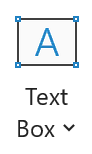
- Select Text Box: In the Text group, click Text Box. You’ll see a dropdown with pre-designed options.
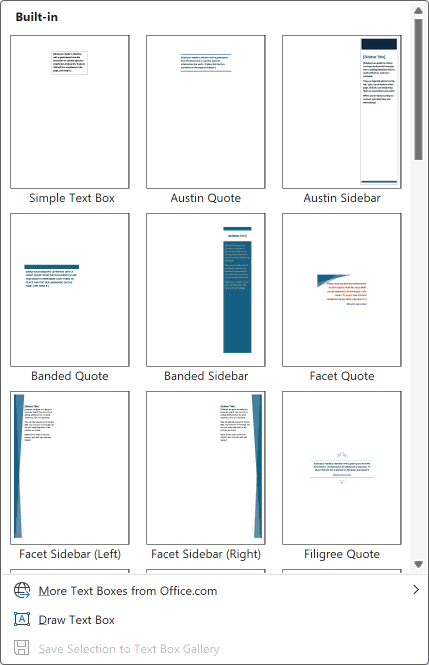
- Choose a Style or Draw Your Own: Pick a pre-designed text box like Simple Text Box, Sidebar, or Quote for quick formatting. Or select Draw Text Box to create a custom size and shape.
- Add Your Text: Click inside the box and start typing. You can freely resize, move, or rotate it, and format it independently of the main text.
🎨 How to Format a Text Box in Microsoft Word?
After inserting a text box, you can customize its style and position.
Resize & Change Shape of Text Box
- Drag the corners to adjust the size.
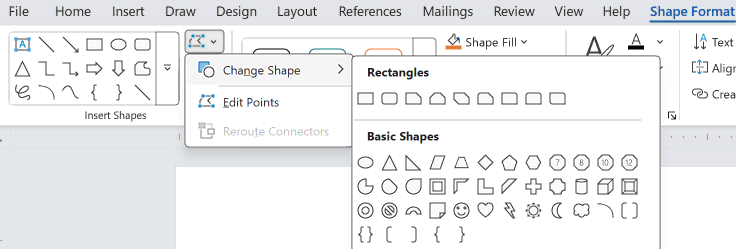
- Select the Text Box, then go to Shape Format tab → Edit Shape icon → Change Shape button and select the desired shape to change.
Add Borders & Colors in Text Box
- Click Shape Fill to add a background color.
- Click Shape Outline to apply borders, adjust line weight, or change color.
- Click Shape Effects to add shadows, glow, reflection, or 3D effects.
Move & Rotate the Text Box
- Click and drag the border to move it anywhere.
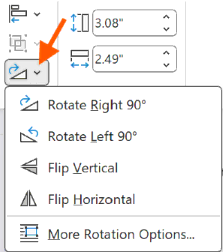
- Use the circular rotate handle for angled or creative layouts.
🔗 How to Link Multiple Text Boxes in Microsoft Word?
When designing newsletters or brochures, you may want text to flow across multiple text boxes. Here’s how:
- Select the first text box.
- Go to Shape Format → Create Link.

- Click the second text box.
- Any overflowing text from the first box will continue in the second.
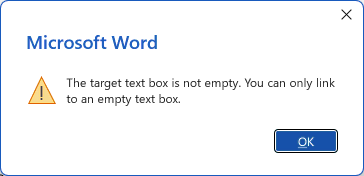
Note: The second text box should be empty, else you will get the error: “The target text box is not empty. You can only link to an empty text box.”
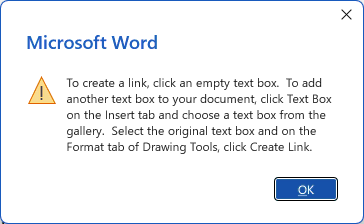
Note: To create a link, click an empty text box. To add another text box to your document, click Text Box on the insert tab and choose a text box from the gallery. Select the original text box and on the Format tab of Drawing Tools, click Create Link.
📄 Common Uses of Text Boxes in Microsoft Word
Text boxes are one of the most versatile features in Microsoft Word. They allow you to organize, emphasize, and creatively present information in a way that plain paragraphs cannot. Here’s how professionals, students, marketers, and job seekers commonly use text boxes:
Business Documents
In the business world, text boxes are perfect for making your documents more structured and visually appealing. Examples include:
- Callouts: Highlight key points, action items, or important updates in reports and presentations.
- Notes & Sidebars: Add supplementary information or reminders without disturbing the main text flow.
- Emphasis Boxes: Draw attention to statistics, quotes, or critical deadlines in proposals, memos, or business reports.
Educational & Academic Use
Students, teachers, and academic professionals can leverage text boxes to clarify and highlight content:
- Key Points: Summarize main ideas in lectures, assignments, or study guides.
- Formulas & Equations: Place mathematical or scientific formulas in dedicated boxes for clear separation from regular text.
- References & Footnotes: Highlight citations, definitions, or important references without cluttering the main paragraph.
Marketing Materials
Marketers and designers often use text boxes in Word to create professional promotional content:
- Flyers & Brochures: Add text boxes for product descriptions, discounts, or event details.
- Posters: Highlight headings, slogans, or taglines in bold, colorful boxes.
- Product Highlights: Showcase features, specifications, or testimonials in clean, visually separated sections.
Resumes / CVs
Text boxes are a subtle but powerful tool for making resumes or CVs look professional and organized:
- Sidebars: Create dedicated sections for skills, languages, or certifications.
- Achievements & Highlights: Emphasize awards, accolades, or major contributions.
- Contact Details: Keep your name, email, phone number, and social profile in a visible, neatly formatted box.
💡 Tips for Working with Text Boxes in Microsoft Word
Mastering text boxes isn’t just about inserting them, it’s about using them effectively and creatively. Here are some expert tips to make your documents stand out:
- Keep your design simple and professional: Avoid overloading your document with too many colors, borders, or effects. Stick to subtle highlights and neutral tones to make important information stand out without cluttering the page.
- Use consistent fonts and sizes: Ensure that all text boxes follow the same font style and size as the rest of your document. Consistency improves readability and gives your document a polished, professional look.
- Combine visual elements: Pair text boxes with SmartArt, icons, images, or charts to create modern layouts. For example, place a text box next to an icon to emphasize a key feature or use a series of boxes to organize step-by-step instructions visually.
- Check Print Preview: Always preview your document before printing or exporting. Text boxes can sometimes shift, overlap, or appear differently in PDF or print format. Checking ensures that everything aligns perfectly and maintains a professional appearance.
- Optional pro tip: Group related text boxes or lock their position to prevent accidental movement while editing, especially in complex documents with multiple boxes.
⁉️ FAQs
What is the purpose of a text box in Word?
A text box lets you highlight, move, and format text independently, making it ideal for flyers, posters, side bars, and professional documents.
Can I link multiple text boxes in Word?
Yes. Select the first text box, go to Format → Create Link, and click the second box. Any overflowing text from the first box will continue into the linked box automatically.
How do I resize or move a text box?
Click the text box, drag the corner handles to resize, and drag the border to move it anywhere. Use the rotate handle for angled layouts.
How do I format a text box to look professional?
Use the Format tab to add background colors, borders, shadows, or effects, while keeping fonts, sizes, and colors consistent for a clean, professional look.
🎯 Conclusion
A text box in Microsoft Word is a versatile design tool that helps you structure information, highlight important points, and create professional layouts.
Mastering text boxes not only enhances the look of your documents but also gives you greater control over how your message is delivered, making your Word files both professional and polished.
By experimenting with text boxes with placement, colors, shapes, and borders, you can transform ordinary documents into visually appealing layouts that capture attention and communicate your ideas clearly.
Learn More
» How to use illustrations in Microsoft Word?
» How to use Bullets and Numbering in Word?
» How to Password Protect a Word Document?
» How to Change Document Properties in Word?
» How to use Clipboard in Word?
» How to Add Border in Word?
» How to Create a Table in Microsoft Word?
Word Tutorial Part 1 (Basic)
» Word Home
» Word Basics
» Word Document
» Word Template
» Word Properties
» Word Password
Word Tutorial Part 2 (Format)
» Word Clipboard
» Word Font
» Word Color
» Word Alignment
» Word Border
» Word Bullets and Numbering
» Word Indents and Spacing
» Word Line and Page Breaks
Word Tutorial Part 3 (Insert)
» Word Cover Page
» Word Tables
» Word Illustrations
» Word Links
» Word Comments
» Word Header and Footer
» Word Text Box
» Word WordArt
» Word Quick Parts
» Word Drop Cap
» Word Date and Time
» Word Objects
» Word Equation
» Word Symbol
Word Tutorial Part 4 (Find)
» Word Find and Replace
» Word Go To
» Word Select Objects
» Word Selection Pane
Word Tutorial Part 5 (Design)
» Word Themes
» Word Watermark
» Word Page Color
» Word Page Border
Word Tutorial Part 6 (Layout)
» Word Margin
» Word Orientation
» Word Size
» Word Columns
» Word Breaks
» Word Line Numbers
» Word Hyphenation
» Word Position
» Word Wrap Text
» Word Bring Forward
» Word Send Backward
» Word Group
» Word Rotate
Word Tutorial Part 7 (References)
» Word Table of Contents
» Word Footnotes
» Word Citation and Bibliography
» Word Captions
» Word Index
» Word Table of Authorities
Word Tutorial Part 8 (Mailings)
» Word Envelopes
» Word Labels
» Word Start Mail Merge
» Word Write and Insert Fields
» Word Preview Results
» Word Finish and Merge
Word Tutorial Part 9 (Review)
» Word Editor
» Word Spelling and Grammer
» Word Thesaurus
» Word Count
» Word Read Aloud
» Word Check Accessibility
» Word Translate
» Word Language
» Word Comments
» Word Share
» Word Track Changes
» Word Compare
» Word Ink
Word Tutorial Part 10 (View)
» Word Views
» Word Immersive
» Word Show
» Word Zoom
» Word Window
» Word Macros
» Word Properties
Word Tutorial Part 11 (Other)
» Word Add-ins
» Word Shortcuts
0 Comments