
How to use Bullets and Numbering in Word
This guide will explain how to use bullets and numbering in Word to enhance the clarity and organization of your documents. These features help to present information in well-structured lists, making your content more engaging and easier to follow. Whether you are highlighting key details, arranging step-by-step instructions, or grouping related ideas, using the bullets and numbering allows you to create professional and polished documents.
Table of Contents:
» What are Bullets and Numbering in Word
» How to Create Bullet Points in Word
» How to Customize Bullet Points in Word
» How to Create Numbered Lists in Word
» How to Create a Multilevel List in Word
» How to Align Bullets and Numbering in Word
» How to Remove Bullet Points or Numbering in Word
» FAQs
» Shortcut Keys
» Conclusion
❓What are Bullets and Numbering in Word?
Bullets and numbering are formatting tools in Word that help you structure your content into lists, making it clearer and more organized. These tools are especially helpful in reports, resumes, instructions, and outlines.
Bullets are used when the order of items doesn’t matter. For example:
- Text A
- Text B
- Text C
Numbering is used when sequence is important. For example:
- Text A
- Text B
- Text C

❓How to Create Bullet Points in Word?
Creating a bulleted list in Word is fast and simple. Follow the below steps to create bullet points in Microsoft Word:
Highlight the text you want to turn into a list.
Go to the Home tab and click the Bullets icon (•) in the Paragraph group.
❓How to Customize Bullet Points in Word?
Word gives you full control over how your bullets appear, including changing the symbol, font, or even using an image. Follow the below steps to customize bullet points in Microsoft Word:
- Click the dropdown arrow next to the Bullets icon.
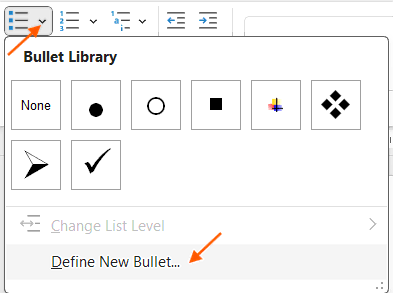
- Select Define New Bullet and choose from:
- Symbol (✓, ➤, •, etc.)
- Picture (use your own image)
- Font (change color, size, or style)

💡 Pro Tip: Use unique icons or custom symbols to make your content stand out.
❓How to Create Numbered Lists in Word?
Numbered lists are perfect for showing steps, processes, or rankings. Follow the below steps to create numbered lists in Microsoft Word:
Select the text.
Go to the Home tab and click on the Numbering icon in the Paragraph group.

❓How to Create a Multilevel List in Word?
Multilevel lists let you create outlines or nested topics in a structured way. Follow the below steps to create multilevel list in Microsoft Word:
- Highlight your list or start typing.
- Go to Home > Paragraph group and click on the Multilevel List icon.
- Choose a built-in style or define your own.
🔁 Shortcut: Press Tab to move to a sublevel and Shift + Tab to return to a previous level.

❓How to Align Bullets and Numbering in Word?
Misaligned bullets or numbers can ruin formatting, but they’re easy to fix. Follow the below steps to align bullets and numbering properly in Microsoft Word:
Option 1: Use the Ruler
Go to the View tab and enable the Ruler.
Select the list and use the First Line Indent and Hanging Indent markers to adjust spacing.
Option 2: Adjust List Indents
Right-click the list.
Select Adjust List Indents then customize bullet/number and text positions as needed.
❓How to Remove Bullet Points or Numbering in Word?
- Highlight the bulleted or numbered list.
- Go to Home tab > Paragraph group.
- Click the Bullets or Numbering icon to toggle it off.
- Or click the drop-down arrow of Bullets or Numbering icon and choose None.
⁉️ FAQs
How to Continue Numbering in Word after a Break?
Right-click the item where you want numbering to continue and select Continue Numbering.
How to Restart Numbering in Word
To restart numbering in Word, right-click the number where you want to begin again and select Restart at 1 or any other desired number from the menu. Alternatively, go to the Home tab, click the drop-down next to the Numbering icon, choose Set Numbering Value, and enter the number you want to start from.
What Is the Difference Between Bullets and Numbering in Word?
Bullets are used to present items without a specific order, while numbering is ideal for lists that require a clear sequence or progression, such as instructions or steps.
How to Add Bullet Points in Word?
To insert bullet points, select your text, go to the Home tab, and click the Bullets icon under Paragraph group. Microsoft Word will apply bullet formatting to the selected content.
How to Customize Bullet Symbols in Word?
Click the dropdown next to the Bullets icon, choose Define New Bullet, and select a symbol, picture, or font style to personalize your bullet points.
How to Use Images or Icons as Bullet Points in Word?
- Click the dropdown next to the Bullets icon.
- Choose Define New Bullet, then click Picture.
- Select an image from your device or choose from built-in options.
- Click OK to apply the custom bullet.
Why are my Bullet Points or Numbers Misaligned in Word?
Misalignment usually happens when the bullet or text indent settings are off. To fix it:
- Right-click on the misaligned list item.
- Choose Adjust List Indents.
- Modify the indent values for better spacing.
- Or go to Home tab > Paragraph group, click the Bullets or Numbering or Multilevel List dropdown and choose a built-in style to reset.
- Or turn on the Ruler under the View tab and manually drag indent markers to adjust.
How to Fix Bullet or Numbering Issues When Copying from another Document?
- After pasting, select the pasted list.
- Click the small Paste Options icon that appears.
- Choose Keep Text Only or Match Destination Formatting.
- Or use Paste Special > Unformatted Text.
- Reapply bullets or numbering if needed.
Is it Possible to use Different Bullet Styles in the Same List?
- Highlight the specific list items you want to change.
- Click the dropdown arrow next to the Bullets icon.
- Select a new bullet style.
Can I Automatically Number Headings Using Numbering in Word?
- Yes, Word can automatically number headings.
- Apply heading styles (Heading 1, Heading 2, etc.) to your headings.
- Go to the Home tab, click the Multilevel List icon.
- Choose a numbering style that links to your headings.
How to Change the Color of Bullets or Numbers in Word?
- Highlight the bulleted or numbered list.
- Right-click on a bullet or number and choose Font.
- In the Font dialog, select a new Font Color.
- Click OK to apply.
Can I use Keyboard Shortcuts to Create Numbered Lists?
- Yes, simply type 1. followed by a space at the start of a line to create a numbered list automatically. Word will recognize this pattern and start numbering the list.
- Similarly, typing – or * followed by a space starts a bulleted list.
How to Change the Spacing Between Bullets or Numbered Items?
- Select your list and go to the Layout tab.
- Adjust the Before and After spacing under the Paragraph section.
- You can also adjust Line Spacing from the Home tab’s Paragraph group.
💻 Shortcut Keys
🎯 Conclusion
The bullets and numbering in Microsoft Word are helpful tools for organizing information in a clear and structured way. They make it easier to present lists, instructions, and important points in a document. Microsoft Word also allows you to customize bullet styles, numbering formats, and list levels to suit your needs.
Learn More
» How to Create a Word Document?
» How to Create a Template in Word?
» How to Password Protect a Word Document?
» How to Change Document Properties in Word?
» How to use Clipboard in Word?
» How to Change Font in Word?
» How to Change Text Color in Word?
» How to use Alignment in Word?

Word Tutorial Part 1 (Basic)
» Word Home
» Word Basics
» Word Document
» Word Template
» Word Properties
» Word Password
Word Tutorial Part 2 (Format)
» Word Clipboard
» Word Font
» Word Color
» Word Alignment
» Word Border
» Word Bullets and Numbering
» Word Indents and Spacing
» Word Line and Page Breaks
Word Tutorial Part 3 (Insert)
» Word Cover Page
» Word Tables
» Word Illustrations
» Word Links
» Word Comments
» Word Header and Footer
» Word Text Box
» Word WordArt
» Word Quick Parts
» Word Drop Cap
» Word Date and Time
» Word Objects
» Word Equation
» Word Symbol
Word Tutorial Part 4 (Find)
» Word Find and Replace
» Word Go To
» Word Select Objects
» Word Selection Pane
Word Tutorial Part 5 (Design)
» Word Themes
» Word Watermark
» Word Page Color
» Word Page Border
Word Tutorial Part 6 (Layout)
» Word Margin
» Word Orientation
» Word Size
» Word Columns
» Word Breaks
» Word Line Numbers
» Word Hyphenation
» Word Position
» Word Wrap Text
» Word Bring Forward
» Word Send Backward
» Word Group
» Word Rotate
Word Tutorial Part 7 (References)
» Word Table of Contents
» Word Footnotes
» Word Citation and Bibliography
» Word Captions
» Word Index
» Word Table of Authorities
Word Tutorial Part 8 (Mailings)
» Word Envelopes
» Word Labels
» Word Start Mail Merge
» Word Write and Insert Fields
» Word Preview Results
» Word Finish and Merge
Word Tutorial Part 9 (Review)
» Word Editor
» Word Spelling and Grammer
» Word Thesaurus
» Word Count
» Word Read Aloud
» Word Check Accessibility
» Word Translate
» Word Language
» Word Comments
» Word Share
» Word Track Changes
» Word Compare
» Word Ink
Word Tutorial Part 10 (View)
» Word Views
» Word Immersive
» Word Show
» Word Zoom
» Word Window
» Word Macros
» Word Properties
Word Tutorial Part 11 (Other)
» Word Add-ins
» Word Shortcuts
0 Comments