
How to use Date and Time in Microsoft Word
In this guide, you will learn how to use Date and Time in Microsoft Word correctly for professional documents, templates, reports, contracts, and academic writing.
Whether you need to insert the current date in Word, create an automatic updating date field, customize date formats, or track document activity using built-in fields, this complete tutorial explains everything step by step in a clear and practical way.
This detailed guide explains:
- How to insert Date & Time
- Static vs. Dynamic Date & Time
- How to Freeze Automatic Date & Time
- How to Change Default Date & Time format
- Best practices for using Date & Time
➕ How to insert Date and Time in Microsoft Word?
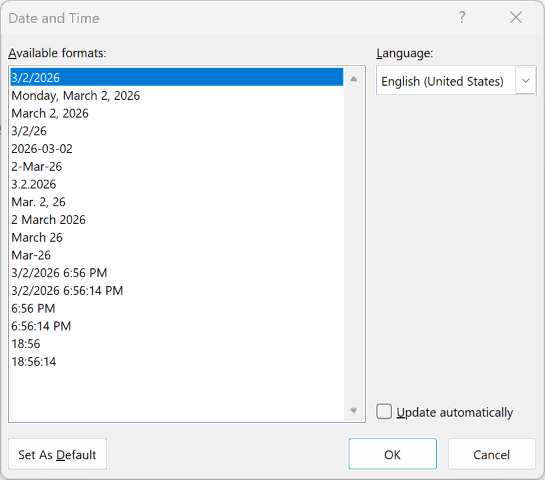
Follow the below steps to insert Date and Time in Word:
- Place your cursor where you want to add Date and Time.
- Go to Insert tab → Text group and select Date & Time icon.

- Choose your preferred format from the list of Available formats.
- Select the language, for example “English (United States)”.
- If you want automatic date update then check Update automatically If you want a static or fixed date & time then uncheck this option.
Keyboard shortcuts to insert Date and Time in Microsoft Word:
- Insert current date: Alt + Shift + D in Windows and Ctrl + Shift + D in Mac.
- Insert current time: Alt + Shift + T in Windows and Ctrl + Shift + T in Mac.
📝 What Is the Difference Between a Static Date and a Dynamic Date in Word?
A static date:
- Does not change.
- Works best for contracts and signed letters.
- Ensures historical accuracy.
A dynamic date:
- Updates automatically when the document is reopened.
- Can be refreshed manually by pressing F9,
- This is ideal for templates, weekly reports. and recurring documents.
🛑 How to Freeze or Convert an Automatic Date in Microsoft Word?
Sometimes you need to stop a dynamic date from updating.
- Ctrl + F11 locks a field.
- Ctrl + Shift + F11 unlocks it.
- Ctrl + Shift + F9 converts it to regular text.
This is especially important before printing or finalized documents.
📅 How to Change the Default Date & Time Format in Microsoft Word?
Microsoft Word follows your computer’s regional settings. To adjust the default display:
- Open Windows Settings.
- Go to Time & Language.
- Select Region.
- Modify Short Date or Long Date format.
- Restart Word.
Your updated format will now appear in the Date & Time options.
✅ Best Practices for Using Date and Time in Word
Use full written dates for:
- Business letters
- Academic writing
- Legal documents
Use ISO date format for:
- International communication
- Technical documentation
- Organized file systems
Use automatic dates for:
- Templates
- Recurring reports
- Meeting notes
Use static dates for:
- Contracts
- Signed documents
- Permanent records
⁉️ FAQs
Can I lock a date field in Microsoft Word?
Yes, select the field and press Ctrl + F11 to lock it. This prevents it from updating automatically.
Can I add the date to every page in Word?
Yes, insert the date inside the header or footer section. Once placed there, it automatically appears on all pages.
How do I insert an automatic updating date in Word?
Open the Date & Time dialog box and check Update automatically before inserting. You can also press Alt + Shift + D to quickly add a dynamic date field.
How can I change the date format in Microsoft Word?
You can select a different format from the Date & Time dialog box or use a custom field code like DATE \@ “YYYY-MM-DD”. Word also follows your computer’s regional settings for default formats.
How do I stop a date from updating in Word?
Select the date field and press Ctrl + F11 to lock it. To permanently convert it into regular text, press Ctrl + Shift + F9.
How do I insert the current time in Microsoft Word?
Go to Insert → Date & Time and select a time format, or press Alt + Shift + T to insert the current time as an automatic field.
How do I update all date fields in a Word document at once?
Press Ctrl + A to select the entire document, then press F9. This refreshes all dynamic fields, including date and time.
What is the best date format for professional documents?
For formal documents, use a full written format like “February 27, 2026.
Why is my date not updating automatically in Word?
The date may have been inserted as plain text instead of a field. Reinsert it with Update automatically enabled or right-click and choose Update Field.
How do I insert a custom date format in Word?
Press Ctrl + F9, type a format like DATE \@ “DD MMMM YYYY”, and press F9. This allows complete control over how the date appears.
How do I change the language of the date in Microsoft Word?
Open Insert → Date & Time and select a different language option. Word will adjust month and day names accordingly.
Can I insert both date and time together in Word?
Yes, choose a combined date and time format from the dialog box. You can also insert separate DATE and TIME fields side by side.
How do I automatically insert the date when a document is opened?
Use a dynamic date field instead of typing the date manually. Word refreshes the field each time the document opens.
Why does my date change every time I open the document?
It was inserted as a dynamic field that updates automatically. Convert it to plain text if you want the date to remain fixed.
How do I format the date as YYYY-MM-DD in Word?
Insert a custom field using DATE \@ “YYYY-MM-DD” and update it. This ISO format is useful for structured file naming and international documentation.
How do I remove a date field in Word?
Select the date and press Delete. If needed, convert it to text first before editing.
Can I use date fields in Word templates?
Yes, dynamic date fields work well in templates (.dotx files). Each new document created from the template will display the current date automatically.
How do I update the date before printing in Word?
Select the entire document using Ctrl + A, then press F9 to refresh all date and time fields before printing.
Why is the date format different on another computer?
Microsoft Word follows the system’s regional settings. If the computer uses a different region or language configuration, the date format will adjust accordingly.
🎯 Conclusion
Mastering date and time in Microsoft Word is not just about inserting today’s date. It’s about understanding when to use fixed text, when to automate updates, and how to control formatting for professional results.
Learn More
» How to Insert Header and Footer in Microsoft Word?
» How to Create a Cover Page in Microsoft Word?
» How to use Bullets and Numbering in Word?
» How to Password Protect a Word Document?
» How to Change Document Properties in Word?
» How to use Clipboard in Word?
» How to Insert Links in Microsoft Word?
» How to Use a Text Box in Microsoft Word?

Word Tutorial Part 1 (Basic)
» Word Home
» Word Basics
» Word Document
» Word Template
» Word Properties
» Word Password
Word Tutorial Part 2 (Format)
» Word Clipboard
» Word Font
» Word Color
» Word Alignment
» Word Border
» Word Bullets and Numbering
» Word Indents and Spacing
» Word Line and Page Breaks
Word Tutorial Part 3 (Insert)
» Word Cover Page
» Word Tables
» Word Illustrations
» Word Links
» Word Comments
» Word Header and Footer
» Word Text Box
» Word WordArt
» Word Quick Parts
» Word Drop Cap
» Word Date and Time
» Word Objects
» Word Equation
» Word Symbol
Word Tutorial Part 4 (Find)
» Word Find and Replace
» Word Go To
» Word Select Objects
» Word Selection Pane
Word Tutorial Part 5 (Design)
» Word Themes
» Word Watermark
» Word Page Color
» Word Page Border
Word Tutorial Part 6 (Layout)
» Word Margin
» Word Orientation
» Word Size
» Word Columns
» Word Breaks
» Word Line Numbers
» Word Hyphenation
» Word Position
» Word Wrap Text
» Word Bring Forward
» Word Send Backward
» Word Group
» Word Rotate
Word Tutorial Part 7 (References)
» Word Table of Contents
» Word Footnotes
» Word Citation and Bibliography
» Word Captions
» Word Index
» Word Table of Authorities
Word Tutorial Part 8 (Mailings)
» Word Envelopes
» Word Labels
» Word Start Mail Merge
» Word Write and Insert Fields
» Word Preview Results
» Word Finish and Merge
Word Tutorial Part 9 (Review)
» Word Editor
» Word Spelling and Grammer
» Word Thesaurus
» Word Count
» Word Read Aloud
» Word Check Accessibility
» Word Translate
» Word Language
» Word Comments
» Word Share
» Word Track Changes
» Word Compare
» Word Ink
Word Tutorial Part 10 (View)
» Word Views
» Word Immersive
» Word Show
» Word Zoom
» Word Window
» Word Macros
» Word Properties
Word Tutorial Part 11 (Other)
» Word Add-ins
» Word Shortcuts
0 Comments