
How to use Drop Cap in Microsoft Word
In this guide, you will learn how to use Drop Cap in Microsoft Word, which is an effective way to create a visually striking opening paragraph.
The Drop Caps in Microsoft Word will make your document look more professional, stylish, or book-like. The Drop Caps are often used in magazines, novels, newsletters, and even business brochures to create a strong visual opening.
This detailed guide explains:
- What is a Drop Cap
- How to insert a Drop Cap in Word
- How to customize Drop Cap settings
- How to fix Drop Cap issues
- Best practices for professional formatting
📝 What is a Drop Cap in Microsoft Word?
A Drop Cap in Microsoft Word is a large capital letter placed at the beginning of a paragraph that extends downward across multiple lines of text.
Instead of a normal first letter like this:
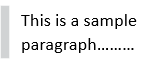
It becomes visually styled like this conceptually:
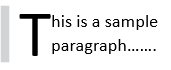
✅ Where Drop Caps are Commonly Used?
- 📖 Book Chapter Openings,
- 📰 Magazine Feature Articles,
- 🏢 Company Newsletters,
- 📣 Marketing Brochures,
- ✍️ Creative Writing Documents,
- 📊 Formal Reports with Styled Formatting, and
- 📝 Many Other documents.
➕ How to Insert a Drop Cap in Microsoft Word?
Follow the below steps to insert Drop Cap in Word:
1. Click inside the paragraph
Place your cursor anywhere inside the paragraph where you want the Drop Cap.
Important Note: Microsoft Word always applies the Drop Cap to the first letter of the paragraph, not where your cursor is blinking.
2. Select Drop Cap
Go to Insert menu → Text group and click on Drop Cap icon.

3. Choose Drop Cap Style
From the drop down of Drop Cap icon you will get 3 choices:
- Dropped: The letter drops into the paragraph body
- In Margin: The letter appears in the left margin
- None: Removes any existing Drop Cap
Click your preferred style, and Word applies it instantly.
🎨 How to Customize Drop Cap in Microsoft Word?
To access all customization settings, go to:
Insert → Drop Cap → Drop Cap Options
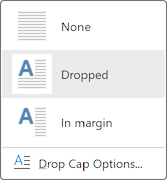
A formatting window will appear where you can adjust everything at once.
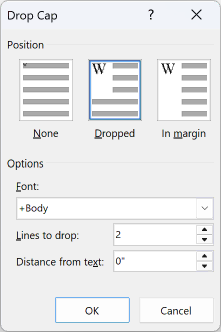
- To change the Drop Cap font in Word, choose a new Font from the dropdown menu in Drop Cap Options, and click OK.
- To change the Drop Cap size in Word, modify the Lines to Drop value inside the same Drop Cap Options window. Increasing the number makes the first letter taller.
- To adjust the distance from text in Drop Cap, increase the Distance from Text value if the letter appears too close to the paragraph.
By customizing the font style, letter height, and text spacing in one place, you can design a Drop Cap that enhances your document’s visual appeal while maintaining a clean and professional format.
🗑️ How to Remove Drop Cap in Microsoft Word?
To remove Drop Cap in Word:
- Click inside the paragraph
- Go to Insert menu → click Drop Cap under Text group → select None.
⚠️ Why Is Drop Cap Not Working in Word? (Common Fixes)
Here are the real causes and solutions:
- You are using a text box: Drop Caps typically do not work inside text boxes, shapes, or certain layout containers.
- The paragraph begins with a space: Remove any extra spaces before the first letter.
- You are using Word Online: Some Drop Cap features may not be fully supported in the browser version.
- Formatting conflict: Try clearing formatting: go to Home tab → click on Clear All Formatting
After adjusting these, the Drop Cap feature should work correctly.
🎯 Best Practices for Using Drop Cap in Microsoft Word
To make your document look polished and professional:
- Use Drop Caps only at the beginning of sections.
- Keep font style consistent with the document theme.
- Avoid oversized Drop Caps in formal reports.
- Maintain proper spacing.
- Don’t overuse decorative fonts.
📚 Drop Cap vs Large First Letter in Word (What’s the Difference?)
Some users manually increase the first letter size instead of using Drop Cap.
However:
- Manual resizing causes alignment issues,
- Text spacing becomes uneven, and
- Formatting breaks easily.
Using the Drop Cap feature in Microsoft Word ensures proper alignment, spacing, and layout consistency.
⁉️ FAQs
How do I add a Drop Cap only to the first paragraph in Word?
Click inside the first paragraph only, then go to Insert → Drop Cap and choose a style. Word applies it only to the selected paragraph.
What is the purpose of using Drop Cap in Word?
It makes the first paragraph visually engaging. It also adds a professional, magazine-style appearance.
How do I change the size of a Drop Cap in Word?
Open Drop Cap Options and modify the Lines to Drop value. Increasing the number makes the letter taller and vice versa.
How do I change the font of a Drop Cap in Word?
Access Drop Cap Options and select a new font from the dropdown menu. Click OK to apply changes.
How do I change the color of a Drop Cap in Word?
Select the Drop Cap letter and go to Home → Font Color. Choose your preferred color.
Why is the Drop Cap option greyed out in Word?
This usually happens if the text is inside a text box or table. Move the paragraph to the main document body.
Why is Drop Cap not working in Word?
Check for leading spaces, bullets, or formatting restrictions. Clearing formatting often resolves the issue.
Can I use Drop Cap in Microsoft Word Online?
The full Drop Cap feature is mainly available in the desktop version. Word Online has limited formatting support.
Can I use Drop Cap in Word for Mac?
Yes, Word for Mac includes the Drop Cap feature under the Insert tab. It works similarly to the Windows version.
How many lines should a Drop Cap drop?
Most professional documents use 2 to 3 lines. Larger sizes may disrupt paragraph balance.
Why is my Drop Cap misaligned?
Misalignment usually occurs due to spacing settings. Adjust Distance from Text or paragraph spacing.
Does Drop Cap affect line spacing?
Yes, it changes how text wraps around the first letter. You may need to adjust line spacing for better alignment.
How do I add a Drop Cap only to the first paragraph?
Click inside the first paragraph only before applying the Drop Cap. It will not affect other paragraphs.
Can I use Drop Cap inside a table in Word?
Drop Caps generally do not work correctly inside tables. Use standard paragraph formatting instead.
How do I make a Drop Cap larger than three lines?
Increase the Lines to Drop setting in Drop Cap Options. Be careful not to overcrowd the layout.
Why is my Drop Cap overlapping text?
This usually happens due to low spacing settings. Increase the Distance from Text value.
What is the difference between Drop Cap and manually enlarging a letter?
Drop Cap automatically manages spacing and alignment. Manual resizing often causes formatting issues.
Can I apply Drop Cap to more than one letter?
The built-in feature applies only to the first letter. Multiple-letter styling requires manual formatting.
Can I center a Drop Cap in Word?
Drop Caps align automatically with the paragraph. They cannot be centered independently.
Is Drop Cap available in Microsoft Word 365?
Yes, Drop Cap is fully available in the Word 365 desktop version. It works the same as other recent versions.
How do I fix uneven spacing after adding a Drop Cap?
Adjust line spacing and Distance from Text settings. This restores better paragraph balance.
Can I copy a Drop Cap to another paragraph?
Yes, use the Format Painter tool to copy the formatting. Apply it to the target paragraph.
Is Drop Cap available in older versions of Word?
Yes, versions like Word 2010 and later include the Drop Cap feature. The location may vary slightly.
Why does my Drop Cap disappear after editing text?
Major formatting edits can reset it. Simply reapply the Drop Cap if needed.
Can I use Drop Cap with justified alignment?
Yes, Drop Caps work with justified text. However, spacing may need minor adjustment.
How do I create a modern-style Drop Cap?
Use a clean font like Calibri and limit it to two lines. Keep spacing minimal for a sleek look.
Should I use Drop Cap in professional documents?
Yes, but use it only at section openings. Overusing it can reduce visual impact.
🎯 Conclusion
Learning how to use Drop Cap in Microsoft Word is a small skill that makes a big visual impact. It transforms plain text into something that looks structured, polished, and publication-ready. Also, the Drop Caps help your document stand out without complicated design tools.
Learn More
» How to Insert Header and Footer in Microsoft Word?
» How to Create a Cover Page in Microsoft Word?
» How to use Bullets and Numbering in Word?
» How to Password Protect a Word Document?
» How to Change Document Properties in Word?
» How to use Clipboard in Word?
» How to Insert Links in Microsoft Word?
» How to Use a Text Box in Microsoft Word?

Word Tutorial Part 1 (Basic)
» Word Home
» Word Basics
» Word Document
» Word Template
» Word Properties
» Word Password
Word Tutorial Part 2 (Format)
» Word Clipboard
» Word Font
» Word Color
» Word Alignment
» Word Border
» Word Bullets and Numbering
» Word Indents and Spacing
» Word Line and Page Breaks
Word Tutorial Part 3 (Insert)
» Word Cover Page
» Word Tables
» Word Illustrations
» Word Links
» Word Comments
» Word Header and Footer
» Word Text Box
» Word WordArt
» Word Quick Parts
» Word Drop Cap
» Word Date and Time
» Word Objects
» Word Equation
» Word Symbol
Word Tutorial Part 4 (Find)
» Word Find and Replace
» Word Go To
» Word Select Objects
» Word Selection Pane
Word Tutorial Part 5 (Design)
» Word Themes
» Word Watermark
» Word Page Color
» Word Page Border
Word Tutorial Part 6 (Layout)
» Word Margin
» Word Orientation
» Word Size
» Word Columns
» Word Breaks
» Word Line Numbers
» Word Hyphenation
» Word Position
» Word Wrap Text
» Word Bring Forward
» Word Send Backward
» Word Group
» Word Rotate
Word Tutorial Part 7 (References)
» Word Table of Contents
» Word Footnotes
» Word Citation and Bibliography
» Word Captions
» Word Index
» Word Table of Authorities
Word Tutorial Part 8 (Mailings)
» Word Envelopes
» Word Labels
» Word Start Mail Merge
» Word Write and Insert Fields
» Word Preview Results
» Word Finish and Merge
Word Tutorial Part 9 (Review)
» Word Editor
» Word Spelling and Grammer
» Word Thesaurus
» Word Count
» Word Read Aloud
» Word Check Accessibility
» Word Translate
» Word Language
» Word Comments
» Word Share
» Word Track Changes
» Word Compare
» Word Ink
Word Tutorial Part 10 (View)
» Word Views
» Word Immersive
» Word Show
» Word Zoom
» Word Window
» Word Macros
» Word Properties
Word Tutorial Part 11 (Other)
» Word Add-ins
» Word Shortcuts
0 Comments