
How to Insert Equation in Microsoft Word
In this guide, you will learn how to insert equation in Microsoft Word using easy and effective methods. Microsoft Word provides a built in Equation feature that allows you to create mathematical formulas, scientific expressions, calculations, and academic equations in a properly formatted and professional style without manually arranging symbols.
Whether you need to insert a simple equation, fraction, algebraic formula, or advanced mathematical expression, Word offers multiple tools to make the process fast and convenient.
📝 What is the Equation Tool in Microsoft Word?
The Equation tool is a feature in Microsoft Word that allows users to create mathematical expressions using ready-made structures and symbols.
Instead of manually typing formulas with ordinary keyboard characters, Word automatically arranges equations in a proper mathematical format.
The main Equation options available in Microsoft Word are:
- Fraction: Add fractions to the equation.
- Script: Add superscripts and subscripts to the equation.
- Radical: Add square roots and radicals to the equation.
- Integral: Add integral symbols to the equation.
- Large Operator: Add symbols like summation and product to the equation.
- Bracket: Add brackets and braces to the equation.
- Function: Add math functions like sin, cos, and log to the equation.
- Accent: Add accents like bars, dots, and arrows above characters.
- Limit and Log: Add limit and logarithm expressions to the equation.
- Operator: Add mathematical operators and symbols to the equation.
- Matrix: Add matrices to the equation.

This is especially useful for reports, contracts, research papers, proposals, and technical documentation.
➕ How to Insert Equation in Microsoft Word (Step by Step)?
Adding equations in Microsoft Word is simple when you use the built in Equation tool. Follow the steps below to quickly create and insert mathematical formulas in your document.
1. Place Cursor Where You Need the Equation
- Click inside your Word document at the exact position where the equation should appear.
- This ensures the formula is inserted in the correct location within your content.
2. Access the Equation Tool from Insert Tab
- Go to the Insert tab on the top menu ribbon.
- Click on Equation to view the available built-in equation options and tools.
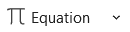
- From the dropdown, choose Insert New Equation to open an editable equation box.

3. Enter and Format Your Mathematical Expression
- Type your formula directly inside the equation box.
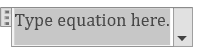
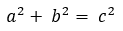
- For example, type a^2 + b^2 = c^2,
- And from the drop down select Professional.
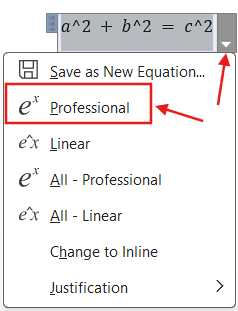
- Word will format it as a proper equation as shown in the below image.
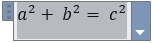
- You can use Word’s built-in symbols, fractions, integrals, or templates for proper formatting.
- You can also mix numbers, variables, and operators as needed for your equation.
4. Finalize the Equation
- Click outside the equation box once you finish typing.
- Word will automatically format and save the equation in a professional mathematical style.
⌨️ Shortcut Key to Insert Equation in Word
Microsoft Word includes a quick keyboard shortcut for inserting equations.
Press:
- Alt + =
This shortcut instantly creates an equation box without opening the Insert tab manually.
It is one of the fastest methods for adding formulas in Word.
⚠️ Common Problems While Inserting Equations in Word
Some users may face issues when using the Equation feature.
Equation Option Not Showing
This may happen because:
- The Word version is outdated.
- Ribbon settings were changed.
- Microsoft Office installation is corrupted.
Updating or repairing Microsoft Office often fixes the issue.
Equation Formatting Looks Incorrect
Formatting problems may occur if:
- Unsupported fonts are used.
- The equation was copied from another program.
- Compatibility mode is enabled.
Using Word’s default equation formatting helps avoid these problems.
⁉️ FAQs
How can I insert an equation in Microsoft Word?
You can add an equation by opening the Insert tab, selecting Equation, and then choosing Insert New Equation to type your mathematical expression in a formatted box.
What is the fastest way to open equation editor in Word?
The quickest method is pressing Alt + =, which immediately opens an equation field where you can start typing formulas without navigating menus.
Where do I find the equation tool in Word?
You will find the equation tool inside the Insert tab on the ribbon, usually placed toward the right side under the symbols section.
Is it possible to type math equations manually in Word?
Yes, you can directly type mathematical expressions inside the equation box, and Word will automatically convert them into properly formatted equations.
How do I create fractions in Word equations?
Inside the Equation tools, select the fraction structure and enter values in the numerator and denominator fields to form a properly aligned fraction.
How can I add square root symbols in Microsoft Word?
Use the radical option in the Equation tab, then type your expression inside the square root structure to display it correctly.
How do I write powers or exponents in Word equations?
Use the superscript or script structure from the Equation tools to raise numbers or variables like x² or a³ in a clean format.
Can I use ready-made equations in Word?
Yes, Microsoft Word provides built-in equations such as the quadratic formula and other standard mathematical expressions that you can insert directly.
Why can’t I see the equation option in Word?
This usually happens if the ribbon is customized, the Office version is outdated, or the installation is incomplete or corrupted.
Can I change an equation after inserting it?
Yes, clicking on the equation allows you to edit it anytime using the Equation Tools that appear on the ribbon.
Does Word support scientific symbols and Greek letters?
Yes, Word supports a wide range of symbols including Greek letters, summations, integrals, and other advanced mathematical notations.
How do I insert Greek symbols like π or θ in Word?
You can add Greek letters from the Symbols section within the Equation tab where all commonly used mathematical characters are available.
Is it possible to move equations between Word files?
Yes, you can copy and paste equations between documents, and they generally retain their formatting and structure.
What is the difference between normal typing and equation mode?
Normal typing is plain text input, while equation mode structures mathematical expressions into professional formatted formulas.
How do I delete an equation in Word?
Click on the equation and press Delete or Backspace to remove it from the document instantly.
🎯 Conclusion
Knowing how to insert equations in Microsoft Word can make mathematical and technical documents easier to create and more professional in appearance. Word’s built-in Equation feature allows users to add formulas, fractions, exponents, square roots, and advanced mathematical expressions quickly without needing extra software.
Learn More
» How to Insert Header and Footer in Microsoft Word?
» How to Create a Cover Page in Microsoft Word?
» How to use Bullets and Numbering in Word?
» How to Password Protect a Word Document?
» How to Change Document Properties in Word?
» How to use Clipboard in Word?
» How to Insert Links in Microsoft Word?
» How to Use a Text Box in Microsoft Word?
Word Tutorial Part 1 (Basic)
» Word Home
» Word Basics
» Word Document
» Word Template
» Word Properties
» Word Password
Word Tutorial Part 2 (Format)
» Word Clipboard
» Word Font
» Word Color
» Word Alignment
» Word Border
» Word Bullets and Numbering
» Word Indents and Spacing
» Word Line and Page Breaks
Word Tutorial Part 3 (Insert)
» Word Cover Page
» Word Tables
» Word Illustrations
» Word Links
» Word Comments
» Word Header and Footer
» Word Text Box
» Word WordArt
» Word Quick Parts
» Word Drop Cap
» Word Date and Time
» Word Objects
» Word Equation
» Word Symbol
Word Tutorial Part 4 (Find)
» Word Find and Replace
» Word Go To
» Word Select Objects
» Word Selection Pane
Word Tutorial Part 5 (Design)
» Word Themes
» Word Watermark
» Word Page Color
» Word Page Border
Word Tutorial Part 6 (Layout)
» Word Margin
» Word Orientation
» Word Size
» Word Columns
» Word Breaks
» Word Line Numbers
» Word Hyphenation
» Word Position
» Word Wrap Text
» Word Bring Forward
» Word Send Backward
» Word Group
» Word Rotate
Word Tutorial Part 7 (References)
» Word Table of Contents
» Word Footnotes
» Word Citation and Bibliography
» Word Captions
» Word Index
» Word Table of Authorities
Word Tutorial Part 8 (Mailings)
» Word Envelopes
» Word Labels
» Word Start Mail Merge
» Word Write and Insert Fields
» Word Preview Results
» Word Finish and Merge
Word Tutorial Part 9 (Review)
» Word Editor
» Word Spelling and Grammer
» Word Thesaurus
» Word Count
» Word Read Aloud
» Word Check Accessibility
» Word Translate
» Word Language
» Word Comments
» Word Share
» Word Track Changes
» Word Compare
» Word Ink
Word Tutorial Part 10 (View)
» Word Views
» Word Immersive
» Word Show
» Word Zoom
» Word Window
» Word Macros
» Word Properties
Word Tutorial Part 11 (Other)
» Word Add-ins
» Word Shortcuts
0 Comments