
How to Insert Object in Microsoft Word
In this guide, you will learn how to insert Object in Microsoft Word in a simple and practical way. Microsoft Word allows you to add files such as Excel worksheets, PowerPoint presentations, PDF files, and other documents directly into your Word document as embedded or linked objects.
This guide explains:
- What is Insert Object
- How to insert Object in Microsoft Word
- Embed vs Link
- How to Create a New Object
- How to Resize or Adjust Inserted Objects
- Common Issues and Solutions
📝 What is Insert Object in Microsoft Word?
The Insert Object feature in Microsoft Word allows you to place content created in another program directly into your Word document.
Instead of copying and pasting static content, you can:
- Insert a fully functional file.
- Connect to a file that updates automatically.
- Display a document as a clickable icon.
- Create a new embedded file from scratch.
This is especially useful for reports, contracts, research papers, proposals, and technical documentation.
➕ How to Insert an Object in Microsoft Word?
Follow the below steps to insert object in Word:
1. Go to the Object Option
- Open your Word document and click the Insert tab on the Ribbon.
- In the Text group, click Object to open the Object dialog box.

2. Select the File
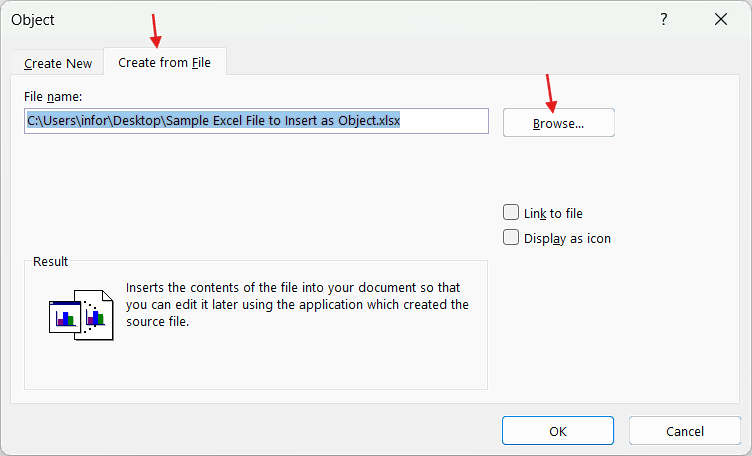
- In the dialog box, click the Create from File tab.
- Select Browse, then choose the file you want to insert, such as an Excel sheet, PDF file, PowerPoint presentation, or another document.
3. Choose How It Appears
You now have three important options:
- Leave all boxes unchecked to embed the file.
- Check Link to file to connect it to the original file.
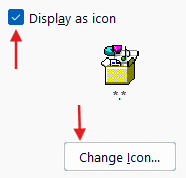
- Check Display as icon to show a clean icon instead of a preview.
After selecting the Display as icon check box, you can customize or change the icon if needed.
4. Insert the Object
- Click OK to insert the selected object into your Word document.
- The object will appear inside the document as an embedded file or icon.
📑 Embed vs Link: What’s the Difference?
When inserting an object, you must choose between embedding and linking.
Embedding means the file becomes part of your Word document. The file size increases, but you can share the Word file independently without needing the original file.
Linking means Word connects to the original file stored on your computer. The file size stays smaller and updates automatically. However, if the source file is moved or deleted, the link may break.
Embedding works best for finalized documents. Linking works best for files that require frequent updates.
➕ How to Create a New Object Inside Word?
You can also create a brand-new file without browsing for an existing one.
Steps:
- Click Insert.
- Select Object.
- Choose Create New.
- Select the object type (for example, Microsoft Excel Worksheet).
- Click OK.
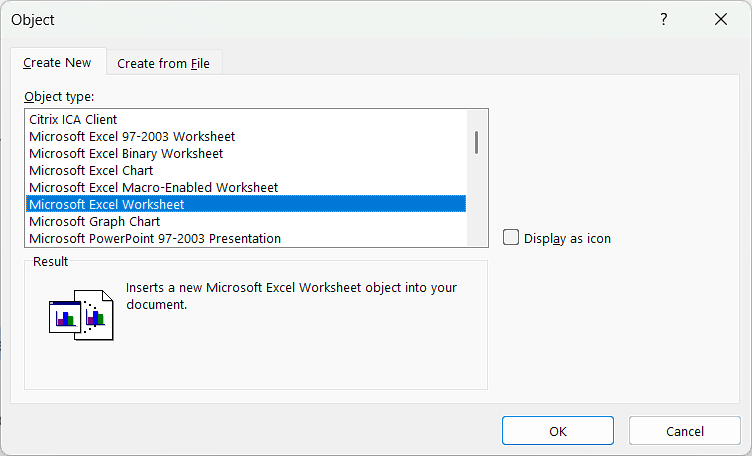
A blank working file will open directly inside your document.
📐 How to Resize or Adjust Inserted Objects
After inserting an object:
- Click on it once.
- Drag the corner handles to resize.
- Go to Layout tab and click Wrap Text to adjust text wrapping.
- Choose In Line with Text for structured formatting.
- Choose Square or Tight for flexible layouts.
- Or choose from the other options based on your need such as Through, Top and Bottom, Behind Text, In Front of Text etc.
Proper alignment improves readability and keeps your document professional.
⚠️ Common Issues and Solutions
If the object does not display correctly:
- Try inserting it as an icon.
- Ensure the source file is not damaged.
If a linked file does not update:
- Confirm the original file has not been moved.
- Avoid renaming the source file after linking.
If the Word file becomes too large:
- Consider linking instead of embedding.
- Compress large images before insertion.
⁉️ FAQs
Where can I find the Object option in Microsoft Word?
The Object feature is located under the Insert tab in the Text section of the Ribbon.
In some versions, you may need to click a small dropdown arrow to see it.
Can I insert a PDF file into a Word document?
Yes, Microsoft Word allows you to add PDF files as embedded objects or clickable icons.
This is useful for attaching invoices, forms, manuals, or reference documents.
Why does my inserted file appear as an icon instead of a preview?
Word may automatically display certain file types as icons for better compatibility.
You can also manually choose the icon option while inserting the object.
Can I open an inserted object directly inside Word?
Yes, double-clicking the object usually opens it within the related application.
This allows quick viewing or editing without searching for the original file.
Does Microsoft Word support Excel objects?
Yes, Word works smoothly with Microsoft Excel spreadsheets.
You can place tables, charts, or full worksheets inside your document.
Why is my inserted object blurry or unclear?
Objects may appear blurry if they were resized too much after insertion.
Using higher-quality source files usually improves the display.
Can I insert images using the Object feature?
Yes, image files can also be added as objects in Word documents.
However, using the regular Picture option is often simpler for photos.
Is it possible to add a PowerPoint file into Word?
Yes, you can insert a Microsoft PowerPoint presentation directly into Word.
This is helpful for project reports and meeting documentation.
Why is my linked object not updating automatically?
The original file may have been renamed, moved, or deleted from its location.
Keeping the source file unchanged helps maintain proper updates.
Can I move an inserted object anywhere in the document?
Yes, inserted objects can be repositioned just like images or shapes.
You can also adjust text wrapping for better page layout.
Does inserting objects make Word slower?
Large, embedded files can reduce document performance in some cases.
Keeping object sizes smaller helps Word run more smoothly.
Can I insert another Word document into my current file?
Yes, another Microsoft Word document can be added as an object.
This is commonly used to combine reports or supporting materials.
Why can’t I edit my inserted object?
Some objects open in preview mode if editing permissions are restricted.
Enabling editing or reopening the file may solve the issue.
Can I delete an inserted object without affecting the original file?
Yes, removing the object from Word does not delete the original source file.
The original document remains saved on your computer.
What types of files can be inserted into Word?
Word supports many file formats including PDFs, spreadsheets, presentations, and documents.
Compatibility may vary depending on installed software programs.
Can I resize an inserted spreadsheet in Word?
Yes, spreadsheets can be resized by dragging the corner handles.
Avoid stretching from the sides to maintain proper formatting.
Why does Word show an error when inserting an object?
The issue may occur if the file type is unsupported or damaged.
Updating Word or recreating the file often fixes the problem.
Can I use Insert Object in Word Online?
Some advanced object features are limited in browser versions of Word.
The desktop app provides the most complete functionality.
Is inserting objects useful for business documents?
Yes, it helps keep spreadsheets, presentations, and supporting files in one place.
This improves organization and makes documents easier to manage.
Can inserted objects be printed with the document?
Yes, embedded objects usually print along with the rest of the document.
Print appearance may depend on the selected layout and formatting.
🎯 Conclusion
Knowing how to insert objects in Microsoft Word helps you create organized, professional documents that combine multiple file types in one place. Whether you are embedding an Excel worksheet, attaching a PDF, or linking live data, this feature allows you to manage the content efficiently without switching between the programs.
Learn More
» How to Insert Header and Footer in Microsoft Word?
» How to Create a Cover Page in Microsoft Word?
» How to use Bullets and Numbering in Word?
» How to Password Protect a Word Document?
» How to Change Document Properties in Word?
» How to use Clipboard in Word?
» How to Insert Links in Microsoft Word?
» How to Use a Text Box in Microsoft Word?
Word Tutorial Part 1 (Basic)
» Word Home
» Word Basics
» Word Document
» Word Template
» Word Properties
» Word Password
Word Tutorial Part 2 (Format)
» Word Clipboard
» Word Font
» Word Color
» Word Alignment
» Word Border
» Word Bullets and Numbering
» Word Indents and Spacing
» Word Line and Page Breaks
Word Tutorial Part 3 (Insert)
» Word Cover Page
» Word Tables
» Word Illustrations
» Word Links
» Word Comments
» Word Header and Footer
» Word Text Box
» Word WordArt
» Word Quick Parts
» Word Drop Cap
» Word Date and Time
» Word Objects
» Word Equation
» Word Symbol
Word Tutorial Part 4 (Find)
» Word Find and Replace
» Word Go To
» Word Select Objects
» Word Selection Pane
Word Tutorial Part 5 (Design)
» Word Themes
» Word Watermark
» Word Page Color
» Word Page Border
Word Tutorial Part 6 (Layout)
» Word Margin
» Word Orientation
» Word Size
» Word Columns
» Word Breaks
» Word Line Numbers
» Word Hyphenation
» Word Position
» Word Wrap Text
» Word Bring Forward
» Word Send Backward
» Word Group
» Word Rotate
Word Tutorial Part 7 (References)
» Word Table of Contents
» Word Footnotes
» Word Citation and Bibliography
» Word Captions
» Word Index
» Word Table of Authorities
Word Tutorial Part 8 (Mailings)
» Word Envelopes
» Word Labels
» Word Start Mail Merge
» Word Write and Insert Fields
» Word Preview Results
» Word Finish and Merge
Word Tutorial Part 9 (Review)
» Word Editor
» Word Spelling and Grammer
» Word Thesaurus
» Word Count
» Word Read Aloud
» Word Check Accessibility
» Word Translate
» Word Language
» Word Comments
» Word Share
» Word Track Changes
» Word Compare
» Word Ink
Word Tutorial Part 10 (View)
» Word Views
» Word Immersive
» Word Show
» Word Zoom
» Word Window
» Word Macros
» Word Properties
Word Tutorial Part 11 (Other)
» Word Add-ins
» Word Shortcuts
0 Comments