
How to Select Objects in Microsoft Word
In this guide, you will learn how to select objects in Microsoft Word using different methods for pictures, shapes, icons, charts, and text boxes. Selecting objects correctly helps you move, resize, format, align, group, and edit elements more efficiently within your document.
You will learn how to select single objects, multiple objects, hidden elements, and grouped designs in Word. The guide also covers useful shortcuts, formatting methods, and practical tips that can help improve editing speed and make document management easier.
📝 What are Objects in Microsoft Word?
Objects in Microsoft Word are visual or embedded elements added separately from normal text. These elements can usually be resized, moved, rotated, formatted, or grouped.
Examples of objects include:
- Pictures: Inserted photos or image files used in documents.
- Shapes: Drawing elements like arrows, circles, rectangles, and lines.
- Text Boxes: Movable containers used to place custom text anywhere.
- SmartArt: Visual diagrams for processes, lists, and organizational structures.
- Charts: Graphical representations of data such as bar or pie charts.
- Icons: Small vector graphics used for visual representation.
- WordArt: Decorative text with special styles and effects.
- Embedded spreadsheets: Excel worksheets inserted directly into Word documents.
- Screenshots: Captured images of computer screens or application windows.
- 3D graphics: Three-dimensional models that can be rotated and customized.
🖱️ Why Do You Need to Select Objects in Word?
Selecting objects allows you to control how elements appear inside your document. Instead of editing each item one by one, Word lets you manage several objects together.
Object selection is especially useful when:
- Designing flyers.
- Creating resumes.
- Making posters.
- Preparing business presentations.
- Building reports with images and charts.
- Arranging certificates or brochures.
Learning proper selection methods can save considerable editing time.
📑 How to Select a Single Object in Microsoft Word?
Selecting one object is the most basic method and works for almost every type of inserted element.
Steps to Select One Object
- Open your Word document.
- Find the object you want to edit.
- Click once directly on the object.
- Resize handles will appear around it.
- The object is now active and ready for editing.
After selecting it, you can:
- Move the object.
- Resize it.
- Rotate it.
- Apply styles.
- Copy or delete it.
📑 How to Select Multiple Objects in Microsoft Word?
Microsoft Word offers several ways to select multiple objects for editing, formatting, grouping, aligning, or moving them together. The best method depends on how the objects are arranged and whether they are visible, grouped, or overlapping within the document.
Method 1: Using the Ctrl Key to Select Multiple Objects
This method allows you to pick objects individually without affecting other items in the document.
- Select any object in the document first.
- Keep the Ctrl key pressed on the keyboard.
- Click each additional object you want to include in the selection.
- Release the Ctrl key after all required objects are highlighted.
This option works well when objects are placed in different locations on the page.
Method 2: Dragging the Mouse Around Multiple Objects
You can quickly select nearby objects by drawing a selection area around them.
- Move the pointer to an empty area beside the objects.
- Hold down the left mouse button.
- Drag the cursor across the objects you want to select.
- Release the mouse button to highlight all covered items.
This method is useful when several objects are positioned close together.
Method 3: Using the Select Objects Feature
Word includes a built-in tool specially designed for selecting drawing objects.
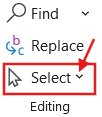
- Open the Home tab in the ribbon.
- Click the Select option from the Editing section.
- Choose Select Objects from the dropdown menu.
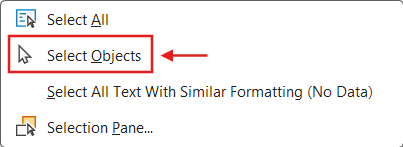
- Use the mouse to draw a box around the required objects.
- Press Esc after completing the selection process.
This feature helps when normal mouse clicks do not easily select shapes or graphics.
Method 4: Using the Selection Pane in Word
The Selection Pane helps manage objects that overlap or remain hidden behind other elements.
- Go to the Home tab.
- Click Select option from the Editing section.
- Choose Selection Pane from the dropdown menu.
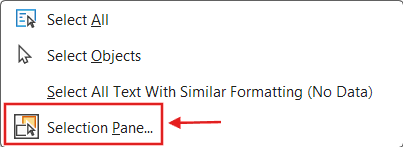
- Review the list of available objects shown on the right side.
- Hold the Ctrl key while selecting multiple object names from the pane.
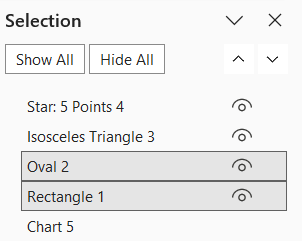
- Release the key after choosing all needed items.
This method is especially useful in documents containing many layered objects.
Method 5: Selecting Grouped Objects Together
Grouped objects can be selected instantly as a single unit.
- Locate the grouped elements in the document.
- Click any object within the group.
- Word will automatically highlight the entire group.
- Apply formatting, resizing, or movement to all grouped items together.
This saves time when editing related objects at once.
📐 How to Align Selected Objects in Word?
Alignment tools help create clean and professional document layouts.
Steps to Align Objects
- Select the required objects.
- Open the Shape Format or Picture Format tab.
- Click Align under Arrange section.
- Choose the preferred alignment option.
Available alignment options include:
- Align Left: Places selected objects evenly along the left side.
- Align Center: Positions objects evenly at the horizontal center.
- Align Right: Arranges selected objects along the right side.
- Align Top: Aligns objects evenly at the top edge.
- Align Middle: Places objects evenly through the vertical center.
- Align Bottom: Arranges objects evenly along the bottom edge.
- Distribute Horizontally: Creates equal horizontal spacing between objects.
- Distribute Vertically: Creates equal vertical spacing between objects.
🎨 How to Format Multiple Selected Objects Together
After selecting several objects, formatting changes can be applied to all selected items at once.
Common Formatting Actions
- Change colors: Modify the fill, outline, or text color of objects.
- Apply borders: Add or customize outlines around pictures, shapes, or text boxes.
- Add visual effects: Apply effects like glow, reflection, or soft edges.
- Resize objects: Increase or decrease the size of selected items.
- Rotate items: Turn objects in different directions or angles.
- Add shadows: Create shadow effects to give objects more depth.
- Change transparency: Adjust object visibility to make elements lighter or see-through.
- Apply picture styles: Use built-in image designs, frames, and formatting styles.
This approach helps maintain a uniform design.
⚠️ Why Can’t I Select Objects in Microsoft Word?
There are several reasons why Word may not allow object selection.
Common Reasons
- The object is placed behind text.
- Document editing restrictions are enabled.
- The object is inside the header or footer.
- Wrapping settings prevent selection.
- Objects overlap heavily.
- The Selection Pane is closed.
🛠️ How to Fix Object Selection Problems in Word?
Sometimes Microsoft Word may not let you select pictures, shapes, text boxes, charts, or other objects correctly. Objects may appear locked, hidden behind text, difficult to click, or completely unresponsive. The following troubleshooting methods can help fix most object selection problems in Word.
Solution 1: Use the Selection Pane to Find Hidden Objects
The Selection Pane makes it easier to locate objects that are hidden behind other elements or difficult to click directly.
- Open the Home tab on the Ribbon.
- Click Select in the Editing group.
- Choose Selection Pane from the menu.
- A list of all document objects will appear on the right side.
- Click the object name to select it instantly.
This method works especially well for overlapping Shapes, Pictures, and Text Boxes.
Solution 2: Exit Header and Footer Editing
Objects inserted inside Headers or Footers cannot always be selected from the main document area.
- Look for the Header or Footer editing label at the top of the page.
- Double-click anywhere inside the document body.
- Exit Header and Footer mode completely.
- Try selecting the object again.
This solution helps when objects appear locked while editing the main page.
Solution 3: Check Restrict Editing Settings
Microsoft Word may block object selection in protected documents.
- Open the Review tab.
- Click Restrict Editing.
- Check whether editing protection is enabled.
- Select Stop Protection if editing access is allowed.
- Attempt to select the object again.
Removing editing restrictions restores access to formatting and object controls.
Solution 4: Increase the Zoom Percentage
Small icons, Shapes, or graphics may become difficult to select at lower zoom levels.
- Move to the Zoom slider in the bottom-right corner of Word.
- Increase the zoom percentage gradually.
- Position the mouse pointer carefully over the object.
- Click the object again after zooming in.
A closer view improves selection accuracy, especially for small design elements.
Solution 5: Change the Wrap Text Setting
Certain Wrap Text layouts can make objects harder to select with the mouse.
- Select the object if possible.
- Open the Picture Format or Shape Format tab.
- Click Wrap Text.
- Try changing the layout to:
- Square.
- Tight.
- In Front of Text.
- Check whether the object becomes easier to select.
Changing the text wrapping style often fixes selection problems caused by object positioning.
Solution 6: Press Esc to Exit Select Objects Mode
If Word remains stuck in Select Objects mode, normal clicking may stop working correctly.
- Press the Esc key on the keyboard.
- Click once inside the document area.
- Try selecting the object again normally.
This quick step can resolve unexpected object selection behaviour in Word.
Solution 7: Restart Microsoft Word
Temporary application glitches can sometimes affect object selection tools.
- Save the current document.
- Close Microsoft Word completely.
- Open Word again and reopen the document.
- Test the object selection feature once more.
Restarting the application often clears temporary issues affecting Shapes, Pictures, or other document objects.
📦 How to Group Selected Objects in Microsoft Word?
Grouping combines multiple objects, so they behave like a single item. This is useful when designing layouts with several connected elements.
Steps to Group Objects
- Select all required objects.
- Right-click one of the selected items.
- Choose Group.
- Click Group again.
After grouping, you can:
- Move everything together.
- Resize all objects at once.
- Keep spacing consistent.
- Prevent accidental misalignment.
🔓 How to Ungroup Objects in Word?
Ungrouping separates grouped objects back into individual items.
Steps to Ungroup Objects
- Click the grouped object.
- Right-click it.
- Choose Group.
- Select Ungroup.
You can now edit each object independently.
⌨️ Shortcut Keys to Select Objects in Word
Keyboard shortcuts help speed up object management.
Common Selection Shortcuts
Ctrl + Click: Select several objects individually.
Ctrl + A: Select the complete document and all objects.
Tab: Jump to the next object.
Shift + Tab: Return to the previous object.
Delete: Remove selected objects.
Esc: Cancel the current selection.
⁉️ FAQs
How do I select all pictures in Microsoft Word?
Word does not provide a single command that highlights every picture automatically. The Selection Pane can make image management easier by displaying all inserted objects in one place.
Can I select multiple shapes without selecting text?
Yes. Hold the Ctrl key while clicking each shape or use the Select Objects tool to focus only on graphical elements without affecting the document text.
How do I select an object behind another object in Word?
When objects overlap, clicking the correct item can be difficult. The Selection Pane allows you to choose the hidden object directly from a list of document elements.
Why can’t I select multiple objects in Word?
This often occurs when one or more objects use the In Line with Text layout setting. Switching to a floating layout option usually enables multi-object selection.
How do I select objects in Word using the Selection Pane?
Open the Selection Pane from the Select menu and click the object names shown in the list. This approach provides more accuracy when working with complex layouts.
Can I select objects and text together in Word?
Yes. By combining Ctrl + Click with normal text selection, you can include both objects and text in the same selection.
How do I select a chart in Microsoft Word?
Click the chart border or chart area until resize handles appear. Once selected, Word displays chart-specific formatting and editing tools.
Can I select grouped and ungrouped objects together?
Yes. Microsoft Word allows grouped objects and standalone objects to be selected at the same time for alignment, movement, or formatting.
How do I know whether an object is selected?
A selected object usually displays sizing handles around its edges. Additional formatting options may also appear on the Ribbon.
What happens when I press Ctrl + A in Word?
Ctrl + A selects everything within the document, including text, pictures, tables, shapes, and other inserted elements.
How do I select a watermark in Word?
Most watermarks are placed in the header area. Open the header section first, then click the watermark to select and edit it.
Can I lock selected objects in Microsoft Word?
Word does not offer a universal lock feature for every object type. However, document protection and positioning settings can help prevent accidental changes.
How do I select an icon inserted in Word?
Click directly on the icon until selection handles appear around it. You can then resize, move, or format the icon as needed.
How do I select SmartArt graphics in Word?
Click the outer edge of the SmartArt graphic rather than an individual shape. This ensures the entire SmartArt object is selected.
Can I move selected objects with arrow keys?
Yes. After selecting an object, use the arrow keys to make small positional adjustments for more precise placement.
How do I select objects in a protected Word document?
Object selection may be restricted when editing protection is enabled. Removing restrictions or obtaining editing access is usually required.
Why do selection handles not appear around an object?
This can happen if the object is not fully selected or if another element is blocking it. The Selection Pane can help identify and select the correct object.
Can I select objects in Word Online?
Yes. Word Online supports basic object selection features, although some advanced options available in the desktop application may not be included.
How do I select objects for alignment in Word?
Select all required objects first and then use the Align command from the Format tab. Word can automatically position the selected items according to the chosen alignment setting.
Can I select objects across different sections of a document?
Yes. Objects located in different sections can be selected together by holding the Ctrl key and selecting each object individually.
How do I select and duplicate an object in Word?
Select the object and use Ctrl + C followed by Ctrl + V. You can also hold Ctrl while dragging the object to create a duplicate.
Why is my picture not behaving like other objects?
The image may be using the In Line with Text layout option, causing it to act more like text than a floating object. Changing the wrapping style typically resolves this behaviour.
How do I select a text box without editing its text?
Click the border of the text box rather than the text inside it. This selects the entire text box object for editing or formatting.
Can I select all objects on a specific page only?
Word does not include a direct feature for page-specific object selection. Objects on the page must be selected manually using available selection tools.
What is the easiest way to manage many objects in Word?
The Selection Pane is often the most efficient option. It provides a clear list of all objects, making it easier to locate, select, and organize them.
🎯 Conclusion
Knowing how to select objects in Microsoft Word makes document editing much more efficient. Whether you are working with images, shapes, charts, or text boxes, proper selection techniques help you organize and manage layouts with greater accuracy.
Learn More
» How to use Find and Replace in Microsoft Word?
» How to Insert Equation in Microsoft Word?
» How to Insert Object in Microsoft Word?
» How to Insert Header and Footer in Microsoft Word?
» How to Create a Cover Page in Microsoft Word?
» How to use Bullets and Numbering in Word?
» How to Password Protect a Word Document?
» How to Change Document Properties in Word?
» How to use Clipboard in Word?
» How to Insert Links in Microsoft Word?
» How to Use a Text Box in Microsoft Word?
» How to Insert a Symbol in Microsoft Word?

Word Tutorial Part 1 (Basic)
» Word Home
» Word Basics
» Word Document
» Word Template
» Word Properties
» Word Password
Word Tutorial Part 2 (Format)
» Word Clipboard
» Word Font
» Word Color
» Word Alignment
» Word Border
» Word Bullets and Numbering
» Word Indents and Spacing
» Word Line and Page Breaks
Word Tutorial Part 3 (Insert)
» Word Cover Page
» Word Tables
» Word Illustrations
» Word Links
» Word Comments
» Word Header and Footer
» Word Text Box
» Word WordArt
» Word Quick Parts
» Word Drop Cap
» Word Date and Time
» Word Objects
» Word Equation
» Word Symbol
Word Tutorial Part 4 (Find)
» Word Find and Replace
» Word Go To
» Word Select Objects
» Word Selection Pane
Word Tutorial Part 5 (Design)
» Word Themes
» Word Watermark
» Word Page Color
» Word Page Border
Word Tutorial Part 6 (Layout)
» Word Margin
» Word Orientation
» Word Size
» Word Columns
» Word Breaks
» Word Line Numbers
» Word Hyphenation
» Word Position
» Word Wrap Text
» Word Bring Forward
» Word Send Backward
» Word Group
» Word Rotate
Word Tutorial Part 7 (References)
» Word Table of Contents
» Word Footnotes
» Word Citation and Bibliography
» Word Captions
» Word Index
» Word Table of Authorities
Word Tutorial Part 8 (Mailings)
» Word Envelopes
» Word Labels
» Word Start Mail Merge
» Word Write and Insert Fields
» Word Preview Results
» Word Finish and Merge
Word Tutorial Part 9 (Review)
» Word Editor
» Word Spelling and Grammer
» Word Thesaurus
» Word Count
» Word Read Aloud
» Word Check Accessibility
» Word Translate
» Word Language
» Word Comments
» Word Share
» Word Track Changes
» Word Compare
» Word Ink
Word Tutorial Part 10 (View)
» Word Views
» Word Immersive
» Word Show
» Word Zoom
» Word Window
» Word Macros
» Word Properties
Word Tutorial Part 11 (Other)
» Word Add-ins
» Word Shortcuts
0 Comments