
How to use Find and Replace in Microsoft Word
Find and replace in Microsoft Word is one of the fastest ways to edit text, correct repeated mistakes, update information, and format documents efficiently. Instead of manually searching through pages one by one, Microsoft Word allows users to instantly find specific words, phrases, symbols, or formatting and replace them across the entire document.
In this guide, you will learn how to use Find and Replace in Microsoft Word step by step, including shortcut keys, advanced search options, formatting replacement, wildcard searches, and practical examples commonly searched on Google.
🔍 What is Find and Replace in Microsoft Word?
Find and Replace is a built-in editing feature in Microsoft Word that helps users quickly search for content inside a document and replace it with new text or formatting.
This tool is commonly used to:
- Correct spelling mistakes throughout a document.
- Replace repeated words or phrases.
- Update company names, dates, or numbers.
- Change formatting styles instantly.
- Remove extra spaces and blank lines.
- Edit large Word documents faster.
Whether you are working on reports, assignments, resumes, books, or office files, Find and Replace can save a significant amount of editing time.
📝 How to Use Find and Replace in Word (Step by Step)?
Follow the below steps to use Find and Replace in Word:
1. Open the Find and Replace Tool
Using the Home Tab:
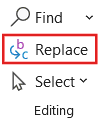
- Go to Home tab → Editing section.
- Select the Replace button.
Using the Keyboard Shortcut:
- Ctrl + H (Windows)
- Command + H (macOS)
2. Enter the Text You Want to Find
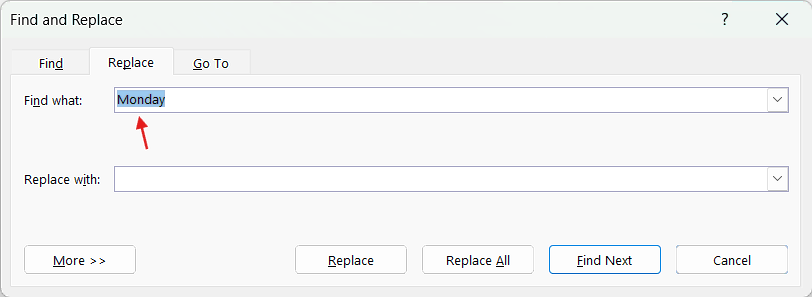
- Inside the Find what box, type the word or phrase you want Word to search for.
- Example: Enter “Monday” in Find what box.
3. Enter the Replacement Text
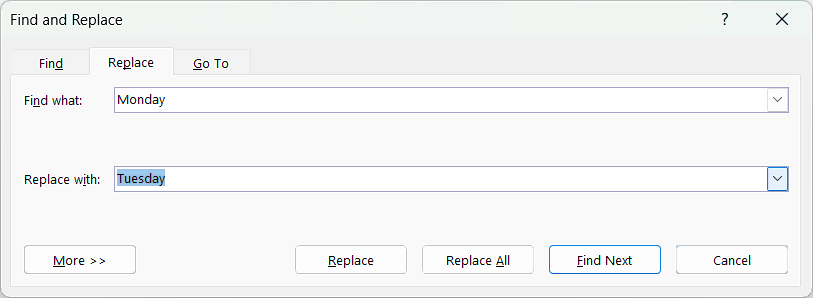
- In the Replace with box, type the new word or phrase.
- Example: Enter “Tuesday” in Replace with box.
4. Select a Replace Option
Microsoft Word gives you three main options.
Find Next
- Searches the next matching word.
- Does not replace the text.
Replace
- Replaces only the highlighted result.
- Useful for reviewing changes individually.
Replace All
- Replaces every matching word in the document instantly.
- Best for large documents.
In this example, if you click the Replace all button then every occurrence of the text “Monday” will be replaced with “Tuesday”.
🔎 How to Find a Word in Microsoft Word Without Replacing It?
Sometimes users only want to search for text without changing anything.
Steps to Use Find in Word
- Go to Home tab → Editing section and click Find button. Or press Ctrl + F.
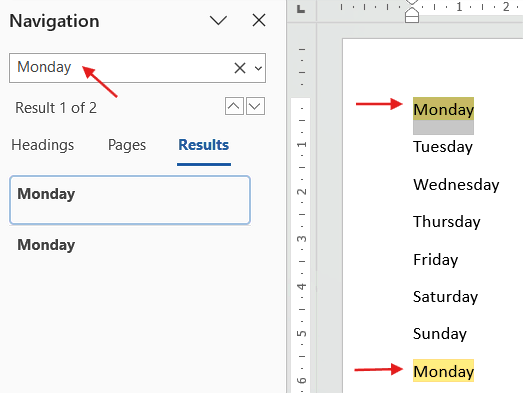
- The Navigation bar opens.
- Type the word or phrase in the search box.
- Word highlights all matching results.
Steps to Use Advanced Find in Word
- Go to Home tab → Editing section and click the drop-down arrow near Find button and select the Advanced Find option.
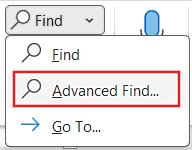
- Or press Ctrl + H to get the Find and Replace window and navigate to Find section.
- Enter the text you are looking for in Find what box.
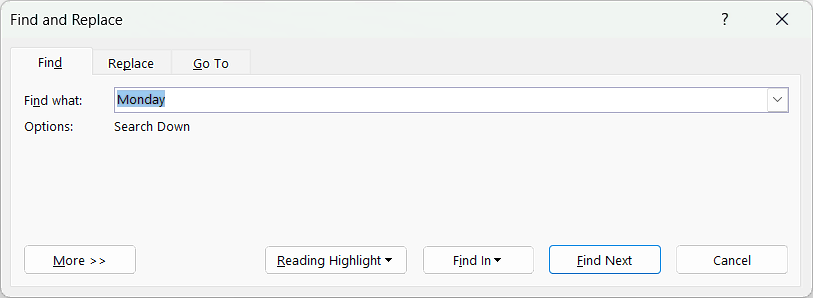
- Click Find Next button to find one by one.
- To highlight the find text, click the drop-down arrow near Reading Highlight and select Highlight All.
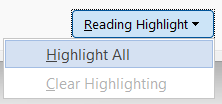
- Word will highlight all text in Find what box and will show the count as well. In this example, Word highlights 2 items of the text “Monday”.
- To clear highlighting, select Reading Highlight and then select Clear Highlighting.
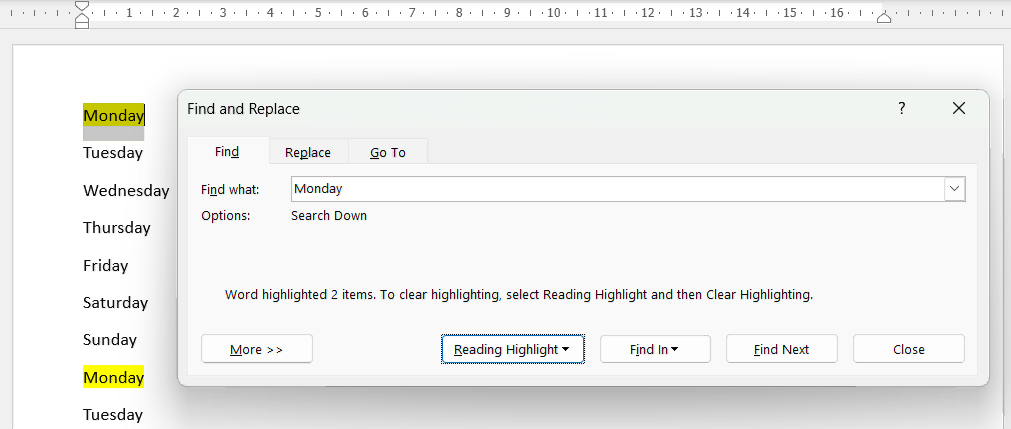
- By default, it will search from top to down.
- To use advanced features, click the More button.
- The window will expand and you will get multiple search options.
- Click the Format and Special buttons to get even more advanced options.
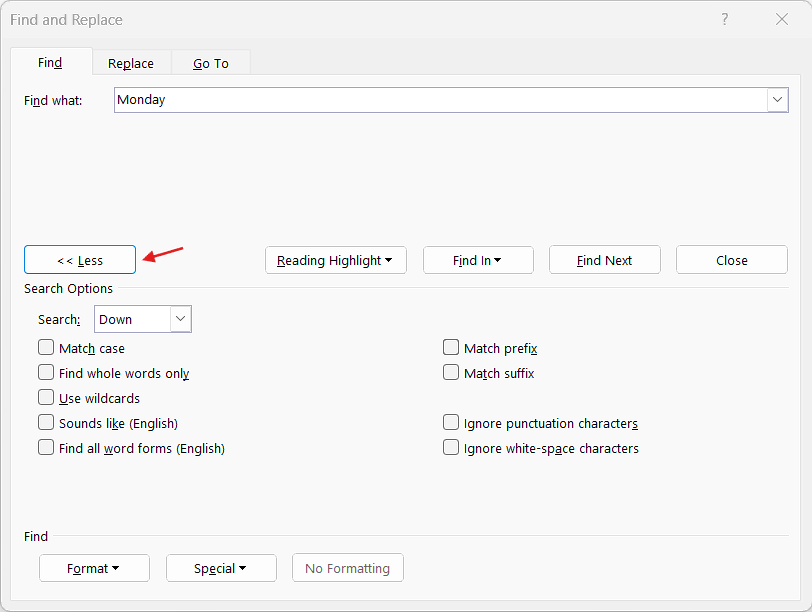
These advanced features you can use in Replace in Microsoft Word as well.
Use of More Options in Advanced Find and Replace in Microsoft Word
- Match Case: Finds text with exact uppercase and lowercase letters.
- Find Whole Words Only: Searches only complete words and ignores partial matches.
- Use Wildcards: Finds text using patterns and special characters.
- Sounds Like (English): Finds words that sound similar.
- Find All Word Forms: Searches grammatical variations of a word.
- Match Prefix: Finds words starting with specific letters.
- Match Suffix: Finds words ending with specific letters.
- Ignore Punctuation Characters: Ignores punctuation marks during search.
- Ignore White-Space Characters: Ignores spaces between words while searching.
⌨️ What is the Shortcut Key for Find and Replace in Word?
Windows
- Ctrl + F: Open Find
- Ctrl + H: Open Find and Replace
- Alt + H, F, D: Open Find dropdown in the Home tab
- Alt + H, R: Open Replace option from the Ribbon
- Shift + F4: Repeat previous Find action
macOS
- Command + F: Open Find
- Command + H: Open Find and Replace
⚠️ Why is Find and Replace Not Working in Word?
Sometimes the Find & Replace feature may not produce expected results.
Common Reasons
- Match Case is enabled.
- Incorrect spelling entered.
- Whole Words Only option is active.
- Hidden formatting affects search results.
- Extra spaces exist in the text.
Checking advanced Find and Replace settings usually solves the issue.
✅ Benefits of Using Find and Replace in Microsoft Word
Using Find and Replace provides several advantages.
Main Benefits
- Saves editing time.
- Reduces manual work.
- Improves document accuracy.
- Updates repeated content instantly.
- Helps format large documents quickly.
- Makes proofreading easier.
This feature is especially useful for lengthy documents and professional editing.
💡 Best Tips for Using Find and Replace Effectively
You should know how to use Find and Replace in Word effectively.
Helpful Tips
- Review replacements before using Replace All.
- Save a backup copy before major edits.
- Use Find Next for careful editing.
- Use Whole Words Only for better accuracy.
- Test wildcard searches first.
These practices help avoid accidental replacements.
⁉️ FAQs
How do I use Find and Replace in Microsoft Word?
Press Ctrl + H, enter the text to find, type the replacement text, and click Replace or Replace All.
What is the shortcut key for Find and Replace in Word?
The shortcut key is Ctrl + H.
How do I search for a word in Microsoft Word?
Press Ctrl + F and type the word in the Navigation pane search box.
Can I replace formatting in Word?
Yes, Microsoft Word allows users to replace fonts, styles, colors, and formatting using the Format option.
How do I remove extra spaces in Word?
Use Find and Replace to search for double spaces and replace them with single spaces.
What does Replace All do in Microsoft Word?
Replace All changes every matching word or phrase in the document instantly.
Can Find and Replace work with symbols?
Yes, Word supports symbols, tabs, paragraph marks, and special characters.
Why is Word not finding certain words?
Advanced settings like Match Case or Whole Words Only may prevent search results.
How do I find exact words only in Word?
Enable the Find whole words only option in advanced search settings.
Can I undo Replace All in Microsoft Word?
Yes, press Ctrl + Z immediately after the replacement.
What are wildcards in Find and Replace?
Wildcards are special search symbols used for advanced pattern matching.
Can I use Find and Replace in Word Online?
Yes, Word Online supports basic Find and Replace functionality.
How do I replace a font in Microsoft Word?
Use Find and Replace with the Format → Font option to change fonts across the document.
Is Find and Replace useful for long documents?
Yes, it helps edit lengthy reports, books, research papers, and office documents much faster.
Can Find and Replace search numbers in Word?
Yes, Microsoft Word can search and replace numbers, symbols, and text patterns.
🎯 Conclusion
Find and replace in Microsoft Word is one of the most valuable tools for editing documents quickly and efficiently. From correcting spelling mistakes to changing formatting and removing extra spaces, this feature helps users manage documents with far less effort.
Learn More
» How to Insert Equation in Microsoft Word?
» How to Insert Object in Microsoft Word?
» How to Insert Header and Footer in Microsoft Word?
» How to Create a Cover Page in Microsoft Word?
» How to use Bullets and Numbering in Word?
» How to Password Protect a Word Document?
» How to Change Document Properties in Word?
» How to use Clipboard in Word?
» How to Insert Links in Microsoft Word?
» How to Use a Text Box in Microsoft Word?
» How to Insert a Symbol in Microsoft Word?

Word Tutorial Part 1 (Basic)
» Word Home
» Word Basics
» Word Document
» Word Template
» Word Properties
» Word Password
Word Tutorial Part 2 (Format)
» Word Clipboard
» Word Font
» Word Color
» Word Alignment
» Word Border
» Word Bullets and Numbering
» Word Indents and Spacing
» Word Line and Page Breaks
Word Tutorial Part 3 (Insert)
» Word Cover Page
» Word Tables
» Word Illustrations
» Word Links
» Word Comments
» Word Header and Footer
» Word Text Box
» Word WordArt
» Word Quick Parts
» Word Drop Cap
» Word Date and Time
» Word Objects
» Word Equation
» Word Symbol
Word Tutorial Part 4 (Find)
» Word Find and Replace
» Word Go To
» Word Select Objects
» Word Selection Pane
Word Tutorial Part 5 (Design)
» Word Themes
» Word Watermark
» Word Page Color
» Word Page Border
Word Tutorial Part 6 (Layout)
» Word Margin
» Word Orientation
» Word Size
» Word Columns
» Word Breaks
» Word Line Numbers
» Word Hyphenation
» Word Position
» Word Wrap Text
» Word Bring Forward
» Word Send Backward
» Word Group
» Word Rotate
Word Tutorial Part 7 (References)
» Word Table of Contents
» Word Footnotes
» Word Citation and Bibliography
» Word Captions
» Word Index
» Word Table of Authorities
Word Tutorial Part 8 (Mailings)
» Word Envelopes
» Word Labels
» Word Start Mail Merge
» Word Write and Insert Fields
» Word Preview Results
» Word Finish and Merge
Word Tutorial Part 9 (Review)
» Word Editor
» Word Spelling and Grammer
» Word Thesaurus
» Word Count
» Word Read Aloud
» Word Check Accessibility
» Word Translate
» Word Language
» Word Comments
» Word Share
» Word Track Changes
» Word Compare
» Word Ink
Word Tutorial Part 10 (View)
» Word Views
» Word Immersive
» Word Show
» Word Zoom
» Word Window
» Word Macros
» Word Properties
Word Tutorial Part 11 (Other)
» Word Add-ins
» Word Shortcuts
0 Comments