
How to use Go To in Microsoft Word
The Go To in Microsoft Word feature is one of the fastest ways to navigate large documents without endless scrolling. Whether you want to jump to a specific page, line, section, table, comment, or bookmark, the Go To tool helps you reach the exact location instantly.
In this guide, you will learn how to use Go To in Microsoft Word step by step, including shortcut keys, navigation options, advanced tips, and practical examples for faster document editing.
📝 What Is Go To in Microsoft Word?
Go To in Microsoft Word is a built-in navigation feature that allows users to move directly to a selected location inside a document. Instead of manually searching through pages, Word instantly takes you to the required section or object.
The Go To tool is especially useful when working with:
- Long reports
- Research papers
- Office documents
- Books and manuscripts
- Technical files
- Legal documents
- Project documentation
⭐ Why Use Go To in Microsoft Word?
The Go To feature improves productivity by making document navigation faster and easier.
Benefits of Using Go To in Word
- Quickly jump to a specific page.
- Navigate long documents efficiently.
- Move between comments and edits.
- Access bookmarks instantly.
- Find tables, graphics, and equations faster.
- Reduce manual scrolling.
- Save time during editing and proofreading.
📑 How to Use Go To in Microsoft Word (Step by Step)?
Using Go To in Word is simple and helps users move quickly through documents. Follow the below steps to learn how to use Go To in Word:
1. Open the Go To Dialog Box
Using the Ribbon:
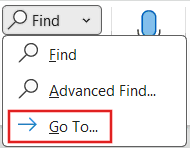
- Go to Home tab → Editing section.
- Click the drop-down arrow near Find button and select Go To option.
Using the Keyboard Shortcut:
- Ctrl + G or F5 (Windows)
- Option + Command + G or F5 (macOS)
2. Select the Navigation Type
Under Go to what, choose the item you want to navigate to.
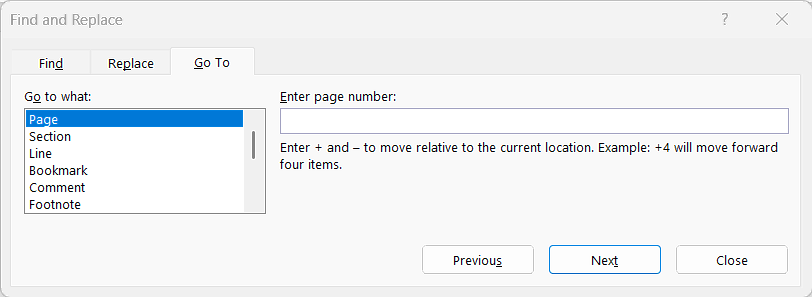
Available options include:
- Page: Jump directly to a specific page number.
- Line: Move to a particular line in the document.
- Section: Navigate to a selected document section.
- Bookmark: Go to a saved bookmark location.
- Comment: Move to inserted review comments.
- Table: Jump to a table in the document.
- Graphic: Navigate to images, shapes, or graphics.
- Footnote: Move to a footnote reference or text.
- Endnote: Jump to an endnote in the document.
- Equation: Navigate to mathematical equations.
- Object: Move to embedded objects or items.
- Heading: Jump quickly to a document heading.
3. Enter the Required Number or Name
Type the relevant value in the input box.
Example:
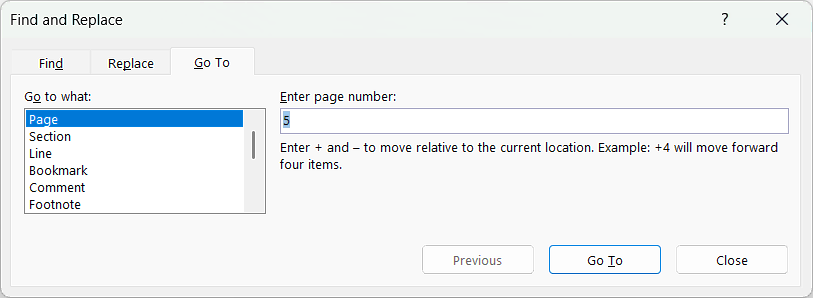
- Page: Enter page number 5 to go to page 5.
- Line: Enter line number 10 to go to line 10.
- Bookmark: Enter bookmark name to open that bookmark.
4. Click the Go To Button
- Select Go To button.
- Microsoft Word immediately moves to the selected location.
In this example, select Page under Go to what option, enter page number 5, and click Go To button to jump to page 5 instantly.
You can enter + and – to move relative to the current location. For example: if you are in page 3, enter +2 to go to page 5 (3+2) or enter -2 to go to page 1 (3-2).
5. Close the Dialog Box
- Click Close once navigation is complete.
⚠️ Common Problems with Go To in Word
Sometimes the Go To feature may not work correctly.
Shortcut key (Ctrl + G) Not Working
Possible reasons include:
- Keyboard shortcut conflicts.
- Disabled shortcuts.
- Word add-ins causing issues.
Go To Option Missing
Try these fixes:
- Restart Microsoft Word.
- Update Office.
- Repair Microsoft Office installation.
- Disable unnecessary add-ins.
✅ Best Uses of Go To in Microsoft Word
The Go To feature is extremely useful for:
- Editing long reports.
- Navigating academic papers.
- Reviewing contracts.
- Managing technical documentation.
- Proofreading books.
- Working with large office files.
⁉️ FAQs
What is Go To in Word?
Go To is a navigation feature that helps users move directly to a page, line, section, bookmark, or other document element without scrolling manually.
What is the shortcut key for Go To in Microsoft Word?
The shortcut keys are Ctrl + G and F5 on Windows computers. On Mac devices, the shortcut is Option + Command + G.
How do I open Go To in Word?
You can open Go To by pressing Ctrl + G or F5. It can also be accessed from Home → Find → Go To.
How do I go to a specific page in Word?
Open the Go To dialog box, select Page, type the page number, and click Go To. Word instantly jumps to that page.
Can I go to a specific line in Microsoft Word?
Yes, Word allows users to jump directly to a line number using the Go To feature. Simply choose Line and enter the required line number.
How do I move to a section in Word?
Open Go To, select Section, enter the section number, and click Go To. This works well in documents with section breaks.
Can Go To navigate bookmarks in Word?
Yes, the Go To tool can open saved bookmarks quickly. Select Bookmark and type the bookmark name to navigate instantly.
How do I use Go To for comments in Word?
Choose Comment inside the Go To window and use Next or Previous to move through review comments efficiently.
Can I use “Go To” to find tables in Word?
Yes, Word allows navigation between tables using the Table option in the Go To dialog box.
Does Go To work for graphics and images?
Yes, the Graphic option helps users jump between pictures, charts, and other visual objects inside a document.
How do I Go To Equations in Microsoft Word?
Open Go To, choose Equation, and use the navigation buttons to move between equations in the document.
What is the difference between Find and Go To in Word?
Find searches for text or formatting, while Go To directly navigates to a specific location or object.
Why is Ctrl + G not working in Word?
The shortcut may stop working because of keyboard issues, disabled shortcuts, or conflicting add-ins in Word.
Can I use Go To in Word Online?
Some Go To feature is available in Word Online, but the desktop version offers more navigation options.
Does Go To work in all versions of Microsoft Word?
Yes, the feature is included in most modern desktop versions of Microsoft Word.
Can I use Go To in large documents?
Yes, Go To is especially helpful for navigating long reports, books, research papers, and technical files.
How do I move forward or backward using Go To?
You can type values like +2 or -1 in the Go To box to move forward or backward relative to your current position.
Can Go To navigate footnotes and endnotes?
Yes, Word supports navigation to footnotes and endnotes directly through the Go To feature.
How do I access Go To from the Ribbon?
Click the Home tab, select Find in the Editing group, and then choose Go To from the menu.
Is Go To useful for proofreading documents?
Yes, editors and proofreaders often use Go To feature to review comments, headings, tables, and formatting sections faster.
Can I jump to headings using Go To?
Yes, the Heading option allows users to move quickly between document headings.
Why is the Go To option missing in Word?
This may happen because of ribbon customization, disabled features, or Office installation issues.
Can Go To help with document editing?
Yes, the feature speeds up editing by allowing instant access to different parts of the document.
Is Go To available on Mac?
Yes, Microsoft Word for Mac includes the Go To feature with dedicated keyboard shortcuts.
Can Go To navigate objects in Word?
Yes, users can move between objects like charts, embedded files, and graphics using the Object option.
What types of items can Go To locate in Word?
Go To supports pages, lines, sections, bookmarks, comments, tables, graphics, equations, headings, footnotes, and more.
How do I close the Go To dialog box?
Click the Close button or press the Esc key after navigation is complete.
Can beginners use Go To easily?
Yes, the Go To feature is beginner-friendly and requires only a few clicks or a simple shortcut key.
Does Go To improve productivity in Word?
Yes, it saves time by reducing scrolling and making document navigation much faster.
Is Go To useful for business documents?
Yes, professionals commonly use it for reports, contracts, manuals, and other large office documents.
🎯 Conclusion
The Go To in Microsoft Word feature is an essential productivity tool for anyone working with long or complex documents. Instead of wasting time scrolling through pages manually, you can instantly jump to the exact location you need.
Learn More
» How to use Find and Replace in Microsoft Word?
» How to Insert Equation in Microsoft Word?
» How to Insert Object in Microsoft Word?
» How to Insert Header and Footer in Microsoft Word?
» How to Create a Cover Page in Microsoft Word?
» How to use Bullets and Numbering in Word?
» How to Password Protect a Word Document?
» How to Change Document Properties in Word?
» How to use Clipboard in Word?
» How to Insert Links in Microsoft Word?
» How to Use a Text Box in Microsoft Word?
» How to Insert a Symbol in Microsoft Word?
Word Tutorial Part 1 (Basic)
» Word Home
» Word Basics
» Word Document
» Word Template
» Word Properties
» Word Password
Word Tutorial Part 2 (Format)
» Word Clipboard
» Word Font
» Word Color
» Word Alignment
» Word Border
» Word Bullets and Numbering
» Word Indents and Spacing
» Word Line and Page Breaks
Word Tutorial Part 3 (Insert)
» Word Cover Page
» Word Tables
» Word Illustrations
» Word Links
» Word Comments
» Word Header and Footer
» Word Text Box
» Word WordArt
» Word Quick Parts
» Word Drop Cap
» Word Date and Time
» Word Objects
» Word Equation
» Word Symbol
Word Tutorial Part 4 (Find)
» Word Find and Replace
» Word Go To
» Word Select Objects
» Word Selection Pane
Word Tutorial Part 5 (Design)
» Word Themes
» Word Watermark
» Word Page Color
» Word Page Border
Word Tutorial Part 6 (Layout)
» Word Margin
» Word Orientation
» Word Size
» Word Columns
» Word Breaks
» Word Line Numbers
» Word Hyphenation
» Word Position
» Word Wrap Text
» Word Bring Forward
» Word Send Backward
» Word Group
» Word Rotate
Word Tutorial Part 7 (References)
» Word Table of Contents
» Word Footnotes
» Word Citation and Bibliography
» Word Captions
» Word Index
» Word Table of Authorities
Word Tutorial Part 8 (Mailings)
» Word Envelopes
» Word Labels
» Word Start Mail Merge
» Word Write and Insert Fields
» Word Preview Results
» Word Finish and Merge
Word Tutorial Part 9 (Review)
» Word Editor
» Word Spelling and Grammer
» Word Thesaurus
» Word Count
» Word Read Aloud
» Word Check Accessibility
» Word Translate
» Word Language
» Word Comments
» Word Share
» Word Track Changes
» Word Compare
» Word Ink
Word Tutorial Part 10 (View)
» Word Views
» Word Immersive
» Word Show
» Word Zoom
» Word Window
» Word Macros
» Word Properties
Word Tutorial Part 11 (Other)
» Word Add-ins
» Word Shortcuts
0 Comments