
How to Print Excel Sheet
How to print Excel sheet is a common task when you need a paper copy of a worksheet, report, list, or table. Excel provides several printing options, so you can print the complete worksheet, selected cells, or only a specific section of your data.
Before sending the worksheet to the printer, it is worth checking the Print Preview. This lets you see whether the columns and rows fit properly and gives you an opportunity to change the page orientation, margins, paper size, or scaling.
In this guide, you will learn how to print Excel sheet, print selected cells, set a print area, fit an Excel sheet on one page, and other essential printing options.
🖨️ How to Print Excel Sheet
Printing an Excel sheet creates a professional paper copy of your worksheet for reference or record keeping. You can print an Excel sheet by following the below steps.
- Open the Excel workbook that contains the worksheet you want to print.
- Select the worksheet you want to print.
- Go to File menu and then select Print.

- You can also press Ctrl + P to open the Print screen directly.
- Select your printer from the printer list.
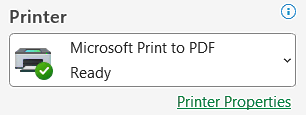
- Under Settings, choose the worksheet or part of the worksheet you want to print.
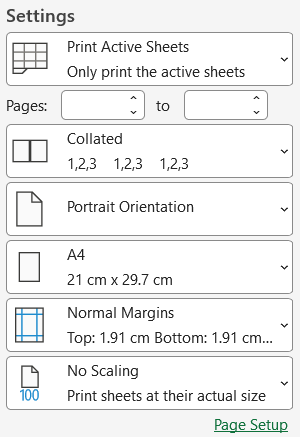
- Check the Print Preview to see how the worksheet will appear on paper.
- Make any necessary changes to the page settings.
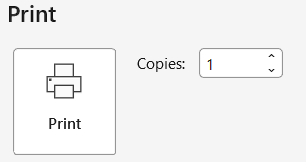
- Click Print button to print the Excel sheet.
For a simple worksheet, these steps are usually enough. However, larger worksheets may need a few additional settings to make the printed copy easier to read.
📑 How to Print a Selected Area in Excel
Sometimes you do not need to print the entire worksheet. You may only want to print a specific group of cells, such as a table or report.
To print selected cells:
- Select the cells that you want to print.
- Go to File > Print or press Ctrl + P.
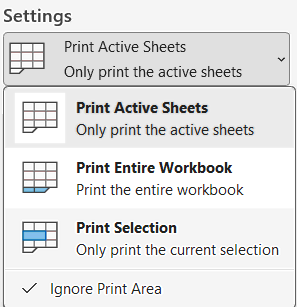
- In the Print Settings, choose Print Selection.
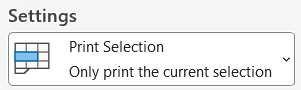
- Check the Print Preview to make sure the selected data appears correctly.
- Select Print.
This method is useful when your worksheet contains additional calculations, notes, or data that you do not want to include in the printed copy.
📄 How to Print the Entire Excel Worksheet
If you want to print all the data from the active worksheet, you can print the entire sheet instead of selecting individual cells.
- Open the worksheet you want to print.
- Go to File > Print or press Ctrl + P.
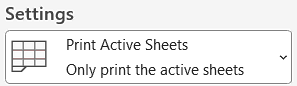
- Under Settings, choose Print Active Sheets.
- Review the Print Preview.
- Make any required Page Setup changes.
- Click Print button.
If a print area has already been defined for the worksheet, Excel may print only that designated area. You can choose Ignore Print Area when you want to print outside the defined print area.
🗒️ How to Set a Print Area in Excel
A Print Area lets you specify exactly which cells should be printed from a worksheet. This is helpful when a worksheet contains a large amount of information, but you only need a particular section on paper.
To set a print area:
- Select the cells that you want to print.
- Go to the Page Layout tab.
- Select Print Area in the Page Setup group.

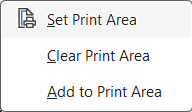
- Select Set Print Area.
- Go to File > Print to check the result in Print Preview.
Once a print area is defined, Excel prints that designated area instead of the entire worksheet. The print area is also saved with the workbook.
To remove the print area, go to Page Layout > Print Area and select Clear Print Area.
📑 How to Fit an Excel Sheet on One Page
A worksheet with many columns may spread across several printed pages. You can use Excel’s scaling options to fit the worksheet onto one page.
To fit the worksheet on one page:
- Go to the Page Layout tab.
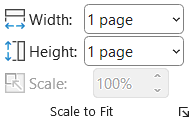
- In the Scale to Fit group, set Width to 1 page.
- Set Height to 1 page if you want both the width and height to fit on a single page.
- Alternatively, go to File > Print or press Ctrl + P.
- Under Settings, select Fit Sheet on One Page.

- Review the Print Preview.
- If the text becomes too small, consider changing the orientation or reducing the amount of data being printed.
Excel can also fit a worksheet to one page wide while allowing the rows to continue onto additional pages. This is often more readable than forcing a large worksheet onto a single page.
▦ How to Print Excel Sheet with Gridlines
Gridlines can make rows and columns easier to follow on a printed worksheet.
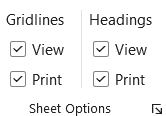
To print gridlines in Excel:
- Go to the Page Layout tab.
- Find the Sheet Options group.
- Under Gridlines, select the Print checkbox.

Similarly, to print rows and columns (headings) in Excel:
- Go to the Page Layout tab > Sheet Options group.
- Under Headings, select the Print checkbox.
✅ Common Excel Printing Problems and Solutions
Printing an Excel worksheet does not always produce the same layout you see on the screen. A few simple settings can usually solve common printing problems.
- Columns are cut off: Change the page orientation to Landscape or use a suitable scaling option.
- Worksheet prints on too many pages: Set the Microsoft Excel worksheet to one page wide or adjust the print area.
- Text is too small: Avoid forcing a large worksheet onto one page. Instead, allow the worksheet to print across multiple pages.
- Only part of the worksheet prints: Check whether a Print Area has been defined. Clear it or select Ignore Print Area if necessary.
- Data is difficult to follow on later pages: Use Print Titles to repeat the header rows at the top of each page.
- Worksheet is not centered properly: Adjust the page margins and use the centering options available in Page Setup.
⁉️ FAQs
How Do I Change Margins Before Printing an Excel Sheet?
Go to Page Layout > Margins and choose Normal, Wide, or Narrow. You can also select Custom Margins when you need more control over the page layout.
How Do I Set a Print Area in Excel?
Select the cells you want to print, go to Page Layout > Print Area, and select Set Print Area. Excel will use this range when printing the worksheet.
How Do I Clear the Print Area in Excel?
Go to the Page Layout tab, select Print Area, and choose Clear Print Area. The worksheet can then be printed without the previously defined print area.
How Do I Repeat Header Rows When Printing Excel?
Go to Page Layout > Print Titles and specify the rows you want to repeat under Rows to repeat at top. The selected heading rows will appear on each printed page.
How Do I Print Only Selected Cells in Excel?
Select the cells you want to print, open File > Print, and choose Print Selection under the print settings. Excel will print only the selected range.
How Do I Print an Excel Sheet on One Page?
Go to Page Layout > Scale to Fit and set the Width and Height to 1 page. Keep in mind that Excel may reduce the size of the worksheet significantly if there is a lot of data.
How Do I Print All Columns on One Page in Excel?
Set the Width under Page Layout > Scale to Fit to 1 page. You can leave the Height as Automatic if the worksheet needs to continue across several pages vertically.
How Do I Print an Excel Sheet in Landscape?
Select the worksheet and go to Page Layout > Orientation > Landscape. You can then open Print Preview to check how the wider layout fits on the page.
How Do I Print an Excel Sheet in Portrait?
Go to Page Layout > Orientation and select Portrait. This orientation is generally useful for worksheets that do not contain many columns.
How Do I Print Multiple Excel Sheets?
Select the worksheet tabs you want to print, then choose File > Print or press Ctrl + P. You can select multiple worksheets and print them together.
How Do I Print an Excel Workbook?
Select File > Print and choose Print Entire Workbook under the print settings. This prints the worksheets in the workbook rather than only the active worksheet.
How Do I Check Excel Print Preview Before Printing?
Select File > Print or press Ctrl + P. Excel displays a preview where you can check the page layout before sending the worksheet to the printer.
Why Is My Excel Sheet Printing on Multiple Pages?
An Excel sheet can print on multiple pages when the worksheet contains more rows or columns than can fit on the selected paper size. You can adjust scaling, orientation, margins, or the print area to change the layout.
How Do I Print an Excel Sheet Without Cutting Off Columns?
Try changing the orientation to Landscape and set the print width to 1 page. You can also reduce the margins or set a specific print area to remove unnecessary columns.
How Do I Print an Excel Sheet Without Cutting Off Rows?
Check the Print Preview to identify where the rows are being divided. You can adjust the scaling or page setup, so the worksheet is distributed across the required number of pages instead of forcing everything onto one page.
How Do I Make an Excel Spreadsheet Fit on One Page?
Use the Page Layout > Scale to Fit settings and set the worksheet to 1 page wide by 1 page tall. For a large worksheet, check the preview carefully because shrinking too much can make the printed data difficult to read.
How Do I Print an Excel Sheet to PDF?
Open File > Print, select a PDF or print-to-file option available on your system, and save the resulting file. Excel can also print a workbook to a file instead of directly to a physical printer.
How Do I Print an Excel Table?
Click inside the Excel table, select File > Print, and choose the option to print the selected table where available. This lets you print the table without necessarily printing the rest of the worksheet.
How Do I Print a Specific Range in Excel?
Select the required cell range and open File > Print. Choose Print Selection to print only that range.
How Do I Print Only Certain Columns in Excel?
Select the columns you need and use Print Selection or define a Print Area containing those columns. A print area is useful when you need to print the same section repeatedly.
How Do I Print Only Certain Rows in Excel?
Select the rows you want to print and choose Print Selection. If you regularly print the same rows, you can also define a print area for them.
How Do I Print an Excel Sheet Horizontally?
Set the page orientation to Landscape by selecting Page Layout > Orientation > Landscape. This gives the printed page more horizontal space for wide worksheets.
How Do I Print an Excel Sheet Vertically?
Select Page Layout > Orientation > Portrait. Portrait orientation provides a taller page layout and can work well for worksheets with fewer columns.
How Do I Make Excel Print Bigger?
Check the scaling settings under File > Print or Page Layout. If the worksheet has been reduced too much, you can change the scaling percentage or adjust the page layout so the data prints at a more readable size.
How Do I Make Excel Print Smaller?
Use the scaling options to reduce the worksheet size for printing. You can also change the margins, orientation, or paper size when you need additional space on the page.
Why Are Gridlines Not Printing in Excel?
Gridlines are turned off for printing by default. Go to Page Layout > Sheet Options > Gridlines and select Print. If gridlines still do not appear in Print Preview, check the relevant Page Setup and printer settings.
How Do I Center an Excel Sheet on the Printed Page?
Open the page margin settings and use the centering options available under Custom Margins. Excel allows a worksheet to be centered horizontally or vertically on the printed page.
How Do I Change the Paper Size Before Printing in Excel?
Open File > Print and check the paper size in the printer or page setup options. You can also use Page Layout > Size to select an appropriate paper size for the worksheet.
How Do I Add Page Numbers When Printing an Excel Sheet?
In the desktop version of Excel, you can add page numbers through the worksheet’s header or footer settings before printing. Page numbers can help readers keep track of multiple printed pages.
How Do I Print Headings on Every Page in Excel?
Use Page Layout > Print Titles and specify the rows or columns that contain the headings you want to repeat. Excel will repeat those headings on the corresponding printed pages.
How Do I Print Excel Gridlines on Every Page?
Go to Page Layout > Sheet Options > Gridlines and tick the Print button. The gridlines will appear on the printed worksheet where applicable.
Why Is Excel Printing a Blank Page?
A blank page can occur when the worksheet contains formatting or content outside the area you intended to print. Check the Print Preview and Print Area and remove unnecessary formatting or data outside the required range.
Why Is Excel Printing Extra Pages?
Extra pages can result from content, formatting, or a defined print area extending beyond the data you expected to print. Check the Print Preview and use Page Break Preview or adjust the Print Area to control the printed range.
How Do I Remove Extra Pages When Printing in Excel?
Check whether the worksheet has unnecessary content or formatting outside the main data range. You can also define a Print Area containing only the information you need to print.
How Do I Change Page Orientation for Only One Excel Sheet?
Select the worksheet you want to change and go to Page Layout > Orientation. Choose Portrait or Landscape. Excel allows page orientation to be set separately for individual worksheets.
Can I Print Different Excel Sheets with Different Orientations?
Yes. Excel allows page orientation to be set separately for worksheets. For example, one worksheet can use Portrait orientation while another uses Landscape orientation.
Can I Print Multiple Print Areas in Excel?
Yes. Excel allows a worksheet to have multiple print areas. Each separate print area is printed as a separate page.
How Do I Remove Scaling Before Printing in Excel?
Open File > Print and select No Scaling from the scaling options. This removes the applied scaling setting and returns the worksheet to its normal print size.
How Do I Print an Excel Sheet on Two Pages?
Use the Page Setup scaling options to specify how many pages wide and tall the worksheet should be. This lets you control the number of pages used for the printed worksheet.
How Do I Print an Excel Sheet Without Gridlines?
Go to Page Layout > Sheet Options and make sure the Print checkbox under Gridlines is cleared. Gridlines are not printed by default in Excel.
How Do I Print Excel Data with Borders?
Apply borders to the cells you want to appear with visible lines, then check the Print Preview. Borders are different from gridlines and can be used when you need specific cell boundaries to appear in the printed worksheet.
How Do I Print an Excel Sheet with Headers and Footers?
Use the header and footer options in Excel’s Page Layout tools to add information such as a title, date, file name, or page number before printing.
How Do I Print the First Row on Every Page in Excel?
Go to Page Layout > Print Titles and select the first row in Rows to repeat at top. Excel will repeat that row at the top of each printed page.
How Do I Print Excel Without Printing Hidden Rows or Columns?
Review the worksheet’s hidden rows and columns before printing and check the Print Preview. If necessary, select only the visible data you need or define a Print Area that contains the required information.
What Is the Difference Between Print Selection and Print Active Sheets in Excel?
Print Selection prints the cells you have selected, while Print Active Sheets prints the currently selected worksheet or worksheets. Excel also provides a Print Entire Workbook option when you need to print all worksheets.
🎯 Conclusion
Printing an Excel sheet is more than selecting the Print command. By checking Print Preview and adjusting the print area, orientation, margins, scaling, and page setup, you can create a much cleaner printed worksheet.
Excel Tutorial Part 1 (Basic)
» Excel Home
» Excel Basics
» Excel Workbook
» Excel Template
» Excel Cell
» Excel Password
Excel Tutorial Part 2 (Format)
» Excel Clipboard
» Excel Format Font
» Excel Format Alignment
» Excel Format Number
» Excel Border
» Excel Conditional Formatting
Excel Tutorial Part 3 (Data)
» Excel Sort Data
» Excel Filter Data
» Excel Text to Columns
» Excel Data Validation
» Excel Flash Fill
» Excel Remove Duplicates
» Excel Relationships
» Excel Consolidate
» Excel What-If Analysis
» Excel Group
» Excel Charts
» Excel Table
» Excel PivotTable
Excel Tutorial Part 4 (Find)
» Excel Find and Replace
» Excel Go To
» Excel Select Objects
» Excel Selection Pane
Excel Tutorial Part 5 (Review)
» Excel Spell Check
» Excel Smart Lookup
» Excel Translate
» Excel Comments & Notes
» Excel Protect
» Excel Hide Ink
Excel Tutorial Part 6 (View)
» Excel Workbook Views
» Excel Formula Bar
» Excel Zoom
» Excel Window
» Excel Macros
Excel Tutorial Part 7 (Fx)
» Excel Formulas (Category)
» Excel Formulas (Alphabetical)
» Excel Errors
» Excel Name Manager
» Excel Formula Auditing
» Excel Watch Window
» Excel Calculation Options
Excel Tutorial Part 8 (Other)
» Excel Add-ins
» Excel Shortcuts
Excel
Learn More
- File: New, Open, Info, Save, Save As, Print, Share, Export, Publish, Account, Options and more features.
- Home: Cut, Copy, Paste, Paste Special (Clipboard), Format Painter, Bold, Italic, Underline, Border, Font Type, Font Size, Font Color, Fill Color, Alignment, Increase or Decrease Indent, Wrap Text, Shrink to fit, Merge and Unmerge, Number Format, Conditional Formatting, Format as Table, Cell Styles, Find and Replace, Go To, Select Objects, Selection Pane.
- Insert: Table, Pivot-table, Charts, Sparklines, Slicer, Timeline, Links, Text Box, Word Art, Header & Footer, Signature Line, Object and Symbols.
- Draw: Eraser, Lasso Select, Pens, Ink to Shape and Ink to Math.
- Page Layout: Themes, Margins, Orientation, Size, Print Area, Breaks, Background, Print Titles, Width, Height, Scale to fit, Gridline, Headings, Bring Forward, Send Backward, Selection Pane, Align and Rotate.
- Formula: Insert Function, Auto Sum, Function Library, Name Manager, Trace Precedents, Trace Dependents, Remove Arrows, Show Formulas, Error Types, Error Checking, Evaluate Formula, Watch Window and Calculation Options.
- Data: Get & Transform Data, Queries & Connections, Sort, Filter, Advanced Filter, Text to Columns, Remove Duplicates, Data Validation, Flash Fill, Consolidate, Relationships, What-if Analysis, Forecast Sheet, Group and Ungroup.
- Review: Spelling, Thesaurus, Workbook Statistics, Check Accessibility, Smart Lookup, Translate, Comments & Notes, Protect Sheet, Protect Workbook, Allow Edit Ranges, Share and Un-share Workbook, Hide Ink.
- View: Workbook Views, Formula Bar, Zoom, New Window, Arrange Window, Freeze Panes, Split, Hide, Unhide, View Side by Side, Synchronous Scrolling, Reset Window Position, Switch Windows and Macros.
- Developer: Macro, Excel Add-ins, COM Add-ins, Check Box, Form Controls, ActiveX Controls, Design Mode, View Code, Run Dialog, Map Properties, Expansion Packs, Refresh Data, Import and Export XML.
0 Comments