
How to Create a New Excel File: 4 Easy Methods
In this guide, you will learn how to create a new Excel file using 4 easy methods. If you want to start working with a spreadsheet, you can create a new Excel file in several simple ways. Microsoft Excel lets you create a blank workbook from the Excel Home screen, create one with a keyboard shortcut, or create a new Excel worksheet directly from File Explorer.
👉 Method 1: Create a New Excel File with a Blank Workbook
This is the easiest way to create a new Excel file when you want to start with an empty spreadsheet.
- Open Microsoft Excel: Launch Microsoft Excel on your Windows computer using the Start menu, desktop shortcut, or Windows Search.
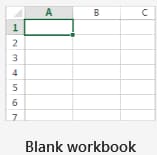
- Choose Blank workbook: When the Excel Home screen appears, select Blank workbook. Excel will immediately create a new empty workbook.
- Start entering data: Once the workbook opens, select any cell and enter your text, numbers, dates, or other information.
👉 Method 2: Create a New Excel File Using a Keyboard Shortcut
If Microsoft Excel is already open, you can quickly create another new Excel file with a keyboard shortcut.
- Open an Excel workbook: Launch Excel and open a workbook if one is not already open.
- Press Ctrl + N: Press Ctrl + N on your keyboard. Excel will create and open a new blank workbook.
- Start working: Select any cell in the new workbook and begin entering your information.
👉 Method 3: Create a New Excel File from File Explorer
You can also create a new Excel file directly from File Explorer. This is useful when you want to create the file inside a specific folder.
- Open File Explorer: Open File Explorer on your Windows computer.
- Choose a folder: Navigate to the folder where you want to create the new Excel file.
- Right click in the folder: Right click on an empty area inside the folder to open the context menu.
- Select New: Select New from the context menu.
- Select Microsoft Excel Worksheet: Select Microsoft Excel Worksheet to create a new Excel file.
- Enter a file name: Type a suitable name for the new Excel file and press Enter.
- Open the file: Double click the new Excel file to open it in Microsoft Excel and start working on your spreadsheet.
👉 Method 4: Create a New Excel File When Excel is Open
You can create a new Excel file even when another workbook is already open. This lets you start a separate workbook without closing the current one.
- Click File: Go to the File tab at the top left of the Excel window.
- Select New: Choose New from the File menu to view the available options for creating a new Excel file.
- Choose Blank Workbook: Click Blank Workbook to create a new Excel file.
✅ Key Points to Remember
- A new Excel file is known as a workbook.
- Selecting Blank workbook is the simplest way to create a new Excel file.
- Ctrl + N provides a quick way to create a new workbook while Excel is open.
- File Explorer lets you create a new Excel file directly inside a selected folder.
⁉️ FAQs
How do I create a new Excel file?
Open Microsoft Excel and select Blank workbook from the Home screen. Excel will open a new blank workbook where you can start entering your data.
What is the shortcut to create a new Excel file?
Press Ctrl + N to quickly create a new blank workbook when Microsoft Excel is open.
How do I create a blank workbook in Excel?
Open Excel and select Blank workbook. A new empty workbook will open immediately.
Can I create a new Excel file without opening Excel?
Yes. On Windows, you can open File Explorer, right click inside a folder, select New, and then select Microsoft Excel Worksheet.
What is a new Excel file called?
A new Excel file is called a workbook. A workbook contains worksheets where you can enter and organize your data.
Where can I create a new Excel file?
You can create a new Excel file from Microsoft Excel, use the Ctrl + N keyboard shortcut, or create one directly from File Explorer.
How do I create another Excel file while one is already open?
Press Ctrl + N while working in Excel. This will open a new blank workbook without closing your existing workbook.
What is the difference between a new Excel file and a new worksheet?
A new Excel file creates a new workbook, while a new worksheet adds another sheet inside an existing workbook. A workbook can contain multiple worksheets.
How do I create a new Excel file from the File menu?
Open Excel, select File, choose New, and then select Blank workbook. Excel will open a new blank workbook.
Why does Excel open a blank workbook?
Excel opens a blank workbook when you choose Blank workbook or use the command to create a new workbook. This gives you an empty worksheet where you can start entering data.
How do I create a new Excel workbook from an existing workbook?
If an Excel workbook is already open, press Ctrl + N to open a new blank workbook. Your existing workbook will remain open.
Can I create a new Excel file from an Excel template?
Yes. Excel provides templates that can be used to create a new workbook with predefined layouts and formatting. You can select a suitable template instead of starting with a completely blank workbook.
How do I create a new Excel file for a specific purpose?
Open Excel and choose a suitable template from the New screen if you need a predefined layout. For a completely empty spreadsheet, select Blank workbook.
Why is my new Excel file called Book1?
Excel may temporarily assign a name such as Book1 to a new workbook before it has been saved with a file name. You can give the workbook your preferred name when you save it.
Can I create a new Excel file while keeping my current file open?
Yes. You can create a new workbook while keeping your current Excel file open. Press Ctrl + N to open a separate blank workbook.
Does a new Excel workbook start with a blank worksheet?
Yes. When you create a blank workbook, Excel opens a worksheet where you can begin entering and organizing your information.
Can I create a new Excel workbook from a template instead of starting blank?
Yes. Excel allows you to start a new workbook from a template when you want a ready made layout instead of an empty worksheet.
🎯 Conclusion
Creating a new Excel file is a simple process, and you can choose the method that works best for you. The Blank workbook option is ideal when you are starting Excel, while Ctrl + N is useful when Excel is already open. You can also use File Explorer when you want to create a new Excel file directly in a specific folder.

Excel Tutorial Part 1 (Basic)
» Excel Home
» Excel Basics
» Excel Workbook
» Excel Template
» Excel Cell
» Excel Password
Excel Tutorial Part 2 (Format)
» Excel Clipboard
» Excel Format Font
» Excel Format Alignment
» Excel Format Number
» Excel Border
» Excel Conditional Formatting
Excel Tutorial Part 3 (Data)
» Excel Sort Data
» Excel Filter Data
» Excel Text to Columns
» Excel Data Validation
» Excel Flash Fill
» Excel Remove Duplicates
» Excel Relationships
» Excel Consolidate
» Excel What-If Analysis
» Excel Group
» Excel Charts
» Excel Table
» Excel PivotTable
Excel Tutorial Part 4 (Find)
» Excel Find and Replace
» Excel Go To
» Excel Select Objects
» Excel Selection Pane
Excel Tutorial Part 5 (Review)
» Excel Spell Check
» Excel Smart Lookup
» Excel Translate
» Excel Comments & Notes
» Excel Protect
» Excel Hide Ink
Excel Tutorial Part 6 (View)
» Excel Workbook Views
» Excel Formula Bar
» Excel Zoom
» Excel Window
» Excel Macros
Excel Tutorial Part 7 (Fx)
» Excel Formulas (Category)
» Excel Formulas (Alphabetical)
» Excel Errors
» Excel Name Manager
» Excel Formula Auditing
» Excel Watch Window
» Excel Calculation Options
Excel Tutorial Part 8 (Other)
» Excel Add-ins
» Excel Shortcuts
Excel
Learn More
- File: New, Open, Info, Save, Save As, Print, Share, Export, Publish, Account, Options and more features.
- Home: Cut, Copy, Paste, Paste Special (Clipboard), Format Painter, Bold, Italic, Underline, Border, Font Type, Font Size, Font Color, Fill Color, Alignment, Increase or Decrease Indent, Wrap Text, Shrink to fit, Merge and Unmerge, Number Format, Conditional Formatting, Format as Table, Cell Styles, Find and Replace, Go To, Select Objects, Selection Pane.
- Insert: Table, Pivot-table, Charts, Sparklines, Slicer, Timeline, Links, Text Box, Word Art, Header & Footer, Signature Line, Object and Symbols.
- Draw: Eraser, Lasso Select, Pens, Ink to Shape and Ink to Math.
- Page Layout: Themes, Margins, Orientation, Size, Print Area, Breaks, Background, Print Titles, Width, Height, Scale to fit, Gridline, Headings, Bring Forward, Send Backward, Selection Pane, Align and Rotate.
- Formula: Insert Function, Auto Sum, Function Library, Name Manager, Trace Precedents, Trace Dependents, Remove Arrows, Show Formulas, Error Types, Error Checking, Evaluate Formula, Watch Window and Calculation Options.
- Data: Get & Transform Data, Queries & Connections, Sort, Filter, Advanced Filter, Text to Columns, Remove Duplicates, Data Validation, Flash Fill, Consolidate, Relationships, What-if Analysis, Forecast Sheet, Group and Ungroup.
- Review: Spelling, Thesaurus, Workbook Statistics, Check Accessibility, Smart Lookup, Translate, Comments & Notes, Protect Sheet, Protect Workbook, Allow Edit Ranges, Share and Un-share Workbook, Hide Ink.
- View: Workbook Views, Formula Bar, Zoom, New Window, Arrange Window, Freeze Panes, Split, Hide, Unhide, View Side by Side, Synchronous Scrolling, Reset Window Position, Switch Windows and Macros.
- Developer: Macro, Excel Add-ins, COM Add-ins, Check Box, Form Controls, ActiveX Controls, Design Mode, View Code, Run Dialog, Map Properties, Expansion Packs, Refresh Data, Import and Export XML.
0 Comments