
How to View Excel File Information and Properties
Excel file information and properties provide useful details about a workbook beyond the data entered in worksheets. You can use this information to check details such as the author, title, subject, category, keywords, comments, and other properties associated with an Excel file.
When you work with many workbooks, knowing how to view these details can make file management easier. It can also be useful when you receive an Excel file from someone else or when you want to check a workbook before sharing it.
Excel provides the main file information through the File tab. You can also open the Advanced Properties window to view additional document properties.
In this guide, you will learn how to view Excel file information, how to check Excel file properties, how to edit document properties, and how to inspect an Excel workbook for personal or hidden information.
📝 What is Excel File Information?
Excel file information is the collection of details associated with an Excel workbook. These details describe the file and are separate from the actual data stored in the worksheet.
For example, an Excel workbook containing a monthly sales report may have file information that identifies the title, author, company, category, or keywords related to the report.
Common Excel file properties include:
- Title: Identifies the name or purpose of the workbook.
- Subject: Gives additional information about the workbook.
- Author: Shows the person associated with the document.
- Manager: Can contain manager information when applicable.
- Company: Identifies the company or organization associated with the workbook.
- Category: Helps classify the file.
- Keywords: Adds words that describe the workbook.
- Comments: Provides additional information about the file.
These details are commonly referred to as document properties or metadata.
📑 How to View and Update the Excel File Information / Properties
Follow the below steps to see and edit Excel file information or properties:
Open the Excel workbook you want to check.
Click the File tab on the Ribbon.
Select Info from the left side.
Look at the information displayed on the Info page.
Check the Properties section for additional workbook details.
Select Show All Properties if you want to see more available properties.
Open the Excel workbook you want to check.
Click the File tab on the Ribbon.
Select Info from the left side.
Look at the information displayed on the Info page.
Check the Properties section for additional workbook details.
Select Show All Properties if you want to see more available properties.
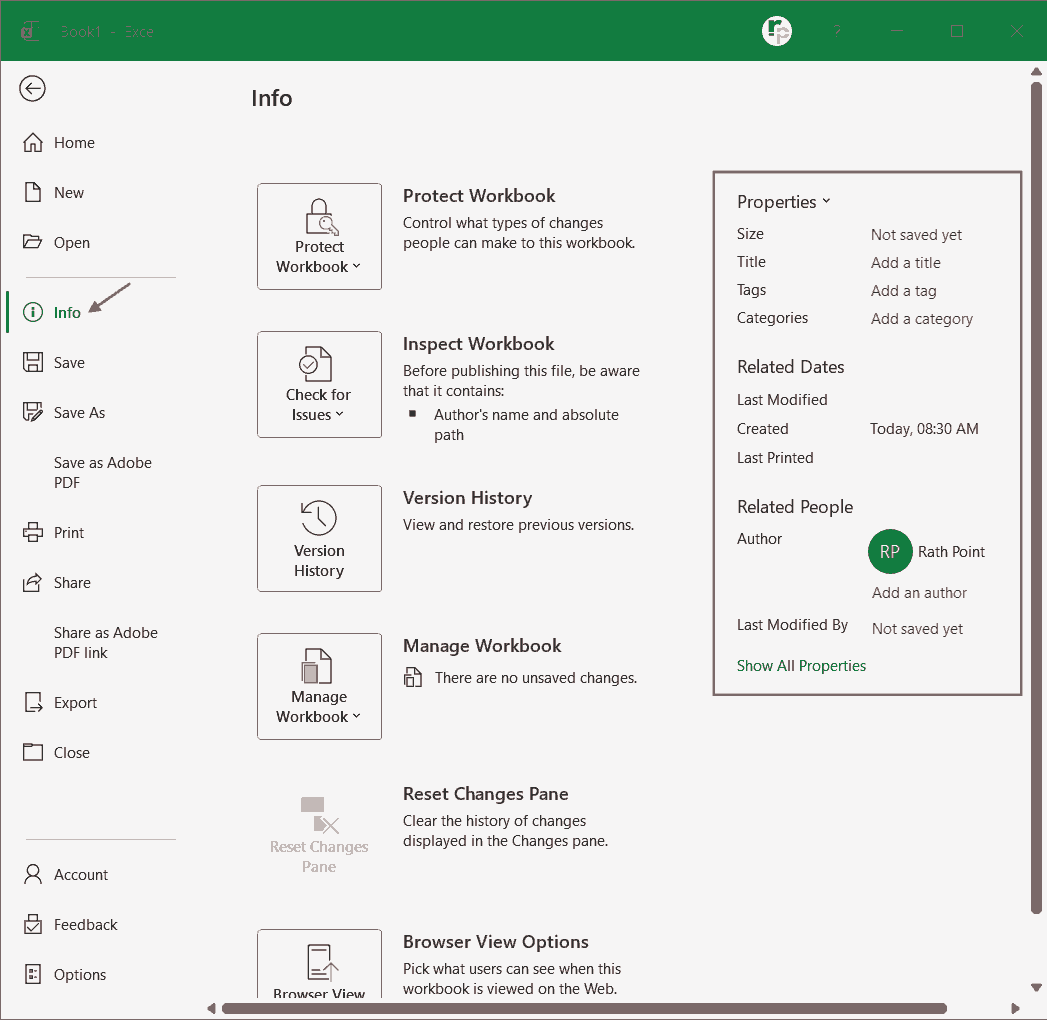
- You can edit several Excel file properties when you want to update the information associated with a workbook.
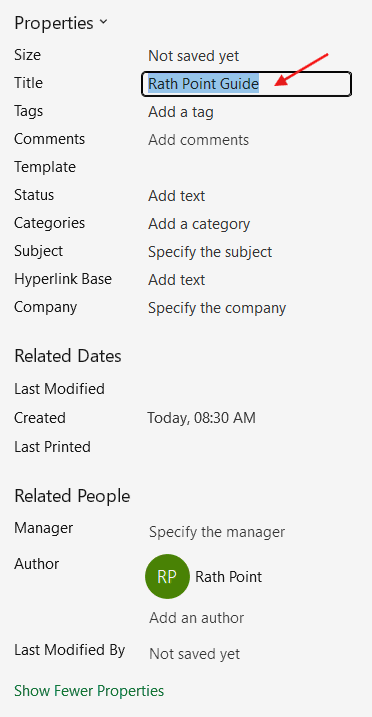
- You can check and update the Properties such as title, tags, comments, status, categories, subject, hyperlink base, company.
- To change the excel properties, click on the right to it and modify or enter the details. For example, in Title, you can enter Rath Point Guide as shown in the below image.
- You can see the see the last modified date, created and last printed date under Related Dates section.
- You can specify the manger, add an author, and see the last modified by under the Related People section.
⚙️ How to Check and Update the Advanced Properties in Excel
If you want to see more detailed information about an Excel workbook, you can open its Advanced Properties. Follow the below steps to see or change the advanced properties in Excel:
- Open the Excel file.
- Go to File menu and click Info.
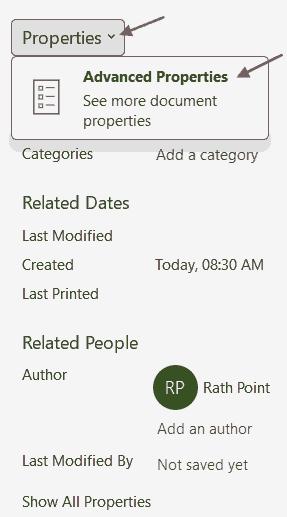
- Under Properties, click the drop-down arrow and select Advanced Properties.
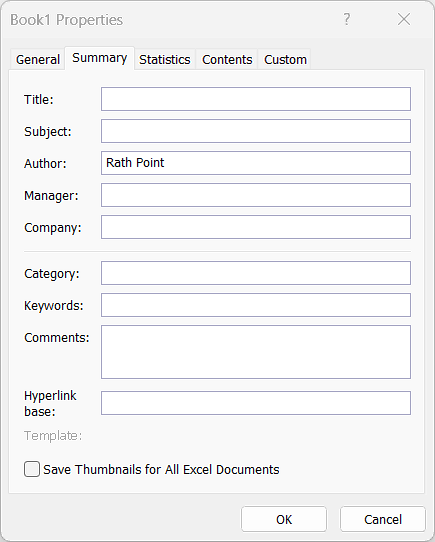
- Review the information displayed in the Properties window.
- In the Summary tab you can check and edit the below Excel Properties:
- Title: The title assigned to the workbook.
- Subject: A description of the workbook’s purpose.
- Author: The name associated with the file.
- Manager: Manager related information when available.
- Company: The organization associated with the workbook.
- Category: A classification for the document.
- Keywords: Words used to describe or identify the file.
- Comments: Additional notes about the workbook.
🔐 Why Should You Check Excel File Properties Before Sharing?
It is a good idea to check Excel file properties before sending a workbook to another person or publishing it online.
An Excel workbook can contain information that may not be obvious when you simply look at the worksheet. Document properties, comments, annotations, and other workbook features can contain information about people who created or edited the file.
For example, an author name that was useful internally may not be something you want to include when publishing a workbook publicly.
A quick review of the file properties can therefore help you avoid unintentionally sharing information.
🛡️ How to Check Hidden Information in an Excel File
Excel includes Document Inspector, which can help you check a workbook for certain types of hidden information and personal data.
To inspect an Excel workbook:
- Go to File menu.
- Click Info.
- Click Check for Issues.
- Select Inspect Document.
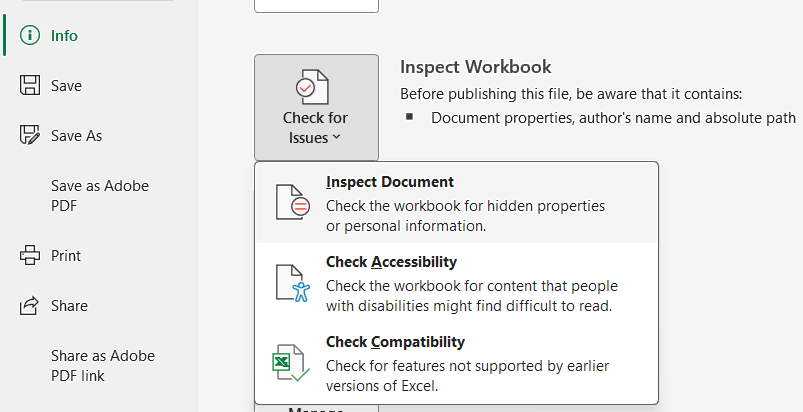
- In Document Inspector window, Tick the types of information you want to inspect and untick to avoid inspection.
- Then click Inspect button to start the inspection.
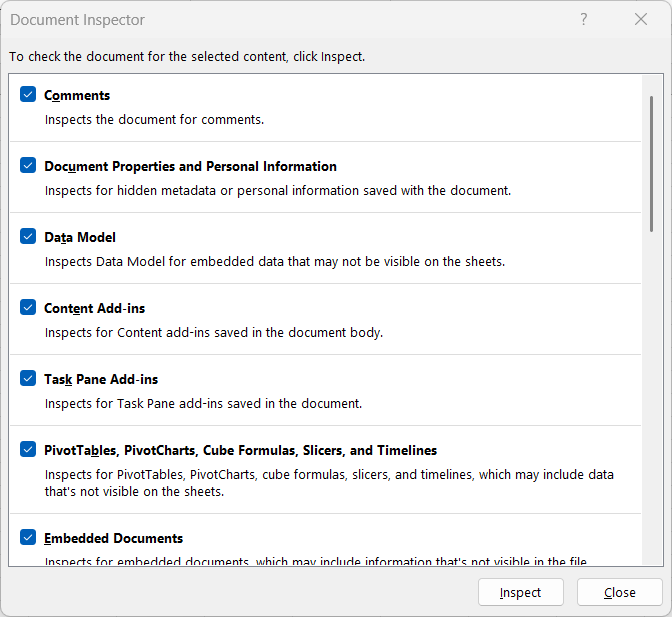
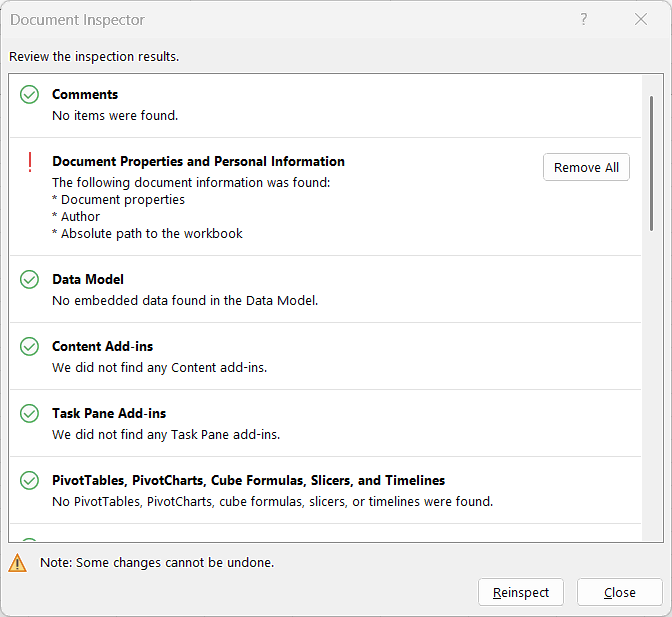
- Review the inspection results provided by Excel.
- Remove information where appropriate.
- Click Reinspect to inspect again or click Close button.
🔍 What Does Excel Document Inspector Check?
Document Inspector can check an Excel workbook for several types of information that may not be immediately visible.
Depending on the workbook, it can identify items such as:
- Comments and annotations
- Document properties and personal information
- Hidden worksheets
- Hidden rows and columns
- Headers and footers
- External links
- Embedded objects
- Other hidden or workbook related information
Not every item identified by Document Inspector can necessarily be removed automatically. Some information may require manual review.
📊 What is the difference between Excel File Properties and Excel Data
Excel file properties and Excel data serve different purposes.
Excel file properties describe the workbook. They can include the title, author, subject, company, category, keywords, and comments.
Excel data is the actual information stored in the workbook, such as numbers, text, dates, formulas, tables, charts, and other worksheet content.
For example, a workbook called Employee Attendance Report might contain attendance records in its worksheets. Its file properties could separately contain the author, company, subject, and keywords.
💡 Why are Excel File Properties Useful
Excel file properties can be useful in several situations, such as:
- Organizing files: Properties can provide additional information when you have many similar workbooks.
- Identifying workbooks: A title, subject, or keyword can make the purpose of a file easier to understand.
- Managing business documents: Companies can use properties to add consistent information to reports and other workbooks.
- Checking privacy: Reviewing properties can help identify information that may not be suitable for sharing.
- Managing projects: Custom properties can be used to store project specific information.
- Preparing files for sharing: Checking workbook properties and hidden information can reduce the chance of unintentionally sharing information.
⁉️ FAQs
How do I View Excel File Information?
Open the Excel workbook and go to File > Info. The Info page displays available information and properties associated with the workbook.
How do I Check Excel File Properties?
Go to File > Info > Properties > Advanced Properties. The Properties window provides additional details about the Excel workbook.
Where are Excel File Properties Located?
Basic properties can be viewed from File > Info. For more detailed information, open Properties and select Advanced Properties.
How do I View the Author of an Excel File?
Open the workbook and select File > Info. You can also check Properties > Advanced Properties to view the author information stored in the workbook.
How do I Change the Author Name in an Excel File?
You can review the author information through the workbook’s document properties. Open File > Info > Properties > Advanced Properties and check the available fields.
How do I Add Keywords to an Excel File?
Open File > Info > Properties > Advanced Properties, select the Summary tab, and enter relevant words in the Keywords field.
Can I add Custom Properties to an Excel Workbook?
Yes. You can create custom properties through File > Info > Properties > Advanced Properties > Custom. This allows you to add information that is not included in the standard properties.
What is Excel Metadata?
Excel metadata is information that describes or provides additional details about an Excel workbook. Examples include the author, title, subject, keywords, category, and other document properties.
Does an Excel File Contain Personal Information?
An Excel workbook can contain personal information in document properties, comments, annotations, and other features. The information stored depends on how the workbook has been created and used.
How do I Remove Personal Information from an Excel File?
Use File > Info > Check for Issues > Inspect Document to check the workbook for certain types of personal and hidden information. Review the results before removing anything.
Why should I Check Excel Properties Before Sharing a Workbook?
Checking the properties can help you identify personal information, comments, hidden content, and other details that you may not want to share with another person or publish online.
Can Excel File Properties Be Removed?
Some properties and personal information can be removed, depending on the type of information and the features used in the workbook. Excel’s Document Inspector can help identify information that may need to be removed.
🎯 Conclusion
Knowing how to view Excel file information and properties is useful when you want to understand, organize, or manage your workbooks. The File > Info section provides a quick way to view important workbook details, while Advanced Properties gives you access to additional document information.
You can also update properties such as the title, subject, author, category, and keywords when needed. Custom properties provide another way to add information that is specific to a project or organization.
Before sharing an important Excel workbook, it is also worth checking for personal or hidden information. Using Document Inspector can help you review the workbook and identify information that may not be obvious from the worksheet.

Excel Tutorial Part 1 (Basic)
» Excel Home
» Excel Basics
» Excel Workbook
» Excel Template
» Excel Cell
» Excel Password
Excel Tutorial Part 2 (Format)
» Excel Clipboard
» Excel Format Font
» Excel Format Alignment
» Excel Format Number
» Excel Border
» Excel Conditional Formatting
Excel Tutorial Part 3 (Data)
» Excel Sort Data
» Excel Filter Data
» Excel Text to Columns
» Excel Data Validation
» Excel Flash Fill
» Excel Remove Duplicates
» Excel Relationships
» Excel Consolidate
» Excel What-If Analysis
» Excel Group
» Excel Charts
» Excel Table
» Excel PivotTable
Excel Tutorial Part 4 (Find)
» Excel Find and Replace
» Excel Go To
» Excel Select Objects
» Excel Selection Pane
Excel Tutorial Part 5 (Review)
» Excel Spell Check
» Excel Smart Lookup
» Excel Translate
» Excel Comments & Notes
» Excel Protect
» Excel Hide Ink
Excel Tutorial Part 6 (View)
» Excel Workbook Views
» Excel Formula Bar
» Excel Zoom
» Excel Window
» Excel Macros
Excel Tutorial Part 7 (Fx)
» Excel Formulas (Category)
» Excel Formulas (Alphabetical)
» Excel Errors
» Excel Name Manager
» Excel Formula Auditing
» Excel Watch Window
» Excel Calculation Options
Excel Tutorial Part 8 (Other)
» Excel Add-ins
» Excel Shortcuts
Excel
Learn More
- File: New, Open, Info, Save, Save As, Print, Share, Export, Publish, Account, Options and more features.
- Home: Cut, Copy, Paste, Paste Special (Clipboard), Format Painter, Bold, Italic, Underline, Border, Font Type, Font Size, Font Color, Fill Color, Alignment, Increase or Decrease Indent, Wrap Text, Shrink to fit, Merge and Unmerge, Number Format, Conditional Formatting, Format as Table, Cell Styles, Find and Replace, Go To, Select Objects, Selection Pane.
- Insert: Table, Pivot-table, Charts, Sparklines, Slicer, Timeline, Links, Text Box, Word Art, Header & Footer, Signature Line, Object and Symbols.
- Draw: Eraser, Lasso Select, Pens, Ink to Shape and Ink to Math.
- Page Layout: Themes, Margins, Orientation, Size, Print Area, Breaks, Background, Print Titles, Width, Height, Scale to fit, Gridline, Headings, Bring Forward, Send Backward, Selection Pane, Align and Rotate.
- Formula: Insert Function, Auto Sum, Function Library, Name Manager, Trace Precedents, Trace Dependents, Remove Arrows, Show Formulas, Error Types, Error Checking, Evaluate Formula, Watch Window and Calculation Options.
- Data: Get & Transform Data, Queries & Connections, Sort, Filter, Advanced Filter, Text to Columns, Remove Duplicates, Data Validation, Flash Fill, Consolidate, Relationships, What-if Analysis, Forecast Sheet, Group and Ungroup.
- Review: Spelling, Thesaurus, Workbook Statistics, Check Accessibility, Smart Lookup, Translate, Comments & Notes, Protect Sheet, Protect Workbook, Allow Edit Ranges, Share and Un-share Workbook, Hide Ink.
- View: Workbook Views, Formula Bar, Zoom, New Window, Arrange Window, Freeze Panes, Split, Hide, Unhide, View Side by Side, Synchronous Scrolling, Reset Window Position, Switch Windows and Macros.
- Developer: Macro, Excel Add-ins, COM Add-ins, Check Box, Form Controls, ActiveX Controls, Design Mode, View Code, Run Dialog, Map Properties, Expansion Packs, Refresh Data, Import and Export XML.
0 Comments