
Share your Excel Workbook with Others
Share your Excel workbook with others to collaborate easily without creating and sending separate copies of the same file. Excel allows you to share a workbook with specific people, control whether they can view or edit the file, and send a sharing link. In this guide, you will learn how to share an Excel workbook, manage sharing permissions, and give others access to your file.
📊 How to Share Your Excel Workbook with Others
You can share an Excel workbook using 2 methods.
Method 1: Share Excel Workbook using OneDrive
- Find the Share button in the upper-right corner.

- Select Share from the drop-down list.
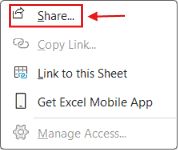
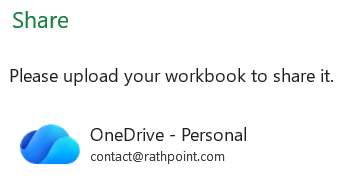
- Click on OneDrive, to upload your workbook to share it.
- If you have multiple OneDrive accounts, then select the one in which you want to share.
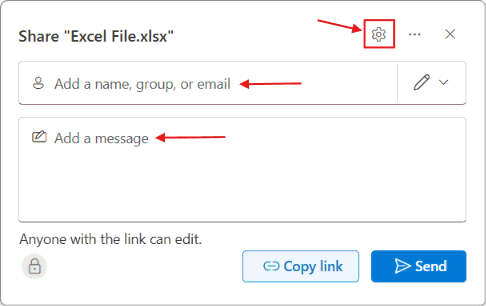
Enter a name, group, or email address to share the Excel workbook with specific people.
Add an optional message to include with the sharing invitation.
Select the Settings icon to control how the workbook is shared, including the access and editing permissions.
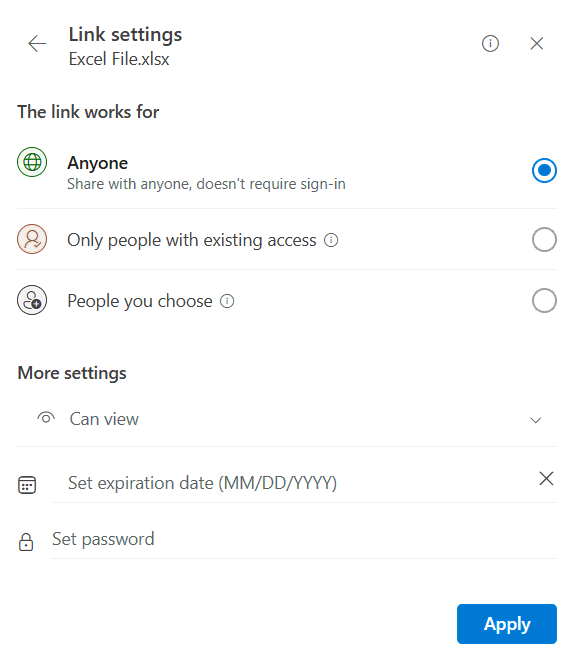
- In the Sharing Settings window, you can configure how the Excel workbook is shared:
Anyone with the link: Anyone who has the sharing link can access the workbook without signing in, depending on the settings.
People with existing access: The link can be used only by people who already have access to the workbook.
People you choose: Share the workbook only with specific people you select.
Permission: Choose whether the people you share the workbook with can Edit or View the file.
Expiration date: Set an expiration date for the sharing link so that access is no longer available after the specified date.
Password: You can set a password to add an additional layer of protection to the shared workbook.
Method 2: Share Excel Workbook using Email
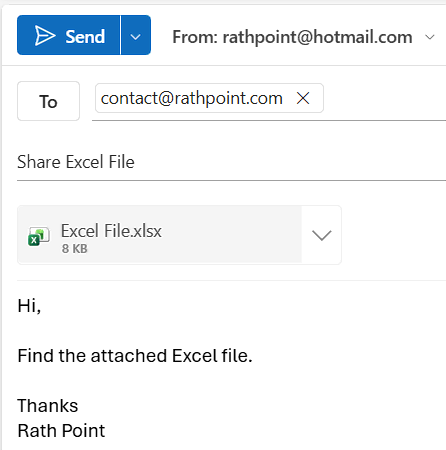
You can also share an Excel workbook by attaching the file to an email. This method sends a copy of the workbook rather than providing access to the original online workbook.
To share an Excel workbook by email:
Save the Excel Workbook: Save the latest version of the workbook to your computer.
Open Your Email: Open your email application and create a new email.
Attach the Workbook: Click Attach File and select the Excel workbook from your computer.
Enter the Recipient: Add the recipient’s email address in the To field.
Add a Message: Enter a short message about the attached workbook.
Send the Email: Review the email and attachment, then click Send.
⁉️ FAQs
How Do I Share an Excel Workbook Using a Link?
Open the workbook and select Share. Review the link settings, choose the appropriate access permission, and select Copy Link. You can then paste the link into an email, chat, or another messaging application.
How Do I Share an Excel Workbook with Multiple People?
Select Share and enter the names, groups, or email addresses of the people who need access. You can invite multiple recipients and assign permissions according to your collaboration requirements.
How Do I Share an Excel Workbook with Someone for Editing?
Select Share and choose the permission that allows recipients to edit the workbook. Once they have access, they can make changes to the shared file, provided their account and the workbook’s settings support editing.
How Do I Share an Excel Workbook Without Allowing Edits?
Choose the Can View or equivalent view-only permission in the sharing settings before sending the invitation or link. Recipients can read the workbook without receiving permission to edit the original file.
How Do I Share an Excel Workbook So Everyone Can Edit It?
Save the workbook in OneDrive or SharePoint and share it with the required users using editing permissions. People with access can make changes to the same workbook when their Excel versions support collaborative editing.
Can Multiple People Edit an Excel Workbook at the Same Time?
Yes. Excel supports simultaneous editing, known as co-authoring, when the workbook is stored in a supported cloud location such as OneDrive or SharePoint. Users with editing access and compatible Excel versions can work on the same workbook and see changes as they occur.
What Is the Difference Between Share and Copy Link in Excel?
The Share option lets you invite specific people directly or access link-sharing options. Copy Link copies a sharing link that you can distribute through email, chat, or another communication service. The access available through the link depends on its configured permissions.
How Do I Change Excel Workbook Sharing Permissions?
Open the workbook’s sharing settings and review the access permissions for the relevant person or link. Depending on your access rights, you can change editing permissions, restrict access, or update the link’s sharing options.
How Do I Stop Sharing an Excel Workbook?
Open the workbook’s access settings and review the people and links that have permission to access it. Remove individual users or disable a sharing link when you no longer want those people to access the workbook.
How Do I Know Who Has Access to My Excel Workbook?
Select Share and open the workbook’s access management options, if available. You can review the people and groups with access and check existing sharing links and their permissions.
Can I Share an Excel Workbook with People Outside My Organization?
Yes, if your Microsoft account or organization’s policies allow external sharing. You may be able to invite external users or create an appropriate sharing link. Some organizations restrict external access for security reasons.
Can I Share an Excel Workbook Without a Microsoft Account?
Access without signing in depends on the sharing link type and the file owner’s settings. Some links allow access without a Microsoft account, while other links require recipients to authenticate with an authorized account.
Can I Share an Excel Workbook through Email?
Yes. You can attach the Excel file to an email and send it to the recipient. This normally provides a separate copy of the workbook rather than access to the original online file. Changes made to the attachment will not automatically update your original workbook.
What Is the Difference Between Sharing an Excel Workbook and Emailing It?
Sharing through OneDrive or SharePoint gives recipients access to the online workbook, allowing authorized users to work on the same file. Emailing an attachment usually sends an independent copy, so changes made to that copy remain separate from the original.
Can I Share an Excel Workbook from My Computer?
Yes. You can send a workbook stored on your computer as an email attachment or through another file-sharing service. For Excel’s modern online sharing and co-authoring features, you generally need to save the workbook to OneDrive or SharePoint.
How Do I Share an Excel Workbook from SharePoint?
Open the workbook stored in SharePoint and select Share. Enter the recipients or configure a sharing link, then assign the appropriate permissions. The available options depend on your organization’s SharePoint settings.
Can I Share an Excel Workbook Through Microsoft Teams?
Yes. You can share an Excel workbook through Microsoft Teams when the file is stored in a supported Microsoft storage location. Recipients’ access depends on the permissions assigned to the workbook and your organization’s sharing policies.
Why Can’t I Share My Excel Workbook?
Sharing may not work as expected if the workbook is saved locally, your account lacks the required access, or your organization restricts sharing. Check your account and file permissions, and save the workbook to OneDrive or SharePoint if you want to use cloud-based sharing features.
Why Is the Share Button Missing in Excel?
The Share button and its available features can vary depending on your Excel version, account, and workbook location. Check whether you are signed in to the appropriate Microsoft account and whether your workbook is stored in a supported location.
How Do I Share an Excel Workbook for Team Collaboration?
Save the workbook to OneDrive or SharePoint and give team members the required editing permissions. This allows everyone with authorized access to work on the same file and helps avoid maintaining multiple independent copies.
What Happens When I Share an Excel Workbook?
Excel grants the selected recipients access according to the permissions you choose. Depending on those permissions, they may be able to view or edit the workbook. When online collaboration is supported, users can work with the same shared file.
Does Sharing an Excel Workbook Automatically Save It?
Sharing a workbook does not itself guarantee that every change is saved automatically. However, AutoSave can save changes to supported cloud-stored workbooks when the feature is enabled and available for your account and Excel version.
Can I Share an Excel Workbook as Read Only?
Yes. Choose a view-only permission when sharing the workbook, if available. This prevents recipients from directly editing the original workbook through that access, although separate downloads or copies may still be editable.
Can Someone Edit My Excel File If I Send Them a View-Only Link?
A view-only link does not grant permission to edit the original workbook. However, recipients may be able to download or create a separate copy and edit that copy, depending on the available download settings and access restrictions.
How Do I Share an Excel Workbook with a Group?
Enter the group’s name or email address in the Share dialog if your Microsoft account or organization supports group sharing. Members can access the workbook according to the permissions assigned to the group.
Can I Share Only One Worksheet from an Excel Workbook?
The standard Share option grants access to the workbook rather than setting sharing permissions for an individual worksheet. If you want to share only specific information, create a separate workbook containing the required worksheet or data before sharing it.
Can I Share an Excel Workbook Without Sharing the Entire OneDrive Folder?
Yes. You can share an individual workbook instead of sharing its containing folder. Check the selected file’s access settings to make sure you are granting permission only to the intended file. Folder-level sharing can provide access to other items in that folder.
How Do I Share an Excel Workbook with a Copy?
Use Save As or Save a Copy, depending on your Excel version, to create a separate workbook. You can then send that copy by email or through a file-sharing service without asking recipients to work directly on the original file.
How Do I Share an Excel Workbook as a PDF?
Open the workbook and use Excel’s export or Save As options to create a PDF. You can then share the PDF through email or another service. This is useful when recipients need to read or print the information rather than edit spreadsheet data.
Can I Share an Excel Workbook with Someone Who Does Not Have Excel?
In many cases, recipients can open a shared workbook using Excel for the web in a browser. Their ability to view or edit the file depends on the sharing permissions, account requirements, and features supported by the online version.
What Is Excel Co-Authoring?
Excel co-authoring allows multiple users to work on the same supported workbook at the same time. When the file is stored in OneDrive or SharePoint and users have compatible Excel versions and editing permissions, their changes can be synchronized.
How Do I See Who Is Working on a Shared Excel Workbook?
When co-authoring is supported, Excel can display information about other users currently working on the workbook. The availability and appearance of these indicators depend on the Excel version and collaboration environment.
Can I Share an Excel Workbook with a Password?
Excel file passwords and sharing permissions serve different purposes. A password can protect access to a workbook or restrict certain actions, while OneDrive and SharePoint permissions control who can access the shared file. Choose the appropriate protection method for your requirements.
How Do I Share an Excel Workbook and Keep the Original Safe?
Share the workbook with view-only access when recipients do not need to make changes. For additional control, review the people and links that have access, limit sharing to specific recipients when possible, and avoid broadly accessible links for confidential information.
What Is the Best Way to Share an Excel Workbook with a Team?
For ongoing collaboration, storing the workbook in OneDrive or SharePoint and granting the team appropriate access is generally the most practical option. It keeps everyone working with the same online file and supports co-authoring when the required conditions are met.
What Should I Check Before Sharing an Excel Workbook?
Review the workbook for confidential information, hidden data, and unnecessary personal details. Confirm that the file contains the correct information, select the appropriate access permissions, and verify that only the intended people can access it.
🎯 Conclusion
Excel provides several ways to share a workbook, from the share option and sharing links to email attachments, OneDrive, SharePoint, and PDF files. The right method depends on whether you want others to edit the workbook, view it only, or receive a separate copy.
Excel Tutorial Part 1 (Basic)
» Excel Home
» Excel Basics
» Excel Workbook
» Excel Template
» Excel Cell
» Excel Password
Excel Tutorial Part 2 (Format)
» Excel Clipboard
» Excel Format Font
» Excel Format Alignment
» Excel Format Number
» Excel Border
» Excel Conditional Formatting
Excel Tutorial Part 3 (Data)
» Excel Sort Data
» Excel Filter Data
» Excel Text to Columns
» Excel Data Validation
» Excel Flash Fill
» Excel Remove Duplicates
» Excel Relationships
» Excel Consolidate
» Excel What-If Analysis
» Excel Group
» Excel Charts
» Excel Table
» Excel PivotTable
Excel Tutorial Part 4 (Find)
» Excel Find and Replace
» Excel Go To
» Excel Select Objects
» Excel Selection Pane
Excel Tutorial Part 5 (Review)
» Excel Spell Check
» Excel Smart Lookup
» Excel Translate
» Excel Comments & Notes
» Excel Protect
» Excel Hide Ink
Excel Tutorial Part 6 (View)
» Excel Workbook Views
» Excel Formula Bar
» Excel Zoom
» Excel Window
» Excel Macros
Excel Tutorial Part 7 (Fx)
» Excel Formulas (Category)
» Excel Formulas (Alphabetical)
» Excel Errors
» Excel Name Manager
» Excel Formula Auditing
» Excel Watch Window
» Excel Calculation Options
Excel Tutorial Part 8 (Other)
» Excel Add-ins
» Excel Shortcuts
Excel
Learn More
- File: New, Open, Info, Save, Save As, Print, Share, Export, Publish, Account, Options and more features.
- Home: Cut, Copy, Paste, Paste Special (Clipboard), Format Painter, Bold, Italic, Underline, Border, Font Type, Font Size, Font Color, Fill Color, Alignment, Increase or Decrease Indent, Wrap Text, Shrink to fit, Merge and Unmerge, Number Format, Conditional Formatting, Format as Table, Cell Styles, Find and Replace, Go To, Select Objects, Selection Pane.
- Insert: Table, Pivot-table, Charts, Sparklines, Slicer, Timeline, Links, Text Box, Word Art, Header & Footer, Signature Line, Object and Symbols.
- Draw: Eraser, Lasso Select, Pens, Ink to Shape and Ink to Math.
- Page Layout: Themes, Margins, Orientation, Size, Print Area, Breaks, Background, Print Titles, Width, Height, Scale to fit, Gridline, Headings, Bring Forward, Send Backward, Selection Pane, Align and Rotate.
- Formula: Insert Function, Auto Sum, Function Library, Name Manager, Trace Precedents, Trace Dependents, Remove Arrows, Show Formulas, Error Types, Error Checking, Evaluate Formula, Watch Window and Calculation Options.
- Data: Get & Transform Data, Queries & Connections, Sort, Filter, Advanced Filter, Text to Columns, Remove Duplicates, Data Validation, Flash Fill, Consolidate, Relationships, What-if Analysis, Forecast Sheet, Group and Ungroup.
- Review: Spelling, Thesaurus, Workbook Statistics, Check Accessibility, Smart Lookup, Translate, Comments & Notes, Protect Sheet, Protect Workbook, Allow Edit Ranges, Share and Un-share Workbook, Hide Ink.
- View: Workbook Views, Formula Bar, Zoom, New Window, Arrange Window, Freeze Panes, Split, Hide, Unhide, View Side by Side, Synchronous Scrolling, Reset Window Position, Switch Windows and Macros.
- Developer: Macro, Excel Add-ins, COM Add-ins, Check Box, Form Controls, ActiveX Controls, Design Mode, View Code, Run Dialog, Map Properties, Expansion Packs, Refresh Data, Import and Export XML.
0 Comments