
How to Open an Excel File: 5 Easy Methods
How to open an Excel file is one of the first things you need to learn when working with Microsoft Excel. Whether the workbook is saved on your computer, was recently opened, or you received it from someone else, there are several easy ways to access it.
In this guide, you will learn how to open an Excel file using five easy methods. These methods are easy to follow and can help you quickly open existing Excel workbooks without wasting time searching through folders.
👉 Method 1: How to Open an Excel File in Excel
If Microsoft Excel is already installed on your computer, you can open a workbook directly from the Excel application. This method is useful when you want to browse your folders and choose a specific Excel file.
Follow these steps:
- Open Microsoft Excel on your computer.
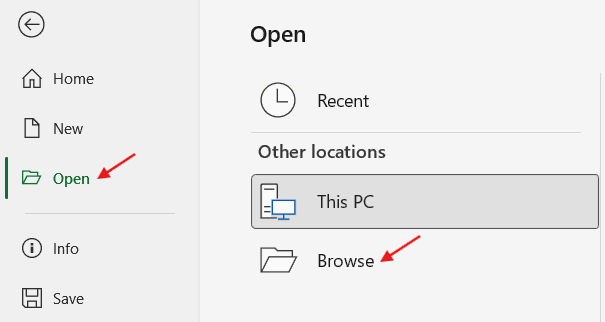
- Select Open from the Excel Home screen.
- Select Browse to find the workbook on your computer.
- Go to the folder where the Excel file is saved.
Select the workbook you want to open. - Click Open.
👉 Method 2: How to Open an Excel File from File Explorer
If you already know where your Excel file is saved, you can open it directly from File Explorer. This is one of the quickest ways to open an Excel workbook.
Follow these steps:
- Open File Explorer.
- Navigate to the folder containing your Excel file.
- Find the workbook you want to open.
- Double click the Excel file.
- Windows will open the workbook in Microsoft Excel.
👉 Method 3: How to Open a Recent Excel File
If you have worked on an Excel workbook recently, you can open it from the Recent list. This saves you from searching through your computer again.
Follow these steps:
- Open Microsoft Excel.
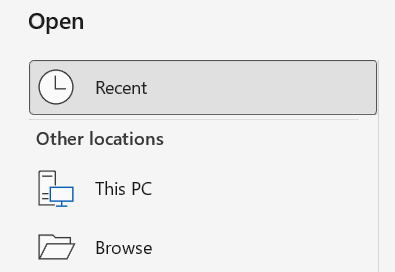
- Look for the Recent section on the Home screen.
- Or go to File → Open → Recent and look for the file.
- Find the Excel workbook you want to open.
- Click the file name.
👉 Method 4: How to Find and Open an Excel File
If you remember the name of an Excel file but cannot remember where you saved it, you can search for it using File Explorer.
Follow these steps:
- Open File Explorer.
- Click the search box.
- Type the name of the Excel file.
- Allow Windows to search for matching files.
- Find the workbook in the search results.
- Double click the file to open it.

👉 Method 5: How to Open an Excel File with Open With
If double clicking an Excel file does not open it in Microsoft Excel, you can choose Excel manually using the Open with option.
Follow these steps:
- Locate the Excel file in File Explorer.
- Right click the file.
- Select Open with.
- Choose Microsoft Excel.
✅ What Excel File Formats Can You Open
Knowing the file extension can help you identify the type of Excel workbook you are trying to open. Microsoft Excel supports several file formats. The most common ones include:
.xlsx: The standard Excel workbook format used by current versions of Microsoft Excel.
.xls: An older Excel workbook format used by earlier versions of Excel.
.xlsm: An Excel workbook format that supports macros.
⚠️ Why is My Excel File Not Opening
Sometimes an Excel file may not open as expected. The issue could be related to the workbook, Excel, or the way the file is associated with an application.
If an Excel file does not open, try these solutions:
- Open Microsoft Excel first and use File > Open to select the workbook.
- Check that the file has a supported Excel extension.
- Try opening another Excel workbook to see whether the problem is limited to one file.
- If the workbook was downloaded or received as an attachment, save it to your computer and try opening the saved copy.
- Restart Microsoft Excel and try opening the file again.
- If Excel is freezing or becoming unresponsive, check for available Office or Windows updates.
⁉️ FAQs
How to Open an Excel File?
You can open an Excel file by double clicking it in File Explorer. You can also open Microsoft Excel, select Open, and browse to the location of the workbook.
How to Open an Excel File in Excel?
Open Microsoft Excel and select Open from the Home screen. Choose Browse, find your workbook, select it, and click Open.
How to Open an Excel File Without Excel?
You can open many Excel files without the desktop version of Microsoft Excel by using compatible spreadsheet applications or online spreadsheet services. Keep in mind that some advanced Excel features may not work the same way in other programs.
How to Open an Excel File on Windows?
On Windows, locate the workbook in File Explorer and double click it. If Microsoft Excel is installed as the default application, Windows should open the file in Excel.
How to Open an XLSX File?
An .xlsx file is a common Excel workbook format. You can open it by double clicking the file or by opening Excel and selecting it through the Open option.
How to Open an XLS File?
An .xls file is an older Excel workbook format. You can normally open it in Microsoft Excel by double clicking the file or selecting it through File > Open.
How to Open an Excel File from File Explorer?
Open File Explorer and go to the folder where the workbook is saved. Double click the Excel file, and it should open in the application associated with that file type.
How to Open an Excel File from Downloads?
Open File Explorer and select the Downloads folder. Find the Excel workbook you downloaded and double click it to open it.
How to Open an Excel File from an Email?
Save the Excel attachment to your computer first. Then open the folder where you saved it and double click the workbook to launch it in Excel.
How to Open an Excel File From Recent Files?
Open Microsoft Excel and check the Recent section on the Home screen. Select the workbook from the list to open it without searching through your folders.
How to Open an Excel File That Is Not Opening?
First, try opening the workbook from inside Excel using File > Open. If that does not work, try opening another Excel file to check whether the problem is with that workbook or with Excel itself.
Why is My Excel File Not Opening?
An Excel file may fail to open because the workbook is damaged, the file extension does not match its actual format, or Excel is having a problem. Trying another workbook can help you narrow down the cause.
Why Won’t My Excel File Open When I Double Click It?
The file may be associated with another application instead of Microsoft Excel. Right click the workbook, choose Open with, and select Microsoft Excel.
How to Open an Excel File That Opens in Another Program?
Right click the Excel file in File Explorer and select Open with. Choose Microsoft Excel from the available applications to open the workbook in Excel.
How to Open an Excel File if I Don’t Know Where It Is Saved?
Use the search box in File Explorer and enter part of the workbook name. If you cannot remember the file name, searching for .xlsx can help you locate Excel workbooks on your computer.
How to Open an Excel File with a Keyboard Shortcut?
With Excel already open, press Ctrl + O to bring up the Open option. Select the workbook you want to use and click Open.
Can I Open an Excel File Online?
Yes. Excel files can be opened online using compatible web-based spreadsheet services. This can be useful when you do not have the desktop version of Excel available.
Can I Open an XLSX File Without Downloading It?
If the workbook is stored in a supported cloud service, you may be able to open it online without first saving a separate copy to your computer. The available options depend on where the file is stored.
How to Open an Excel File from OneDrive?
Open your OneDrive files and locate the Excel workbook. Select the file to open it online or choose the option to open it in the desktop version of Excel if it is available.
How to Open an Excel File that is Password Protected?
Open the workbook normally in Excel. If a password is required, enter the correct password when Excel prompts you before the protected content can be accessed.
How to Open an Excel File that is Corrupted?
If Excel reports that the workbook is damaged, try opening it from File > Open and use Excel’s Open and Repair option when it is available. If the file remains inaccessible, you may need to recover the workbook from another copy or backup.
How to Open an Excel File after Downloading It?
After downloading the workbook, open File Explorer and go to the folder where your downloads are saved. Find the Excel file and double click it to open it.
How to Open an Excel File on a Computer?
Find the workbook in a folder on your computer and double click it. Alternatively, open Microsoft Excel first and use Open to locate the file.
What Program Can Open an Excel File?
Microsoft Excel is the main program used for opening Excel workbooks. Depending on the file format and features used in the workbook, other spreadsheet applications may also be able to open it.
Can I Open an Excel File in Google Sheets?
Yes. Google Sheets can open many Excel workbook formats, including .xlsx files. This can be useful when you want to view or edit an Excel workbook without using the desktop Excel application.
Can I Open an Excel File on My Phone?
Yes. Excel files can be opened on a smartphone using a compatible spreadsheet application. The exact features available may depend on the application and the type of Excel file.
What Is the Difference Between XLS and XLSX Files?
XLS is an older Excel file format, while XLSX is the newer standard workbook format. Most modern Excel workbooks are saved using the .xlsx extension.
Why Does Excel Say the File Format or File Extension is Not Valid?
This message can appear when the file extension does not match the actual format of the workbook or when the file has become damaged. Check that the file came from a trusted source and that its extension has not been changed incorrectly.
What Should I Do If Excel Freezes When Opening a File?
Try closing Excel and opening a different workbook. If other files open normally, the problem may be limited to the original file; if several workbooks cause Excel to freeze, the issue may be with the Excel application itself.
🎯 Conclusion
Learning how to open an Excel file is simple, and you can choose the method that works best for you. You can open a workbook directly in Excel, double click it from File Explorer, select it from Recent files, search for it on your computer, or use Open with when necessary.

Excel Tutorial Part 1 (Basic)
» Excel Home
» Excel Basics
» Excel Workbook
» Excel Template
» Excel Cell
» Excel Password
Excel Tutorial Part 2 (Format)
» Excel Clipboard
» Excel Format Font
» Excel Format Alignment
» Excel Format Number
» Excel Border
» Excel Conditional Formatting
Excel Tutorial Part 3 (Data)
» Excel Sort Data
» Excel Filter Data
» Excel Text to Columns
» Excel Data Validation
» Excel Flash Fill
» Excel Remove Duplicates
» Excel Relationships
» Excel Consolidate
» Excel What-If Analysis
» Excel Group
» Excel Charts
» Excel Table
» Excel PivotTable
Excel Tutorial Part 4 (Find)
» Excel Find and Replace
» Excel Go To
» Excel Select Objects
» Excel Selection Pane
Excel Tutorial Part 5 (Review)
» Excel Spell Check
» Excel Smart Lookup
» Excel Translate
» Excel Comments & Notes
» Excel Protect
» Excel Hide Ink
Excel Tutorial Part 6 (View)
» Excel Workbook Views
» Excel Formula Bar
» Excel Zoom
» Excel Window
» Excel Macros
Excel Tutorial Part 7 (Fx)
» Excel Formulas (Category)
» Excel Formulas (Alphabetical)
» Excel Errors
» Excel Name Manager
» Excel Formula Auditing
» Excel Watch Window
» Excel Calculation Options
Excel Tutorial Part 8 (Other)
» Excel Add-ins
» Excel Shortcuts
Excel
Learn More
- File: New, Open, Info, Save, Save As, Print, Share, Export, Publish, Account, Options and more features.
- Home: Cut, Copy, Paste, Paste Special (Clipboard), Format Painter, Bold, Italic, Underline, Border, Font Type, Font Size, Font Color, Fill Color, Alignment, Increase or Decrease Indent, Wrap Text, Shrink to fit, Merge and Unmerge, Number Format, Conditional Formatting, Format as Table, Cell Styles, Find and Replace, Go To, Select Objects, Selection Pane.
- Insert: Table, Pivot-table, Charts, Sparklines, Slicer, Timeline, Links, Text Box, Word Art, Header & Footer, Signature Line, Object and Symbols.
- Draw: Eraser, Lasso Select, Pens, Ink to Shape and Ink to Math.
- Page Layout: Themes, Margins, Orientation, Size, Print Area, Breaks, Background, Print Titles, Width, Height, Scale to fit, Gridline, Headings, Bring Forward, Send Backward, Selection Pane, Align and Rotate.
- Formula: Insert Function, Auto Sum, Function Library, Name Manager, Trace Precedents, Trace Dependents, Remove Arrows, Show Formulas, Error Types, Error Checking, Evaluate Formula, Watch Window and Calculation Options.
- Data: Get & Transform Data, Queries & Connections, Sort, Filter, Advanced Filter, Text to Columns, Remove Duplicates, Data Validation, Flash Fill, Consolidate, Relationships, What-if Analysis, Forecast Sheet, Group and Ungroup.
- Review: Spelling, Thesaurus, Workbook Statistics, Check Accessibility, Smart Lookup, Translate, Comments & Notes, Protect Sheet, Protect Workbook, Allow Edit Ranges, Share and Un-share Workbook, Hide Ink.
- View: Workbook Views, Formula Bar, Zoom, New Window, Arrange Window, Freeze Panes, Split, Hide, Unhide, View Side by Side, Synchronous Scrolling, Reset Window Position, Switch Windows and Macros.
- Developer: Macro, Excel Add-ins, COM Add-ins, Check Box, Form Controls, ActiveX Controls, Design Mode, View Code, Run Dialog, Map Properties, Expansion Packs, Refresh Data, Import and Export XML.
0 Comments