
Excel Options
Excel Options provides a range of settings that let you customize how Microsoft Excel looks and works. It allows you to personalize the interface, change editing preferences, manage formulas, configure saving options, and adjust other application settings.
Whether you want to change the default font, modify calculation settings, enable AutoRecover, customize the Ribbon, or manage security preferences, Excel Options brings these settings together in one place.
In this guide, you will learn how to open Excel Options, understand its different categories, and explore the important settings available in Excel.
⚙️ How to Open Excel Options
The Excel Options contain different categories that help you manage the Microsoft Excel application’s settings. Follow these steps to open Excel Options:
- Open Excel: Start Microsoft Excel and open a new or existing workbook.
- Go to the File Tab: Click the File tab in the upper-left corner of the Excel window.
- Select Options: Find Options at the bottom of the left-side menu and click it. The Excel Options window will appear with different setting categories listed on the left.

📋 Different Categories in Excel Options
The Excel Options window organizes application settings into separate categories. Each category controls a particular aspect of Excel, making it easier to find and change the settings you need.
The following sections explain what each category does and which settings you can manage.
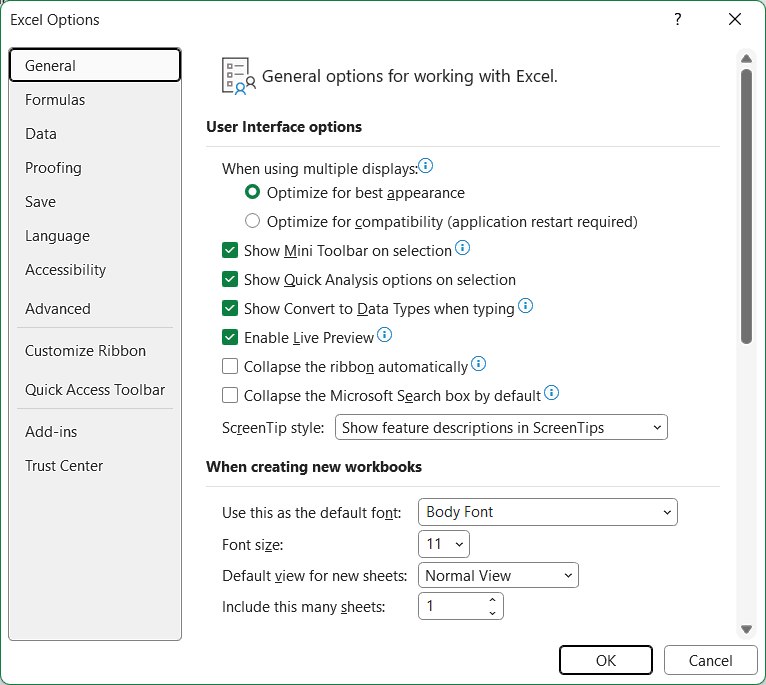
1. General
The General category contains basic preferences that influence the overall Excel experience. You can use it to personalize the application’s appearance and set default preferences for new workbooks.
Some important settings include:
- Change the default font and font size for newly created workbooks.
- Set the number of worksheets included in a new workbook.
- Select an Office theme and background.
- Change your username and initials.
- Adjust startup and user interface preferences.
For example, if you regularly work with a particular font, you can set it as the default so that new workbooks use your preferred font automatically.
2. Formulas
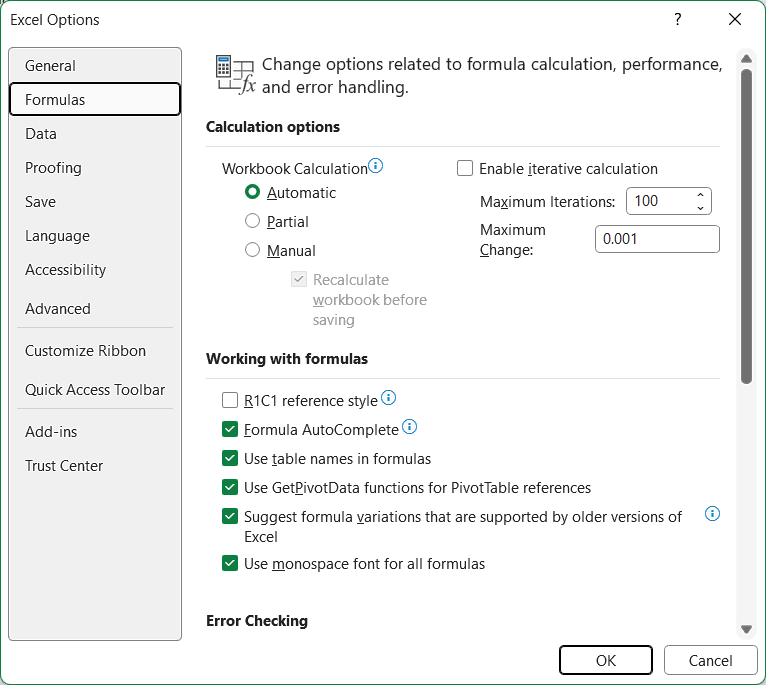
The Formulas category controls how Excel calculates formulas and checks for common formula-related errors. It is particularly useful when working with complex calculations or large spreadsheets.
You can manage settings such as:
- Choose between Automatic and Manual calculation modes.
- Enable or disable automatic error checking.
- Turn on iterative calculations for circular references.
- Switch between A1 and R1C1 reference styles.
- Configure formula error-checking rules.
These settings help you control when calculations take place and how Excel identifies potential formula problems.
3. Data
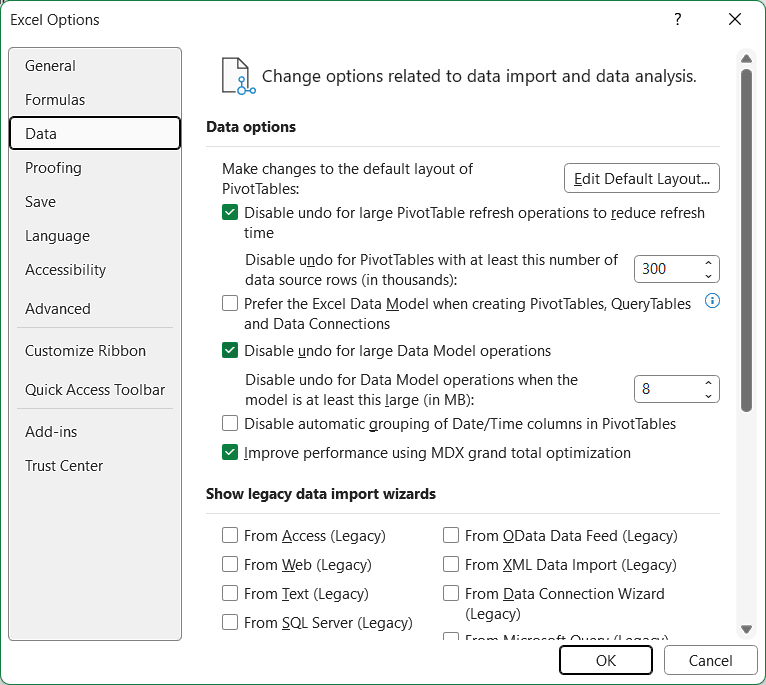
The Data category provides options for managing how Excel handles and processes data. The available settings depend on your Excel version and installed features.
Depending on the version, you may find options related to:
- Automatic data conversion.
- Data import and transformation.
- Data-related features and connections.
- Data analysis preferences.
These settings are useful when importing information from external sources or working with different types of spreadsheet data.
4. Proofing
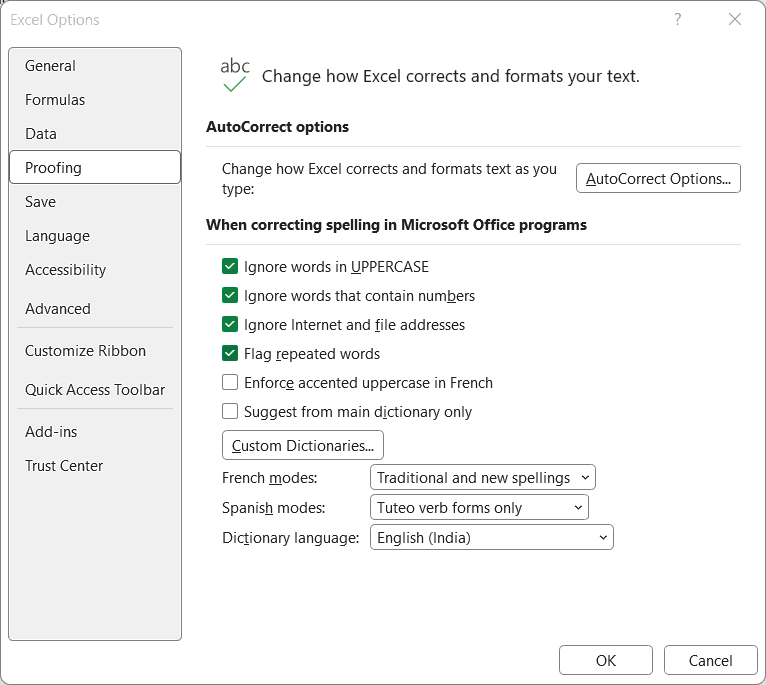
The Proofing category helps you manage spelling, AutoCorrect, and other text-related preferences in Excel. It can automatically correct common typing mistakes and improve the accuracy of text entered in worksheets.
You can use this category to:
- Configure AutoCorrect settings.
- Correct common spelling and typing errors automatically.
- Manage capitalization corrections.
- Add words to a custom dictionary.
- Change spelling and proofing preferences.
For example, you can configure Excel to correct frequently mistyped words automatically while entering information into cells.
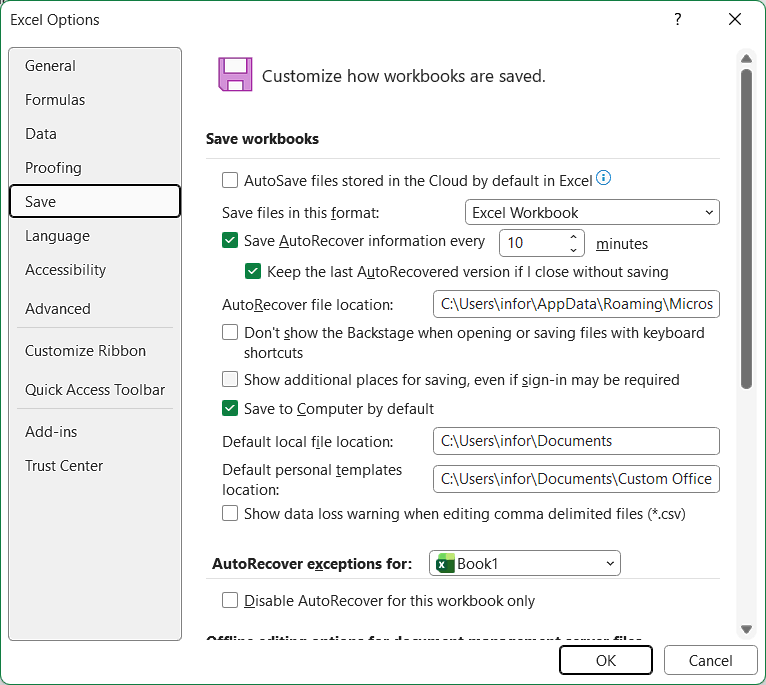
5. Save
The Save category contains settings related to workbook storage, file formats, and recovery. These options are especially important when you work with Excel files regularly and want to reduce the risk of losing unsaved changes.
You can use these settings to:
- Choose the default file format for new workbooks.
- Set the default location for saving files.
- Enable or disable AutoRecover.
- Change the AutoRecover interval.
- Specify where AutoRecover information is stored.
- Manage other workbook-saving preferences.
For example, you can change the AutoRecover interval to control how frequently Excel saves recovery information while you are working.
6. Language
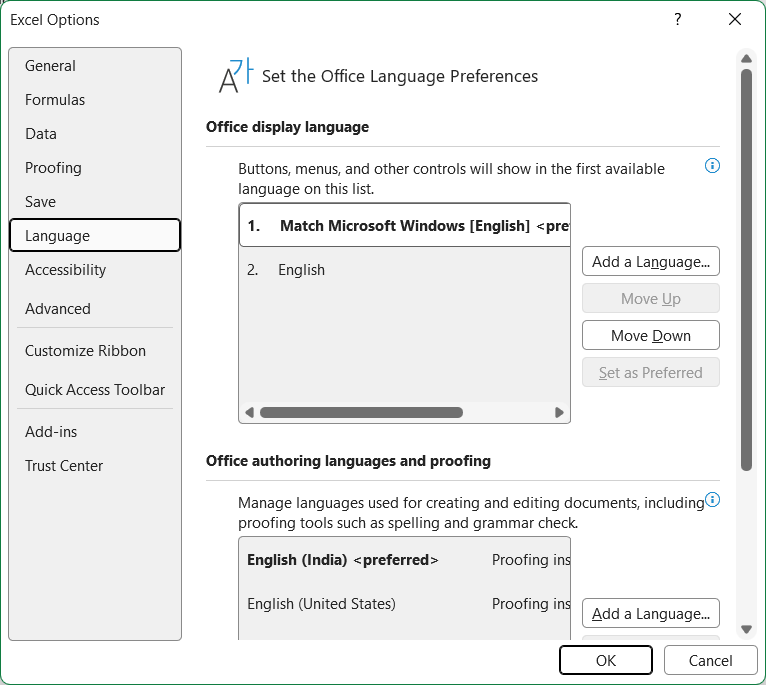
The Language category allows you to manage the languages used for displaying Excel commands and editing spreadsheet content.
You can use these settings to:
- Add or select an Office display language.
- Choose preferred editing languages.
- Manage language preferences.
- Set languages used for spelling and proofing.
This is useful when you work with documents in multiple languages or prefer Excel’s menus and commands to appear in a different language.
7. Accessibility (Ease of Access)
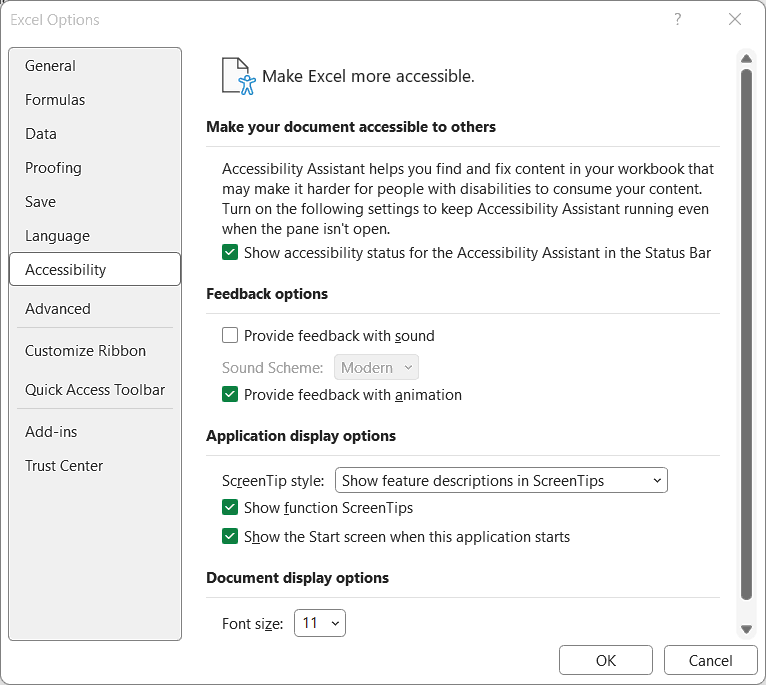
The Accessibility category provides settings intended to make Excel easier to use for people with different accessibility requirements.
Depending on your Excel version, these options may help you:
- Improve accessibility when working with spreadsheets.
- Adjust accessibility-related preferences.
- Work more effectively with assistive technologies.
- Improve the usability of Excel’s interface.
These settings can make spreadsheet work more convenient for users who need additional accessibility support.
8. Advanced
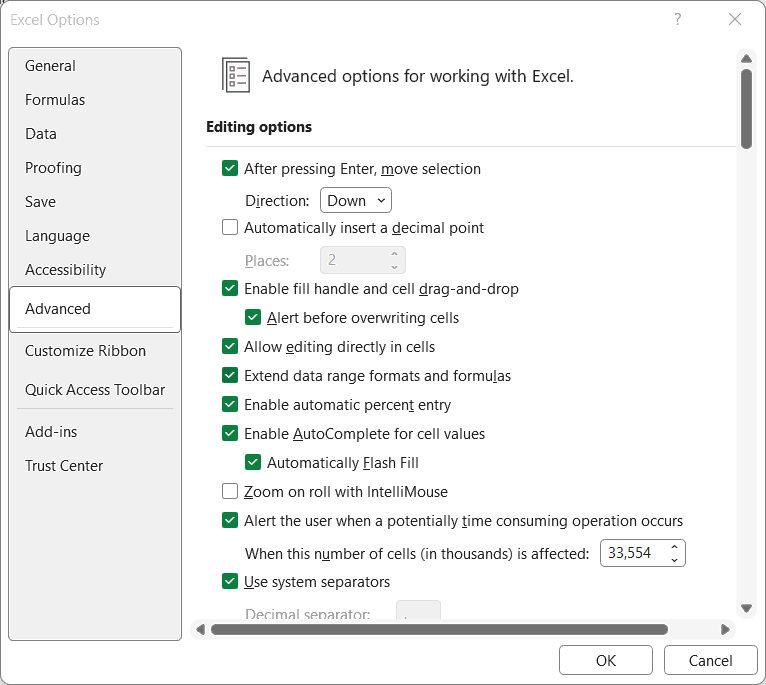
The Advanced category contains detailed controls for editing, displaying, and working with worksheet content. It offers several options that let you change Excel’s behaviour to match your preferences.
Some commonly used settings include:
- Enable or disable editing directly within cells.
- Change the direction of cell selection after pressing Enter.
- Show or hide the fill handle.
- Control cut, copy, and paste behaviour.
- Display or hide gridlines, formula bars, and worksheet tabs.
- Change decimal and thousands of separators.
- Adjust chart, display, and printing preferences.
- Manage other worksheet and workbook settings.
For example, if you prefer selecting the next cell to the right after pressing Enter, you can change that behaviour under the Editing options section.
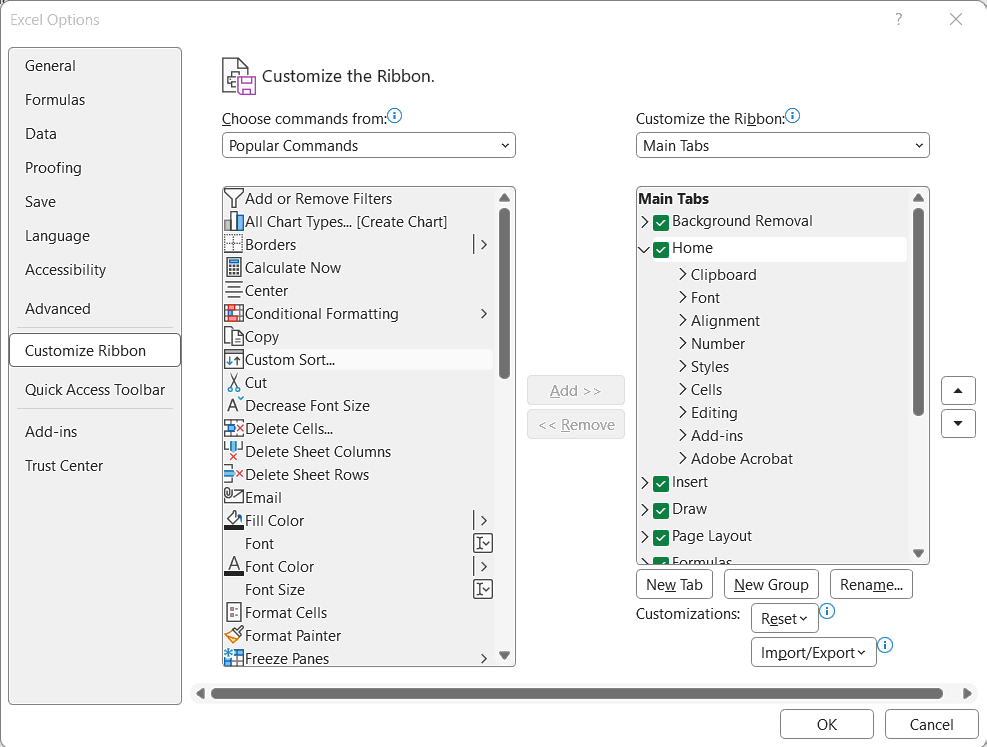
9. Customize Ribbon
The Customize Ribbon category lets you change the arrangement of commands and tabs displayed at the top of the Excel window.
You can use it to:
- Show or hide existing Ribbon tabs.
- Add commands to existing groups.
- Create your own Ribbon tabs.
- Create custom groups for frequently used commands.
- Rename tabs and groups.
- Remove customized tabs or groups.
For example, if you frequently use macros, you can enable the Developer tab from this category to access tools for recording and managing macros.
10. Quick Access Toolbar
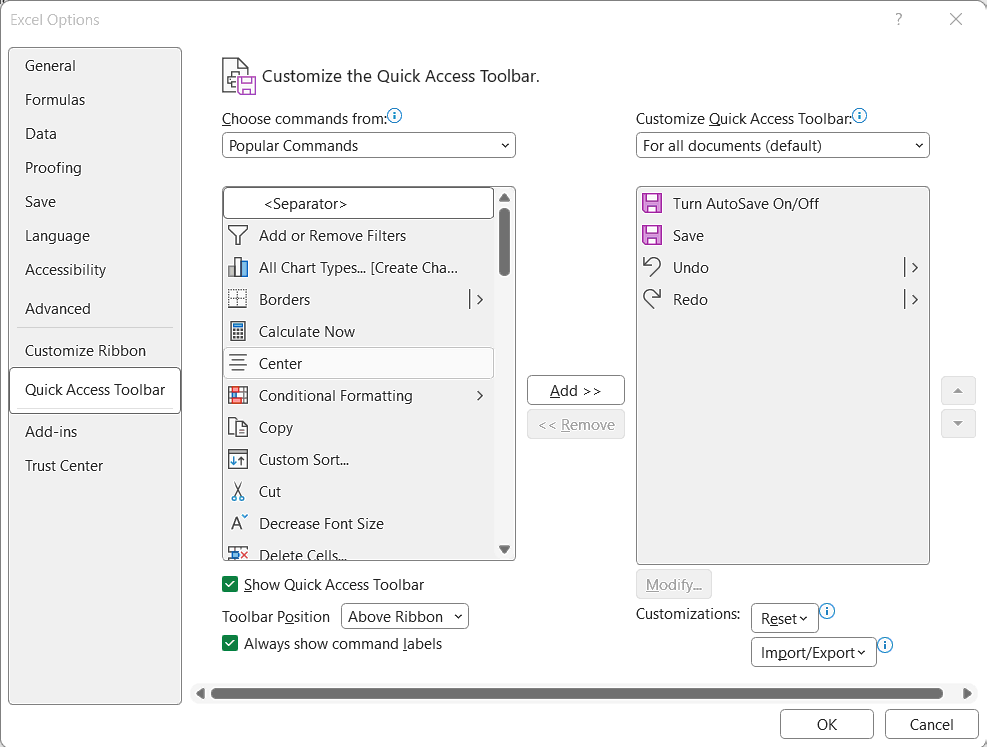
The Quick Access Toolbar provides shortcuts to commands that you use frequently. The Quick Access Toolbar category allows you to decide which commands appear there.
You can use these settings to:
- Add commands such as Save, Undo, and Redo.
- Include frequently used Excel commands.
- Remove commands you no longer need.
- Change the order of commands.
- Reset the toolbar to its default configuration.
Customizing this toolbar makes commonly used commands easier to access without switching between Ribbon tabs.
11. Add-ins
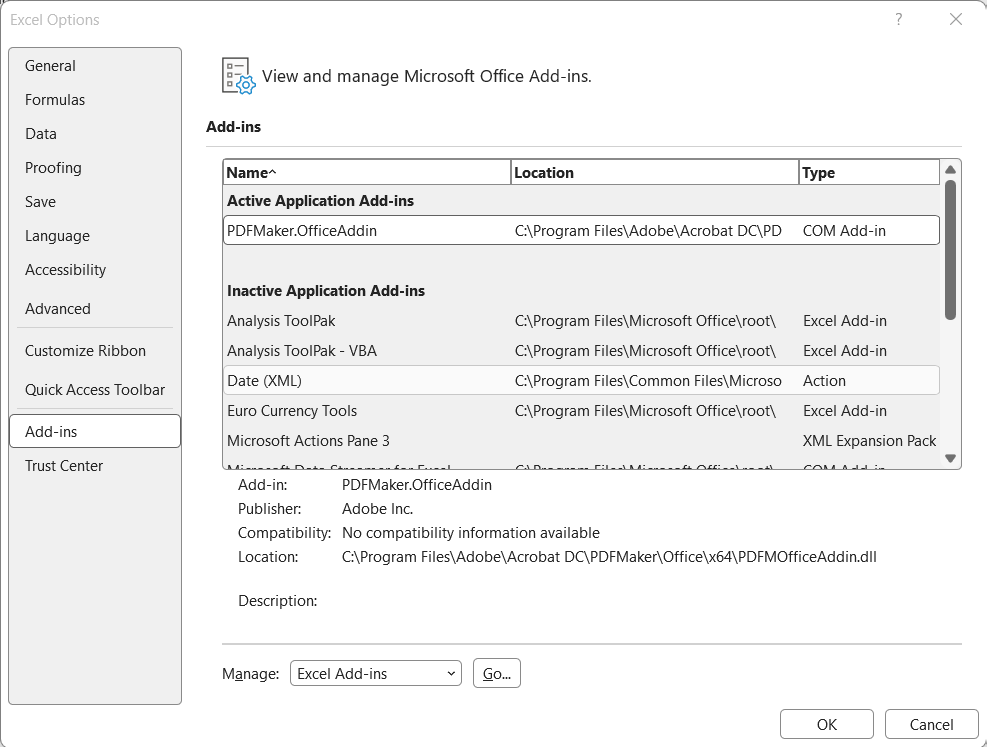
The Add-ins category helps you manage additional tools that extend Excel’s built-in functionality. These add-ins can provide specialized features for analysis, reporting, automation, and other tasks.
You can use this category to:
- View available add-ins.
- Enable or disable installed add-ins.
- Manage Excel Add-ins.
- Manage COM Add-ins.
- Access add-in management options.
For example, you can enable an installed Excel add-in to access additional functions that are not available in a standard Excel installation.
12. Trust Center
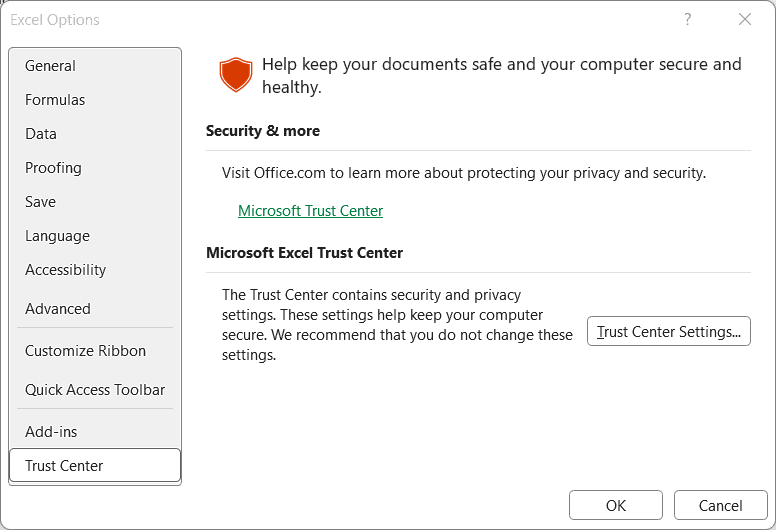
The Trust Center contains security-related settings that help protect Excel and your computer when working with workbooks from different sources.
You can use these settings to:
- Configure macro security preferences.
- Manage trusted locations.
- Control external content settings.
- Adjust Protected View settings.
- Manage file blocking preferences.
- Review other security and privacy settings.
These options are particularly important when opening files received through email or downloaded from the internet. Review security settings carefully before changing them, as they help protect your system from potentially unsafe content.
💡 Why Should You Customize Excel Options
Microsoft Excel’s default settings work well for general use, but they may not match everyone’s working preferences. Customizing Excel Options allows you to make changes that improve the way you create, edit, calculate, and manage workbooks.
Here are some reasons to customize these settings:
- Work More Efficiently: Adjust editing behaviour and calculation preferences to suit your regular spreadsheet tasks.
- Personalize the Interface: Choose your preferred font, theme, and other application settings.
- Protect Workbook Data: Configure AutoRecover to help restore work after unexpected interruptions.
- Access Commands Quickly: Add frequently used commands to the Quick Access Toolbar or create custom Ribbon groups.
- Manage Formula Calculations: Choose the calculation mode that works best for your spreadsheets.
- Control Security Settings: Review macro, external content, and Protected View preferences.
⁉️ FAQs
How Do I Open Excel Options?
Open Microsoft Excel, click the File tab, and select Options from the left-side menu. The Excel Options window will open, allowing you to access and modify different application settings.
Where are Excel Options Located?
Excel Options is available under the File tab in the desktop version of Excel. You can find it near the bottom of the File menu.
How Do I Change the Default Font in Excel?
Go to File, select Options, and open the General category. Under the settings for creating new workbooks, choose your preferred font and font size. Click OK to save the changes.
How Do I Change the Default Save Location in Excel?
Open File, select Options, and go to the Save category. Find the Default local file location setting and enter the folder path where you want Excel to save new files by default.
How Do I Change AutoRecover Settings in Excel?
Open Excel Options and select the Save category. Find the AutoRecover settings, enable the feature if necessary, and specify how frequently Excel should save recovery information.
How Do I Enable the Developer Tab in Excel?
Click File, select Options, and open Customize Ribbon. Under Main Tabs, select the Developer checkbox and click OK. The Developer tab will then appear in the Excel Ribbon.
How Do I Customize the Quick Access Toolbar in Excel?
Go to File, select Options, and click Quick Access Toolbar. Choose the commands you want to add, click Add, and arrange them in your preferred order. Click OK to apply the changes.
How Do I Change Calculation Options in Excel?
Open File, select Options, and click Formulas. Under Calculation Options, choose Automatic, Automatic Except for Data Tables, or Manual, depending on how you want Excel to calculate formulas.
How Do I Enable Iterative Calculation in Excel?
Open the Formulas category in Excel Options. Under Calculation Options, select Enable iterative calculation. You can also specify the maximum number of iterations and maximum change.
How Do I Change the Excel Theme?
Open File, select Options, and go to General. Find the Office Theme setting and choose your preferred theme from the available choices.
How Do I Change the Number of Worksheets in a New Workbook?
Open Excel Options and select General. Under When creating new workbooks, change the Include this many sheets setting to the number of worksheets you want in new workbooks.
How Do I Disable Automatic Hyperlinks in Excel?
Go to File, select Options, and open Proofing. Click AutoCorrect Options and select the AutoFormat As You Type tab. Clear the Internet and network paths with hyperlinks checkbox and click OK.
How Do I Enable AutoComplete in Excel?
Open File, select Options, and click Advanced. Under Editing options, select Enable AutoComplete for cell values. Click OK to apply the setting.
How Do I Change Decimal and Thousands of Separators in Excel?
Open Excel Options and select Advanced. Under Editing options, clear the Use system separators checkbox. Enter your preferred decimal and thousands of separators and click OK.
How Do I Reset Excel Options to Default Settings?
Excel does not provide a single button to restore every application setting to its original state. You can reset individual preferences manually. For customized Ribbon and Quick Access Toolbar settings, use the Reset options available in their respective categories.
Are Excel Options Available in Excel Online?
Excel for the web does not include the same complete Excel Options window found in the desktop application. Some preferences can be changed through its available settings, but advanced customization features generally require the desktop version of Excel.
🎯 Conclusion
Microsoft Excel Options gives you control over many aspects of the application’s behaviour, from basic appearance and editing preferences to formula calculations, workbook recovery, and security. Understanding these categories makes it easier to locate the settings you need and configure Excel according to your working requirements.

Excel Tutorial Part 1 (Basic)
» Excel Home
» Excel Basics
» Excel Workbook
» Excel Template
» Excel Cell
» Excel Password
Excel Tutorial Part 2 (Format)
» Excel Clipboard
» Excel Format Font
» Excel Format Alignment
» Excel Format Number
» Excel Border
» Excel Conditional Formatting
Excel Tutorial Part 3 (Data)
» Excel Sort Data
» Excel Filter Data
» Excel Text to Columns
» Excel Data Validation
» Excel Flash Fill
» Excel Remove Duplicates
» Excel Relationships
» Excel Consolidate
» Excel What-If Analysis
» Excel Group
» Excel Charts
» Excel Table
» Excel PivotTable
Excel Tutorial Part 4 (Find)
» Excel Find and Replace
» Excel Go To
» Excel Select Objects
» Excel Selection Pane
Excel Tutorial Part 5 (Review)
» Excel Spell Check
» Excel Smart Lookup
» Excel Translate
» Excel Comments & Notes
» Excel Protect
» Excel Hide Ink
Excel Tutorial Part 6 (View)
» Excel Workbook Views
» Excel Formula Bar
» Excel Zoom
» Excel Window
» Excel Macros
Excel Tutorial Part 7 (Fx)
» Excel Formulas (Category)
» Excel Formulas (Alphabetical)
» Excel Errors
» Excel Name Manager
» Excel Formula Auditing
» Excel Watch Window
» Excel Calculation Options
Excel Tutorial Part 8 (Other)
» Excel Add-ins
» Excel Shortcuts
Excel
Learn More
- File: New, Open, Info, Save, Save As, Print, Share, Export, Publish, and Options.
- Home: Cut, Copy, Paste, Paste Special (Clipboard), Format Painter, Bold, Italic, Underline, Border, Font Type, Font Size, Font Color, Fill Color, Alignment, Increase or Decrease Indent, Wrap Text, Shrink to fit, Merge and Unmerge, Number Format, Conditional Formatting, Format as Table, Cell Styles, Find and Replace, Go To, Select Objects, Selection Pane.
- Insert: Table, Pivot-table, Charts, Sparklines, Slicer, Timeline, Links, Text Box, Word Art, Header & Footer, Signature Line, Object and Symbols.
- Draw: Eraser, Lasso Select, Pens, Ink to Shape and Ink to Math.
- Page Layout: Themes, Margins, Orientation, Size, Print Area, Breaks, Background, Print Titles, Width, Height, Scale to fit, Gridline, Headings, Bring Forward, Send Backward, Selection Pane, Align and Rotate.
- Formula: Insert Function, Auto Sum, Function Library, Name Manager, Trace Precedents, Trace Dependents, Remove Arrows, Show Formulas, Error Types, Error Checking, Evaluate Formula, Watch Window and Calculation Options.
- Data: Get & Transform Data, Queries & Connections, Sort, Filter, Advanced Filter, Text to Columns, Remove Duplicates, Data Validation, Flash Fill, Consolidate, Relationships, What-if Analysis, Forecast Sheet, Group and Ungroup.
- Review: Spelling, Thesaurus, Workbook Statistics, Check Accessibility, Smart Lookup, Translate, Comments & Notes, Protect Sheet, Protect Workbook, Allow Edit Ranges, Share and Un-share Workbook, Hide Ink.
- View: Workbook Views, Formula Bar, Zoom, New Window, Arrange Window, Freeze Panes, Split, Hide, Unhide, View Side by Side, Synchronous Scrolling, Reset Window Position, Switch Windows and Macros.
- Developer: Macro, Excel Add-ins, COM Add-ins, Check Box, Form Controls, ActiveX Controls, Design Mode, View Code, Run Dialog, Map Properties, Expansion Packs, Refresh Data, Import and Export XML.
0 Comments