
How to Export an Excel File
How to export an Excel file depends on the format you want to use or share. Excel provides different export options to help you save your workbook in a suitable format for various purposes.
In this guide, you will learn how to use the available Export options in Excel and understand how each one works.
📤 How to Export an Excel File
To export an Excel file, open the workbook and go to File > Export. Select the appropriate option based on the format you want to create.

Excel provides three export options, each designed for a specific purpose, as explained below:
1. Create Adobe PDF
The Create Adobe PDF option is designed for users who have Adobe Acrobat integrated with Excel. It allows you to turn an Excel workbook into a PDF document that can be shared with others without requiring them to open the original workbook.
This option is particularly useful when preparing spreadsheets for distribution, sharing reports, or creating documents that need to retain their page layout.
To create an Adobe PDF from an Excel workbook:
- Open Export: Click File and select Export from the left navigation pane.
- Choose Create Adobe PDF: Select the Create Adobe PDF option.
- Start PDF Creation: Click the Create PDF button to begin the conversion.
- Select the Destination: Browse to the folder where you want to store the PDF file.
- Name Your Document: Enter a file name that identifies the exported document.
- Complete the Export: Follow the Adobe PDF prompts to finish creating the file.
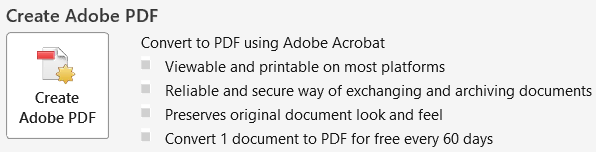
Note: The Create Adobe PDF option depends on Adobe Acrobat and its integration with Excel. If the required Adobe software is not installed or configured, this option may not be available.
2. Create PDF/XPS Document
The Create PDF/XPS Document option lets you publish an Excel workbook as a PDF or XPS file directly from Excel. It is a convenient choice when you want to distribute a spreadsheet while keeping its printed appearance consistent.
You can also control what gets included in the exported document. For example, you can publish the complete workbook, an individual worksheet, or only a selected range of cells.
To export an Excel workbook as a PDF or XPS document:
- Open the Export Section: Click File and select Export.
- Select PDF/XPS Document: Choose Create PDF/XPS Document from the available options.
- Open the Publishing Window: Click the Create PDF/XPS button.
- Select a Folder: Browse to the location where you want to save the exported file.
- Enter a File Name: Provide a suitable name for your document.
- Choose the Output Format: Select PDF or XPS from the Save as type dropdown list.
- Configure Publishing Settings: Click Options to specify which parts of the workbook should be included. You can choose the entire workbook, active sheet, or a selected range, depending on your requirement.
- Publish Your File: Click Publish to generate the document in your chosen format.
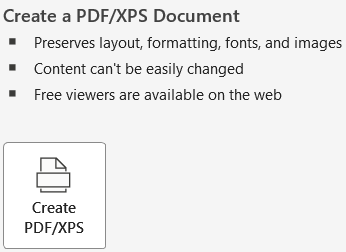
Note: PDF is commonly used for sharing reports and printable spreadsheets. XPS is an alternative fixed-layout format that preserves the document’s appearance.
3. Change File Type
The change file type option helps you save an Excel workbook in a format other than its current file type. This is useful when you need to exchange spreadsheet data with another application or work with an older version of Excel.
To change the file format of an Excel workbook:
- Go to Export: Open the File tab and select Export.
- Choose Change File Type: Click Change File Type to view the available formats.
- Select a Format: Choose the file type you want to use for the workbook:
- Workbook: uses the Excel Spreadsheet format.
- Excel 97-2003 Workbook: uses the Excel 97-2003 Spreadsheet format.
- OpenDocument Spreadsheet: uses the OpenDocument Spreadsheet format.
- Template: starting point for new spreadsheets.
- Macro-Enabled Workbook: uses the macro-enabled format.
- Binary Workbook: optimized for fast loading and saving.
- Text (Tab delimited): text format separated by tabs.
- CSV (Comma delimited): text format separated by commas.
- Formatted Text (Space delimited): text format separated by spaces.
- Save as Another File Type.
- Open Save As: Click the Save As option to open the file-saving window.
- Choose Where to Save: Browse to the folder where you want to store the new file.
- Enter a File Name: Type a name for the exported workbook.
- Save the File: Click Save to create the workbook in the selected format.
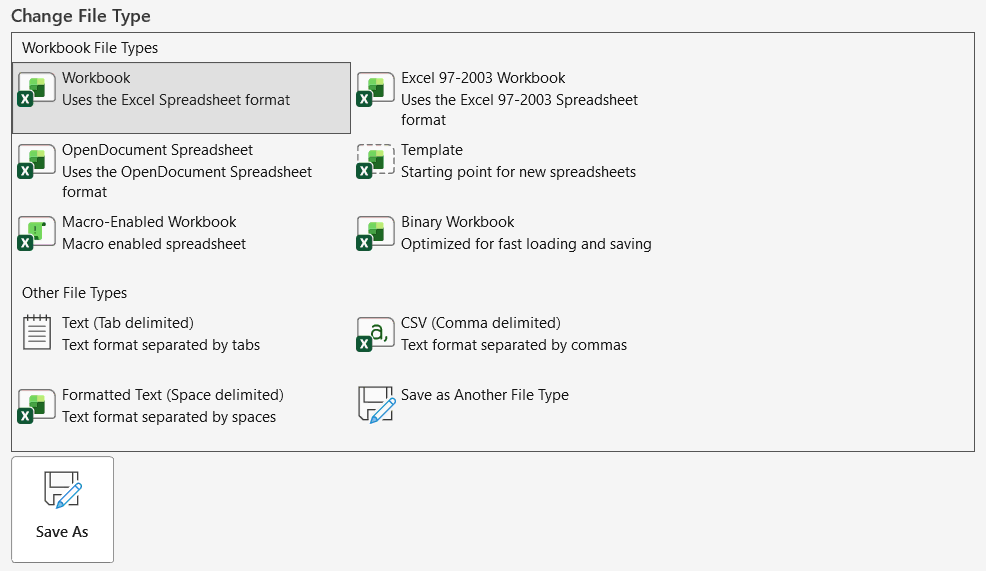
Note: Before changing a file format, check whether the new format supports all the features used in your workbook. For example, saving an XLSM file as XLSX removes its VBA macros. Saving as CSV also removes workbook formatting, charts, and other worksheet features. It retains data from the active sheet rather than the entire workbook.
⚖️ Difference Between the Three Excel Export Options
Although all three options are available under Export, they are intended for different tasks. Understanding their purpose makes it easier to select the right option.
- Create Adobe PDF: Uses Adobe Acrobat integration to convert an Excel workbook into an Adobe PDF document.
- Create PDF/XPS Document: Uses Excel’s built-in publishing feature to generate a PDF or XPS document.
- Change File Type: Converts a workbook into another supported file format, such as XLSX, XLSM, XLSB, XLS, or CSV.
If your goal is to share a spreadsheet as a document, choose one of the PDF options. If you need to save the workbook in a different spreadsheet or data format, use Change File Type.
⁉️ FAQs
How Do I Export an Excel File to PDF?
You can export an Excel workbook as a PDF using the Create PDF/XPS Document option. Open File, select Export, and click Create PDF/XPS Document. Choose a destination, select PDF as the file type, and click Publish.
Can I Export an Excel File to PDF Without Adobe Acrobat?
Yes. You do not need Adobe Acrobat to create a PDF in Excel. The built-in Create PDF/XPS Document feature lets you publish your workbook directly as a PDF.
What Is the Difference Between Save As and Export in Excel?
Save As is mainly used to save a workbook under a new name, in another location, or in a different file format. Export provides dedicated options for publishing a workbook as a PDF or XPS document and changing its file type.
How Do I Export Only One Sheet from an Excel Workbook?
Open the Create PDF/XPS Document window and click Options. Under Publish what, select Active sheet(s) to export the currently selected worksheet or sheets. Choose your destination and click Publish.
How Do I Export Selected Cells from Excel?
First, select the cells you want to include in the PDF. Open File, select Export, and choose Create PDF/XPS Document. Click Options, select Selection under Publish what, and click Publish.
How Do I Change the File Format of an Excel Workbook?
Go to File, select Export, and click Change File Type. Choose your preferred format, click Save As, select a destination, and save the workbook.
Can I Export an Excel File as a CSV?
Yes. Select Change File Type under the Export menu and choose CSV from the available formats. Click Save As and save the file. Keep in mind that CSV supports plain tabular data and does not retain Excel-specific formatting or workbook features.
Does Exporting an Excel File to PDF Preserve Formulas?
No. A PDF displays the calculated values shown in the worksheet rather than the underlying Excel formulas. If you need to edit or review formulas later, keep a copy of the original Excel workbook.
Can I Export an Entire Excel Workbook as a PDF?
Yes. When publishing through Create PDF/XPS Document, open Options and select Entire workbook under Publish what. This includes all worksheets in the workbook in the exported PDF, subject to the publishing settings.
Why Is Create Adobe PDF Not Available in Excel?
This option generally requires Adobe Acrobat and its Office integration. If the software is missing, outdated, or not properly integrated with Excel, the option may not appear or work as expected.
How Do I Export an Excel File to Google Sheets?
You can upload your Excel workbook to Google Drive and open it using Google Sheets. Once opened, you can work with the spreadsheet in Google Sheets and save it in the Google Sheets format if required.
How Do I Export an Excel Chart as an Image?
Select the chart you want to export, right-click it, and choose Save as Picture. Select an image format, such as PNG or JPEG, choose a destination, and click Save.
How Do I Export an Excel File Without Gridlines?
Open the workbook and go to the View tab. Clear the Gridlines checkbox before exporting the worksheet as a PDF. This removes the worksheet gridlines from the exported document.
How Do I Export an Excel File with All Worksheets?
To include multiple worksheets in one PDF, open the Create PDF/XPS Document publishing window. Click Options, select Entire workbook under Publish what, and publish the file. Excel will include the workbook’s worksheets in the exported document.
How Do I Reduce the Size of an Excel PDF File?
When creating a PDF, choose the Minimum size option if it is available in your publishing settings. You can also reduce the size by removing unnecessary images, adjusting image resolution, and limiting the content included in the PDF.
Can I Export an Excel File Without Losing Formatting?
Yes, you can use PDF or XPS to retain much of the worksheet’s visual appearance, including fonts, colors, borders, and cell formatting. However, check the page layout and print preview before exporting to make sure the content appears as expected.
How Do I Export an Excel File with Password Protection?
Excel does not provide a direct password protection setting in the standard Export to PDF process. You can first create the PDF and then use a PDF application, such as Adobe Acrobat, to apply a password if the software supports that feature.
How Do I Export an Excel File to an Older Excel Version?
Open File, select Export, and choose Change File Type. Select Excel 97-2003 Workbook (*.xls), click Save As, and save the file. Before sharing it, check for features that may not be supported in older Excel versions.
Why Is My Excel File Not Exporting to PDF Correctly?
This can happen when the worksheet has incorrect page settings, oversized print areas, or content extending beyond the printable page. Check Print Preview, adjust the page orientation, margins, scaling, and print area, and try exporting again.
Can I Export an Excel Workbook Without Opening It?
Excel’s built-in Export options require you to open the workbook first. If you need to convert several workbooks without opening each one manually, you can use automation tools or a suitable batch conversion application.
🎯 Conclusion
The Export feature in Excel gives you different ways to prepare a workbook for sharing and use in other applications. You can create an Adobe PDF, publish a PDF or XPS document using Excel’s built-in feature, or change the workbook to another supported file format. Choosing the appropriate option helps preserve the information you need while avoiding unnecessary changes to your original workbook.

Excel Tutorial Part 1 (Basic)
» Excel Home
» Excel Basics
» Excel Workbook
» Excel Template
» Excel Cell
» Excel Password
Excel Tutorial Part 2 (Format)
» Excel Clipboard
» Excel Format Font
» Excel Format Alignment
» Excel Format Number
» Excel Border
» Excel Conditional Formatting
Excel Tutorial Part 3 (Data)
» Excel Sort Data
» Excel Filter Data
» Excel Text to Columns
» Excel Data Validation
» Excel Flash Fill
» Excel Remove Duplicates
» Excel Relationships
» Excel Consolidate
» Excel What-If Analysis
» Excel Group
» Excel Charts
» Excel Table
» Excel PivotTable
Excel Tutorial Part 4 (Find)
» Excel Find and Replace
» Excel Go To
» Excel Select Objects
» Excel Selection Pane
Excel Tutorial Part 5 (Review)
» Excel Spell Check
» Excel Smart Lookup
» Excel Translate
» Excel Comments & Notes
» Excel Protect
» Excel Hide Ink
Excel Tutorial Part 6 (View)
» Excel Workbook Views
» Excel Formula Bar
» Excel Zoom
» Excel Window
» Excel Macros
Excel Tutorial Part 7 (Fx)
» Excel Formulas (Category)
» Excel Formulas (Alphabetical)
» Excel Errors
» Excel Name Manager
» Excel Formula Auditing
» Excel Watch Window
» Excel Calculation Options
Excel Tutorial Part 8 (Other)
» Excel Add-ins
» Excel Shortcuts
Excel
Learn More
- File: New, Open, Info, Save, Save As, Print, Share, Export, Publish, Account, Options and more features.
- Home: Cut, Copy, Paste, Paste Special (Clipboard), Format Painter, Bold, Italic, Underline, Border, Font Type, Font Size, Font Color, Fill Color, Alignment, Increase or Decrease Indent, Wrap Text, Shrink to fit, Merge and Unmerge, Number Format, Conditional Formatting, Format as Table, Cell Styles, Find and Replace, Go To, Select Objects, Selection Pane.
- Insert: Table, Pivot-table, Charts, Sparklines, Slicer, Timeline, Links, Text Box, Word Art, Header & Footer, Signature Line, Object and Symbols.
- Draw: Eraser, Lasso Select, Pens, Ink to Shape and Ink to Math.
- Page Layout: Themes, Margins, Orientation, Size, Print Area, Breaks, Background, Print Titles, Width, Height, Scale to fit, Gridline, Headings, Bring Forward, Send Backward, Selection Pane, Align and Rotate.
- Formula: Insert Function, Auto Sum, Function Library, Name Manager, Trace Precedents, Trace Dependents, Remove Arrows, Show Formulas, Error Types, Error Checking, Evaluate Formula, Watch Window and Calculation Options.
- Data: Get & Transform Data, Queries & Connections, Sort, Filter, Advanced Filter, Text to Columns, Remove Duplicates, Data Validation, Flash Fill, Consolidate, Relationships, What-if Analysis, Forecast Sheet, Group and Ungroup.
- Review: Spelling, Thesaurus, Workbook Statistics, Check Accessibility, Smart Lookup, Translate, Comments & Notes, Protect Sheet, Protect Workbook, Allow Edit Ranges, Share and Un-share Workbook, Hide Ink.
- View: Workbook Views, Formula Bar, Zoom, New Window, Arrange Window, Freeze Panes, Split, Hide, Unhide, View Side by Side, Synchronous Scrolling, Reset Window Position, Switch Windows and Macros.
- Developer: Macro, Excel Add-ins, COM Add-ins, Check Box, Form Controls, ActiveX Controls, Design Mode, View Code, Run Dialog, Map Properties, Expansion Packs, Refresh Data, Import and Export XML.
0 Comments